
If your iPhone camera opens to a black screen, freezes, or goes blurry and will not focus after the iOS 26 update, the good news is that your camera hardware is almost certainly fine, and you do not need a repair.
The bad news is that this is a bug in iOS 26 itself, and the cause is now clear.
It is a system-wide camera memory leak, usually set off by a QR scanner, Walmart Pay, the Messages camera, or TikTok crashing the camera service for everything, including Apple's own Camera app.
Reboot now to clear the leaked memory, then update iOS for the real fix.
First, A 10-Second Test: Software or Hardware?
This tells you which problem you have before you waste any time.
- Open the Camera app and tap the flip button to switch between the front and rear cameras.
- If both the front and back cameras are black or frozen, this is the iOS software bug, which is the common case, and the steps below will sort it out.
- If only one camera is black and the other works fine, that points to a single lens, which is hardware. Skip to the end and book a Genius Bar diagnostic.
For almost everyone right now, both cameras are affected, which is actually good news, because software is fixable for free.
Force Restart to Clear the Leaked Memory
This is the one fix every thread agrees on, because it flushes the leaked camera memory and brings the camera straight back.
Apple's own force restart steps are the fastest way to get a working camera in the next 30 seconds.
- Quickly press and release Volume Up.
- Quickly press and release Volume Down.
- Press and hold the Side button until the Apple logo appears (about 15 seconds, do not let go early).
Know that this is a band-aid, not a cure.
The camera will work again, but because the underlying leak is still in iOS, the black screen tends to come back after roughly five or six days, sooner if you use a lot of QR scanners or the Messages camera.
For the real fix, update iOS next.
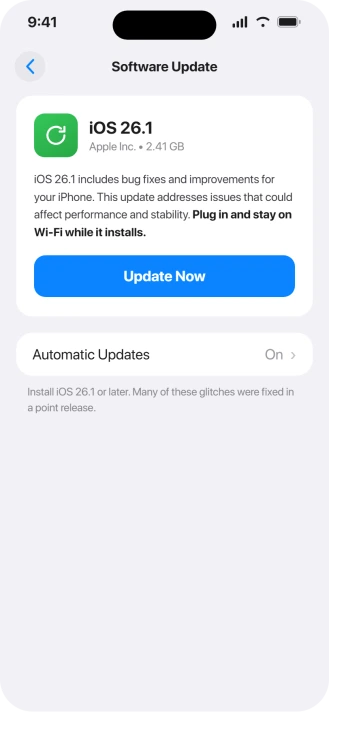
Update iOS to the Latest Version
Apple has been patching these camera regressions in its point updates, alongside the other iOS 26.5 problems people keep hitting.
Several people reported the black screen finally stopped after moving up a version, with one saying simply, "camera is functioning correctly with update to iOS 26.2." If you have been putting the update off, this may be the whole fix.
- Open Settings, then General, then Software Update.
- Install whatever is offered, plugged in and on Wi-Fi.
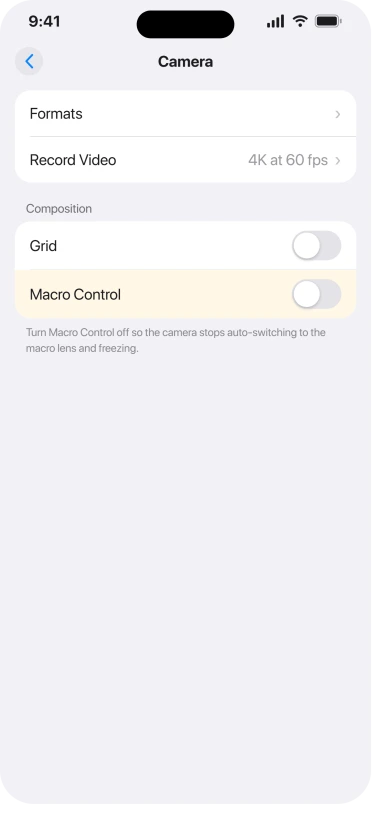
Turn Off Macro Mode
This one is specific and a little surprising. One person traced their black and blurry camera entirely to Macro mode, the close-up mode that kicks in automatically when you get near a subject.
In their words, once it triggers, "you can't get out of it" without disabling Macro. It is a quick thing to rule out.
- Open Settings, then Camera.
- Turn on Macro Control, then tap the flower button that appears in the Camera app to stop it switching to the macro lens.
Reset All Settings (Your Photos Are Safe)
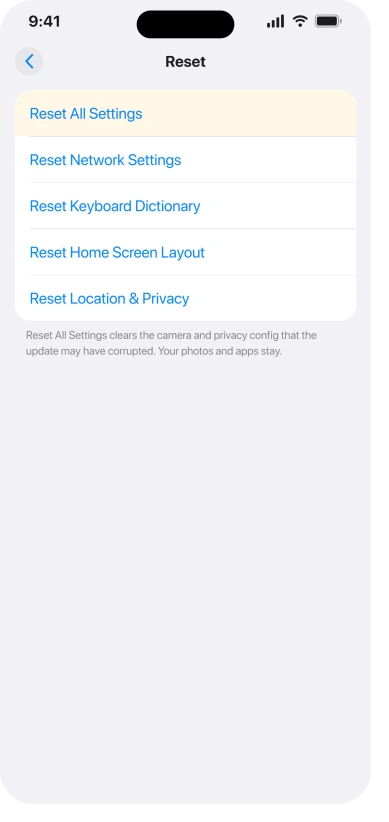
If a restart only helps for a day or two, a settings reset is the most reliable software fix short of erasing the phone.
It clears the camera and privacy configuration that may have been corrupted by the update.
Apple's reset guide confirms this does NOT delete your photos, apps, or messages.
- Open Settings, General, then Transfer or Reset iPhone.
- Tap Reset, then Reset All Settings, and enter your passcode.
This does wipe your Wi-Fi passwords, wallpaper, and other preferences, so you will set those up again.
If Wi-Fi misbehaves when you rejoin, that is a separate iOS 26 bug. Your camera roll is completely untouched.
Free Up Storage and Clear RAM
A camera that is short on memory or storage will fail to launch with the same black screen, separate from the iOS bug but easy to fix.
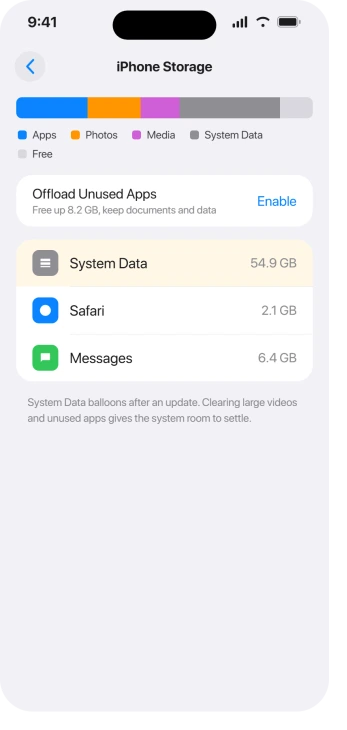
Clearing some space, starting with any ballooning System Data, gives the camera service room to breathe.
- Open Settings, General, then iPhone Storage.
- Delete some large videos or unused apps so you have comfortable free space.
- A force restart also clears your RAM, which often lets the camera launch again right away.
Check Restrictions and App Permissions
Sometimes the camera is not broken at all, it has simply been switched off somewhere. An update can flip these without telling you.
- Check Screen Time: open Settings, Screen Time, Content & Privacy Restrictions, Allowed Apps, and make sure Camera is on.
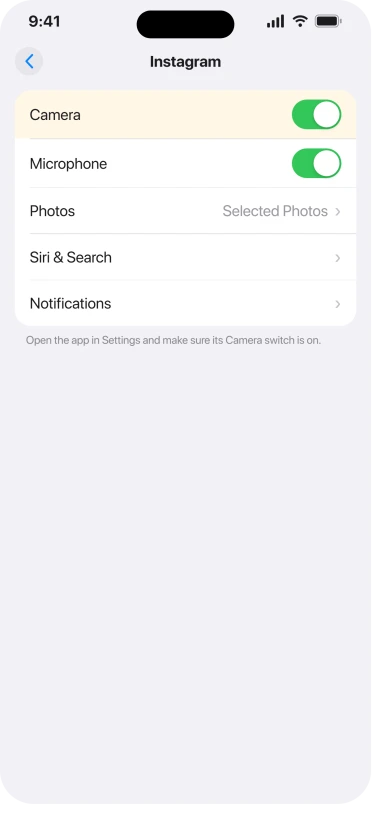
- Check the app: if the camera is black inside a specific app, open Settings, find that app, and make sure Camera is switched on.
Find the App That Triggers It
Since the cause is usually a third-party app quietly opening the camera, identifying that app helps you stop the cycle. Think about what you used right before the camera died.
- Cast your mind back: did you scan a QR code, use Walmart Pay or a store barcode scanner, open the camera inside Messages, or use TikTok or Snapchat just before it broke?
- That app is your likely trigger. Try deleting and reinstalling it, and avoid that scanner feature until you are on a fixed iOS version.
- Remember, once one app corrupts the camera service, every app looks broken, so do not waste time blaming Apple's Camera app alone.
Two small toggles have also stopped the black-screen launch for some people on iOS 26.
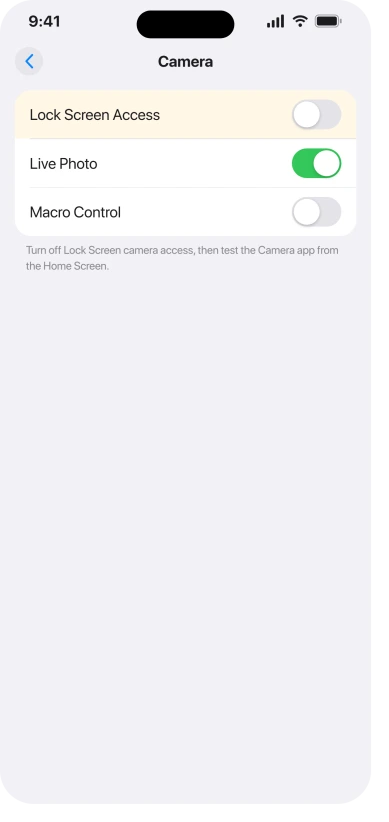
Turn off Lock Screen access to the camera (Settings, Camera, and the swipe-to-open option), then test the Camera app from the Home Screen.
You can also open the Camera app and toggle Live Photo off and back on, which sometimes resets the camera pipeline.
Use a Different Camera App as a Stopgap
Until Apple's fix lands, this keeps you taking photos. Some third-party camera apps kept working for people even while the built-in Camera app was frozen.
- Install a third-party camera app (ProCam was named by several users as still working when the native app was dead).
- Use it for your photos until a reboot or update clears the native Camera app.
It is not a cure, but it means you never actually miss a shot while you wait.
Once Apple's Camera is working again, the phone photo steps explain taking a still and checking its focus.
Still Black? Here Is What Is Left
If you have updated iOS, reset all settings, and it still will not behave:
- Restore through a computer, but temper your expectations. You can connect to a Mac or PC and restore in Recovery Mode. Just know that while the iOS bug is present, several people restored and the black screen came right back, because the problem is in iOS, not in your data. Do this only after updating and Reset All Settings.
- Do not restore from your old backup expecting a fix. It usually brings the same state right back. If you do erase, a clean setup is more telling.
- Book a Genius Bar visit if only one lens is dead. If your earlier flip test showed just one camera black, that is the case worth having Apple check, since it could be hardware. For the all-cameras-black bug, the real fix is simply the next iOS update.
The Short Version
A black or frozen camera after iOS 26 looks scary, but it is not your hardware. It is a memory leak in iOS, usually kicked off by a little scanner app.
Do the flip test first: both cameras black means it is the software bug. Force restart to get your camera back today, then update iOS for the lasting fix.
If it keeps coming back, reset all settings, rule out Macro Control, free up storage, check your permissions, and reinstall whatever app triggers it, leaning on a third-party camera app in the meantime.
Do not let anyone sell you a camera repair for a software bug.
Where to Next
More iOS 26 help: This fix is part of our iOS 26 problems and fixes guide, a single place that rounds up every common iOS 26 issue.
On an iPad, where the camera moves with you rather than freezing, that is Center Stage doing its job.
Where the camera opens but a QR code never registers, that is a setting rather than the lens.
And if the camera works but Visual Look Up never appears, that has requirements most people miss.
If something else on your iPhone is acting up after the update, start there.

Isaac Smith is the founder and editor of PC Glance, a website that covers computers, laptops, and technology. He is a tech enthusiast and a computer geek who loves to share his insights and help his readers make smart choices when buying tech gadgets or laptops. He is always curious and updated about the latest tech trends.