

Your keyboard works fine all day. Then you restart, the Mac lands on the login screen, and the keys do nothing.
Your password goes nowhere, the cursor will not move, and the second you get in some other way both devices wake up like nothing happened.
That on-off pattern points straight at the cause. A third-party keyboard or mouse that is dead at the login screen but fine afterward is almost never a broken Bluetooth stack.
It is FileVault, the disk encryption that Tahoe now switches on by default, loading your non-Apple device too late in startup.
The fix depends entirely on when the trouble happens, so pin that down before you touch a single setting.
Two problems hiding under one complaint
Decide which of these matches you, because they need completely different fixes.
- Dead at the login screen, fine once you are logged in. This is the FileVault pre-login issue, and it mostly hits third-party gear like Logitech, Keychron, or NuPhy. Start with the login sections below.
- Connects fine, then drops, lags, or stutters during use. This is interference, battery, or a stale pairing, and it can hit an Apple Magic Mouse too. Skip down to the after-login sections.
Sorting this out first saves you from re-pairing a device over and over to fix a problem that happens before pairing even loads.
First, get yourself logged in
You cannot change any setting if you cannot type your password, so this comes first. Almost every third-party keyboard and mouse has a second connection that is not Bluetooth.
Plug in the small USB dongle that came with your Logitech or other device, and flip the device to its 2.4GHz channel, usually a switch on the underside.
That link works before login because it does not wait on Bluetooth.
No dongle? Borrow any wired USB keyboard just long enough to log in. Once you are past the login window, your Bluetooth devices usually reconnect on their own.
If the Mouse page is missing from System Settings altogether, the Mac may not see a mouse at all.
Keep a cheap wired keyboard or mouse in a drawer. It is the one thing that always gets you back in, and it breaks the trap where you cannot fix Bluetooth because you have no working keyboard to fix it with.
Why the login screen is the weak spot
This is worth understanding, because it tells you why nothing you do in Bluetooth settings helps.
Your disk is encrypted by FileVault until you unlock it with your password.
Third-party Bluetooth drivers do not load until after that unlock, so at the login screen your non-Apple keyboard simply is not awake yet.
Apple's built-in and Magic devices load earlier in startup, which is why they usually still work there.
What changed with Tahoe is the default.
If you sign in with your Apple Account during setup, which is most people, the upgrade now turns FileVault on for you, so a behavior that was always technically there suddenly locked a lot of people out at the login screen.
On a local-only account it is offered, not forced.
One honest caveat. A few people found FileVault knocked out even their Apple keyboard and trackpad at login, so it is not a strict Apple-versus-third-party line for everyone.
Turn FileVault off to confirm and fix it
This is the change that actually resolved the login-screen problem for the most people. Because FileVault is what blocks the device before login, switching it off lets your keyboard load at the login screen again.
Go to System Settings > Privacy & Security > FileVault, click Turn Off, and restart.
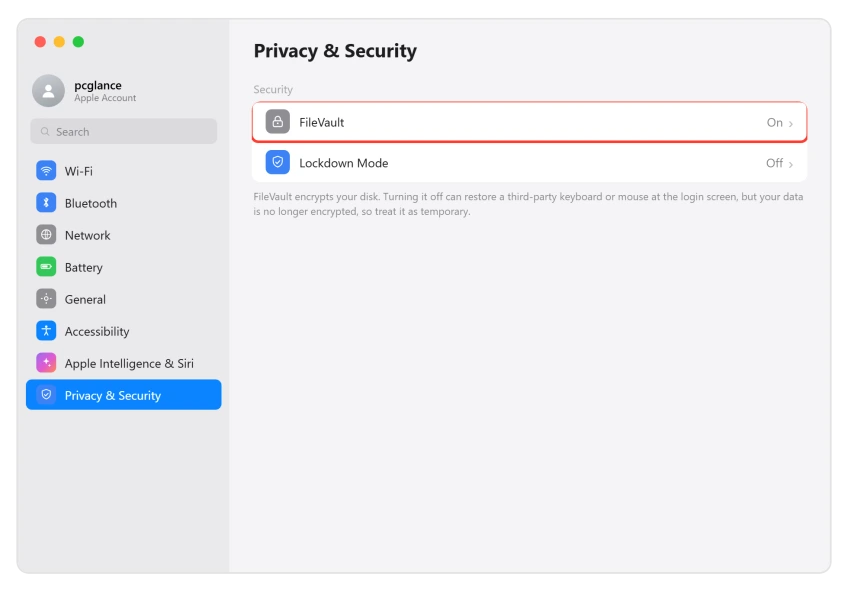
Be straight with yourself about the trade-off. With FileVault off, your disk is no longer encrypted, which is a genuine security downgrade, and several people refused this fix on principle.
One user who tried it put it plainly: "turning off FileVault re-established the connection." A fair middle path is to use it to confirm the cause, keep it off only if the login lockout is unbearable, and switch it back on if a later update fixes the timing.
As of mid-2026, through macOS 26.2, it was not fixed yet.
Now the after-login drops
Everything below is for the other problem: devices that pair fine, then cut out, lag, or jump around while you are working. Start with the cause people most often miss.
Charge the batteries before blaming the software
Tahoe seems to have gotten more aggressive about low-battery behavior on some devices.
Several people found their disconnects only started once a mouse or keyboard dropped below roughly half charge, where it never used to, with the device dropping for about twenty seconds and then reconnecting on its own.
Fully charge or swap the batteries first, then watch whether the drops stop. It is the cheapest possible test, and for some people it is the whole fix.
Forget the device and pair it fresh
A pairing record that carried over from the update can go stale, and a jumpy Apple Magic Mouse after Tahoe usually clears up the same way.
Go to System Settings > Bluetooth, click the info icon next to the device, choose Forget This Device, and confirm. Then put the device back in pairing mode and reconnect it.
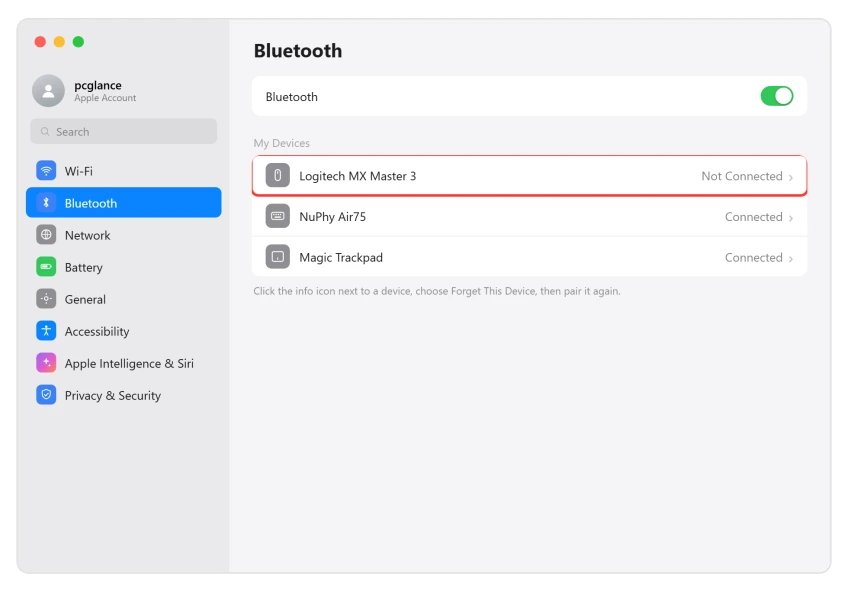
Do this one device at a time, and only with your wired backup connected. If you forget your only mouse and it drops, you do not want to be stuck with no way to finish.
Quiet the 2.4GHz interference
Bluetooth shares the crowded 2.4GHz band with Wi-Fi and AirDrop, and on Tahoe they tend to step on each other, which shows up as a stuttering cursor or laggy typing.
Connect your Mac to your 5GHz Wi-Fi network instead of 2.4GHz if your router offers both as separate names.
If your Wi-Fi has been dropping on Tahoe too, the same crowded band is often behind both.
Apple's own wireless interference advice says to keep USB-3 hubs and drives away from the Bluetooth receiver, since they leak noise on the same band.
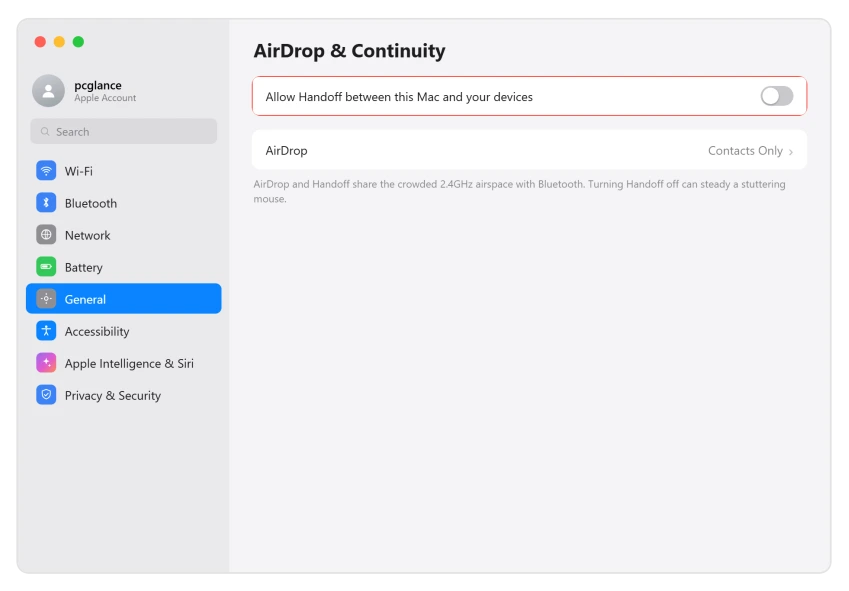
Then go to System Settings > General > AirDrop & Continuity and turn Handoff off. Handoff keeps a constant radio conversation going with your other devices, and quieting it often smooths the lag.
Update macOS and your device's own software
Both Apple and your peripheral maker ship fixes for this, and the vendor fixes do not come through the App Store.
Go to System Settings > General > Software Update and install whatever macOS offers.
If the update refuses to install, that is a separate problem with its own fixes.
Be realistic, though: 26.1 and 26.2 both shipped without fully fixing this for everyone, so update because it might help, not because it is guaranteed.
Then update the device's own app, like Logitech Options+ or G HUB, which is where makers push their Tahoe compatibility and certificate fixes.
What to skip, and what is left
A couple of popular suggestions are dead ends now.
Skip hunting for a "Reset Bluetooth Module" menu. Old guides tell you to Shift-Option-click the Bluetooth icon to find it, but Apple removed that menu back in macOS Monterey, so it is not in Tahoe at all.
You will also see advice to turn off Apple Intelligence. Exactly one person reported that stopped their lag, with nobody else confirming it, so try it if you like but do not expect much.
One more look-alike: if the keyboard is connected but your typing goes nowhere in every app, the keyboard is fine. That is the phantom focus bug, and a click on Finder in the Dock brings typing back.
When you have worked the right half of this guide, two things are left.
Do not rush out for a new keyboard, since this hits Intel and Apple Silicon Macs alike and Apple's own gear keeps working in most cases, which points at macOS, not your device.
And report it in Feedback Assistant, because Apple has not shipped a real fix, and the login-screen lockout in particular deserves the attention.
The Short Version
- The clue is the timing. Dead at the login screen on a third-party device is FileVault, which Tahoe now turns on by default.
- To get in, use the device's 2.4GHz dongle or a wired keyboard. Keep a wired one in a drawer.
- The confirmed login fix is System Settings > Privacy & Security > FileVault > Turn Off, with the real trade-off that your disk is no longer encrypted.
- Drops after login are different. Charge the batteries, forget and re-pair the device, move to 5GHz Wi-Fi, and turn off Handoff.
- Update macOS and your device's own app, but know 26.1 and 26.2 did not fully fix it.
- Skip the old "Reset Bluetooth Module" menu, it was removed in Monterey. Do not buy new hardware, and file it with Apple.
Where to Next
And on an iPhone, Bluetooth turning itself back on after you disable it has its own explanation.
On macOS 27 a Magic Mouse can show as connected and still do nothing. That fault is new, and re-pairing does not fix it.
- More Mac fixes: macOS Tahoe problems and fixes
- Mouse cursor freezing too: Mac cursor freezing on macOS Tahoe
- Back to the start: pcglance home

Isaac Smith is the founder and editor of PC Glance, a website that covers computers, laptops, and technology. He is a tech enthusiast and a computer geek who loves to share his insights and help his readers make smart choices when buying tech gadgets or laptops. He is always curious and updated about the latest tech trends.