
If your iPhone stopped ringing after the iOS 26 update, calls keep going straight to voicemail, and you suspect Focus or Do Not Disturb is to blame, the confusion almost always comes down to two controls that look the same but do different jobs.
There is an "Allowed People" list, which only controls notifications, and a completely separate "Allow Calls From" control, which is the one that actually decides whether your phone rings.
Let me work down them with you, because the one people find first is rarely the one doing it.
First, Confirm a Focus Is Actually On
Before changing settings, check whether a Focus is even running.
- Look at the top of your screen for a moon or other Focus icon, or open Control Center and look for a highlighted Focus or Do Not Disturb button.
- If one is lit up, tap it so it dims. The label should go back to just "Focus."
- Make a test call to yourself or have someone call you.
If turning the Focus off makes your phone ring normally, a Focus was the cause, and the steps below stop it silencing the wrong people.
Set "Allow Calls From," Not "Allowed People"
This is the big one, and it is the fix most people miss. The "Allowed People" list governs notifications.
A Focus that swaps your Lock Screen as well as your notifications is the same schedule seen from the other side, and our guide to a Lock Screen wallpaper that keeps changing starts from that symptom.
That makes it the list that decides for texts rather than calls, which our guide to an iPhone not getting notifications from one person works through.
The setting that controls ringing is right below it, called "Allow Calls From." If that is set to Favorites or a short list, everyone else is silenced.
- Go to Settings, then Focus, and tap the Focus that is on (often Do Not Disturb).
- Tap People.
- Find Allow Calls From and set it to Everyone.
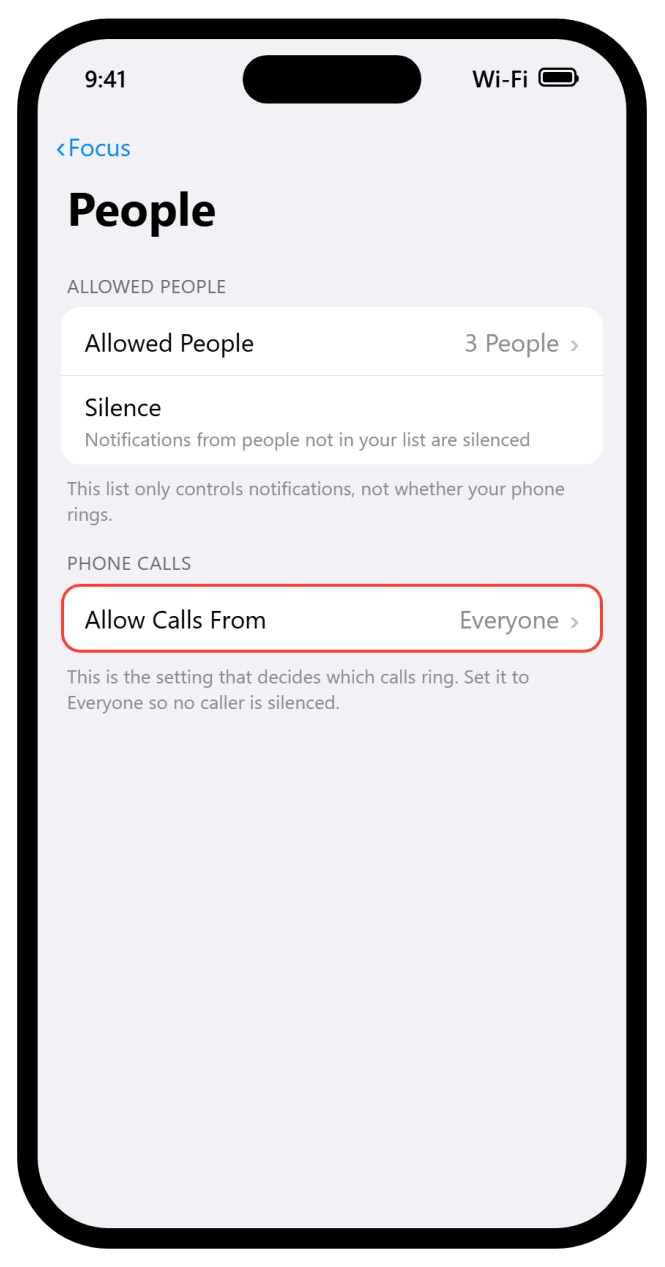
Do not waste time editing the Allowed People list at the top. As one user put it after fighting it, the Focus screen says it blocks calls but "it does NOT" behave the way the wording suggests.
The ringing is decided by Allow Calls From, full stop.
Apple's own guide to allowing or silencing calls for a Focus spells it out.
Turn Off the Two Unknown-Caller Filters
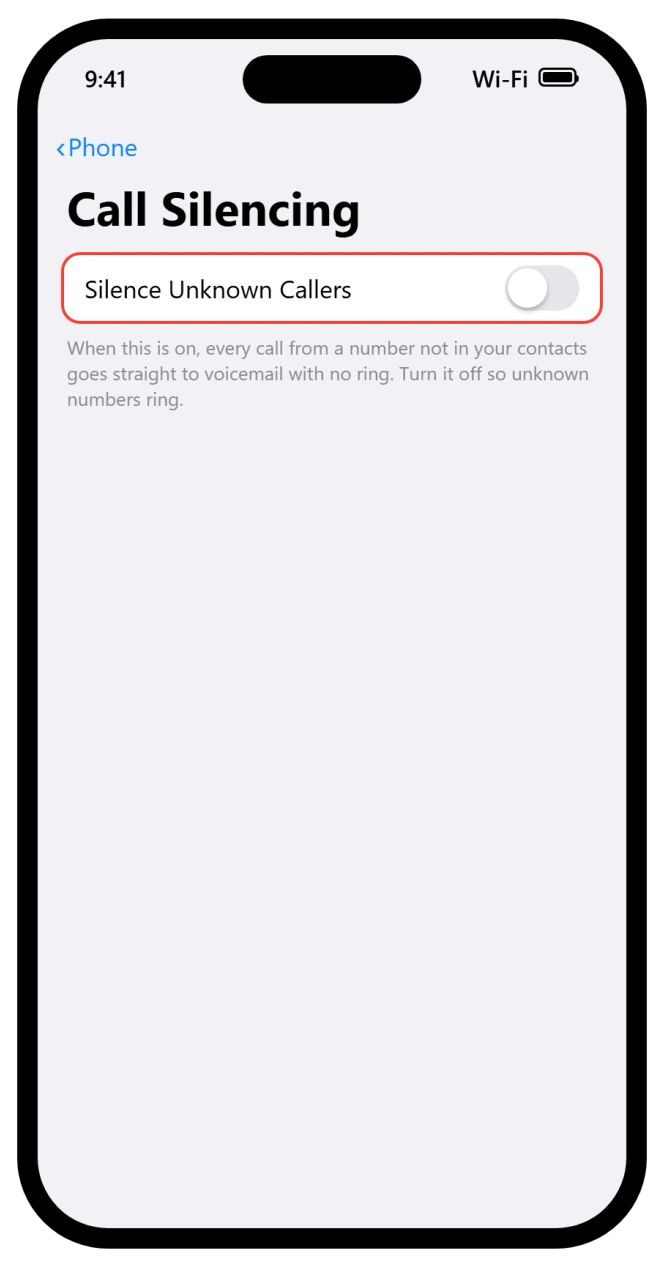
Two separate settings can send anyone who is not in your contacts straight to voicemail, and neither has anything to do with Focus. iOS 26 also moved them, so old guides point to the wrong place.
First, the older filter, which Apple covers in its Silence Unknown Callers guide:
- Go to Settings, then Apps, then Phone. App settings live under Apps now, so there is no Phone row on the main Settings screen.
- Tap Call Silencing and Blocked Contacts.
- Turn Silence Unknown Callers off.
Then the new iOS 26 one. Call Screening can intercept callers who are not in your contacts so they never ring through. If unsaved numbers vanish to voicemail, switch it off:
- Go to Settings, then Phone.
- Tap Screen Unknown Callers and set it to Never.
One thing to know: Low Power Mode quietly disables this screening feature with no warning. As one user found, "Ask Reason for Calling doesn't work on iOS 26 when Low Power Mode is on. It works fine once I turn Low Power Mode off." So if your battery is low, that alone can break calls. Turn Low Power Mode off in Settings, Battery while you test.
If iOS 26 battery drain is why you rely on it, fix the drain instead.
Hunt Down a Stuck Focus Schedule
If your Focus "keeps turning itself on," it is almost never random. A schedule or an automation is re-arming it, so toggling it off in Control Center only lasts a few minutes.
- Go to Settings, Focus, and open each Focus you use.
- Tap Set a Schedule (or look for Turn On Automatically) and delete any time or location automation you did not mean to set.
As an Apple Community moderator put it, "Focus never turns on or off by itself. One of the Focus options turns on or off." Check every Focus, not just the one you think is active.
Stop a Mac or iPad From Silencing Your iPhone
This one quietly sends people in circles.
If you have "Share Across Devices" on, a Mac, iPad, or Apple Watch left in Do Not Disturb flips your iPhone into the same Focus over iCloud, and silences your calls, even though you never touched Focus on the phone.
- On the iPhone, go to Settings, Focus, and turn Share Across Devices off.
- Then make sure your Mac or iPad is not sitting in Do Not Disturb.
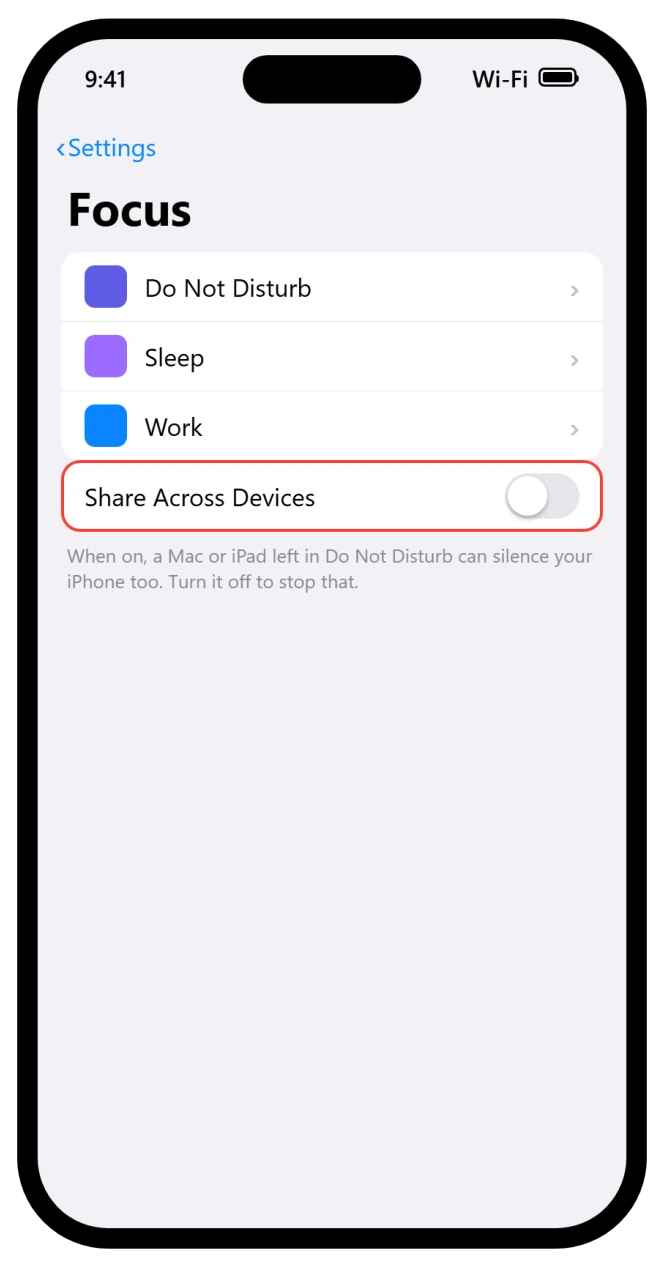
One person summed up the relief: "On my Mac, I toggle Share Across Devices to off, and then when I switch Focus modes on my phone, nothing happens on my laptop."
Watch Out for Reduce Interruptions
iOS 26's new Reduce Interruptions Focus uses Apple Intelligence to decide which calls are important, and its silencing cannot be turned off while that Focus is active.
So the AI, not your Allowed People list, chooses what rings. It can even sync onto an iPhone from a Mac.
- If Reduce Interruptions is the active Focus, switch to a normal Focus, or turn it off entirely.
- If it appeared without you setting it, check whether it switched on from your Mac, and turn it off there too.
Reset the Announce Calls Glitch
Sometimes the phone genuinely is not ringing out loud because Announce Calls got stuck on "Headphones Only" during the update. There is a simple reset for it.
- Go to Settings, Phone, then Announce Calls.
- Tap Always. If Always already looks selected, tap Never, back out, come back in, and tap Always again to force it.
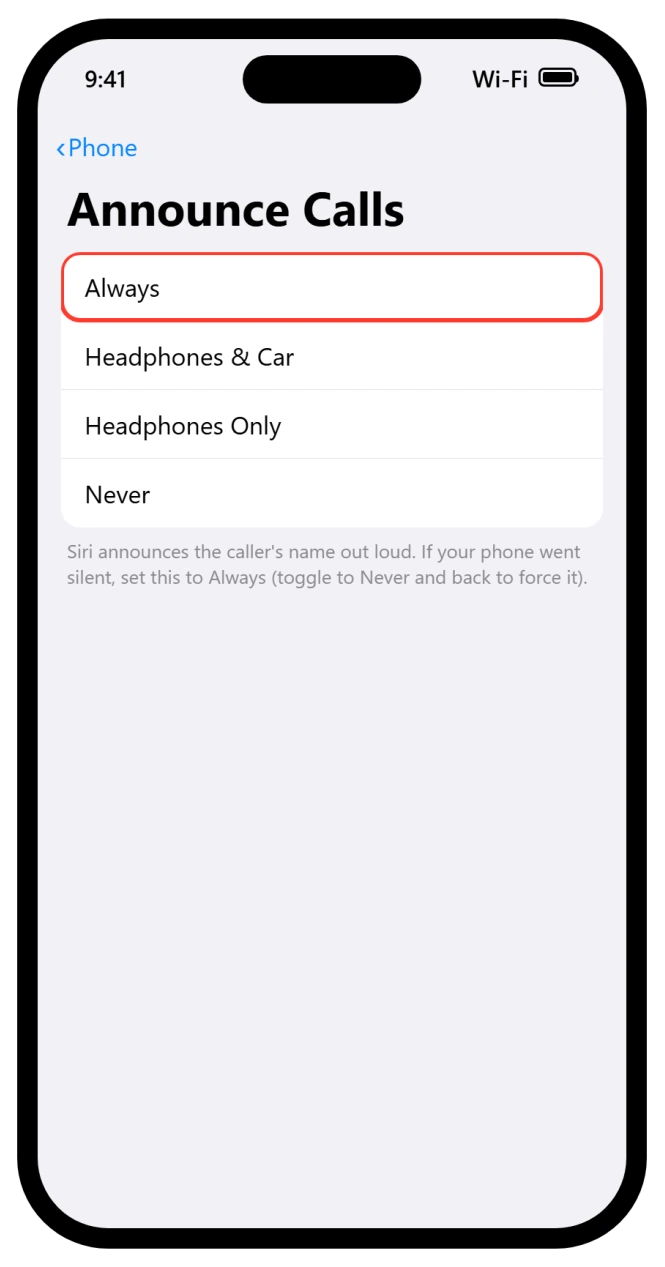
One user described exactly this fix bringing the ringtone back: "after backing out this time my phone ring tone rang out normally."
Rule Out the Non-Focus Causes
If calls still misbehave, a few unrelated settings can mimic a Focus problem. Worth two minutes to clear them.
- Call Forwarding: Settings, Apps, Phone, Call Forwarding, make sure it is off.
- Blocked Contacts: Settings, Privacy & Security, Blocked Contacts (also at Settings, Apps, Phone, Blocked Contacts), remove anyone you did not mean to block. If the opposite is happening and blocked numbers still call or text on iOS 26, that needs different fixes.
- Wi-Fi Calling: if calls drop to voicemail on Wi-Fi, turn Wi-Fi Calling off (Settings, Phone, Wi-Fi Calling) and test on cellular.
- No vibration either? That is a different set of switches, covered in iPhone not vibrating on iOS 26.
- And the obvious one, make sure Airplane Mode is off.
When It's an iOS 26 Bug, Not You
To be straight with you, some of this is genuinely Apple's fault.
On iOS 26.0 through 26.2, people set Silence Unknown Callers to Never and calls still went to voicemail, and the Control Center Do Not Disturb button sometimes offers no plain "Off." If you have done everything above, treat it as a bug.
- Update to the latest iOS 26.x (Settings, General, Software Update).
- Turn off Scheduled Summary (Settings, Notifications, Scheduled Summary), which several people linked to the regression.
- If a Focus that worked for a year broke after the update, delete and recreate it (Settings, Focus, the mode, Delete Focus, then rebuild).
- As a last resort, force restart, update Carrier Settings (Settings, General, About), then Reset Network Settings, the same steps that clear No Service and 5G drops after iOS 26.
The Short Version
The number one reason a Focus blocks your calls is the two-settings trap. The "Allowed People" list is only for notifications, while "Allow Calls From" decides what rings.
Open the active Focus, tap People, and set Allow Calls From to Everyone first, because that alone gets most people's phones ringing again right away.
If it does not, turn off both unknown-caller filters (and Low Power Mode), delete any Focus schedule that keeps re-arming, switch off Share Across Devices so a Mac in Do Not Disturb cannot silence you, drop Reduce Interruptions, reset Announce Calls to Always, and clear Call Forwarding, Blocked Contacts, and Wi-Fi Calling.
Still stuck after all that, and you are likely looking at an iOS 26 bug, so update, disable Scheduled Summary, and recreate the Focus.
Calls going out rather than not coming in: If the phone is dialling emergency services on its own, that is a different set of switches, and our guide to an iPhone that called emergency services covers them.
Where to Next
More iOS 26 help: This fix is part of our iOS 26 problems and fixes guide, a single place that rounds up every common iOS 26 issue.
Once calls are reaching you again, a greeting that will not save is a separate and fixable annoyance.
Emergency Bypass is what lets one person through a Focus, and it fails in six specific ways.
Automations that stopped firing after the same update are worth checking together. Shortcuts automations broken on iOS 26.6.
If something else on your iPhone is acting up after the update, start there.

Isaac Smith is the founder and editor of PC Glance, a website that covers computers, laptops, and technology. He is a tech enthusiast and a computer geek who loves to share his insights and help his readers make smart choices when buying tech gadgets or laptops. He is always curious and updated about the latest tech trends.