
You opened Messages after the iOS 26 update and a conversation, or years of them, is just gone.
The reassuring news is that in the large majority of cases your texts are not actually deleted.
They are sitting in a recovery folder, hidden behind a new filter, or still downloading from iCloud.
iOS 26 shuffled a few things around that make perfectly safe messages look lost.
It reworked how unknown senders are filtered, it forces your whole message library to re-download after the update, and for some people it quietly flipped on a setting that auto-deletes old texts.
So before you panic or pay for some recovery app, start with the checks that get most messages back in seconds.
Check Recently Deleted First
This is the safest place to look and the most likely spot a truly deleted thread still lives.
Apple keeps deleted conversations for up to 30 days.
- Open Messages and tap the Filters button at the top left of the conversation list.
- Tap Recently Deleted.
- Select the conversations you want, or tap Recover All, then tap Recover and confirm.
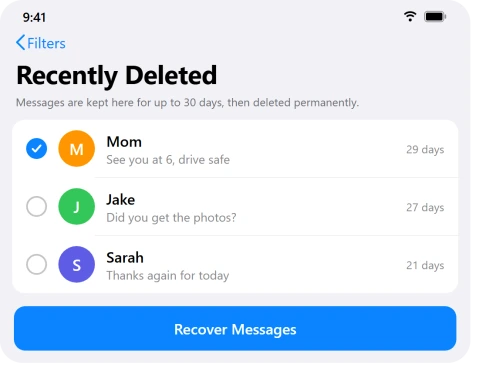
Pro tip: Do this sooner rather than later, since entries clear out for good after about 30 days. One honest note: in some iOS 26 cases where the whole history vanished, this folder came up empty.
If yours is empty, move on to the iCloud and backup steps.
Look in the Hidden Unknown Senders Filter
If Screen Unknown Senders is on, texts from anyone not in your Contacts go to a separate inbox, with no alert and no badge. Apple prints no default for that switch, so check it rather than assume.
A "deleted" conversation is very often just filtered out of your main list, not gone at all.
- In Messages, tap the Filters button and open Unknown Senders (and Spam if you see it).
- To bring a sender back to your main inbox, open the thread and tap the number at the top, then add them to Contacts, or just reply.
- To stop the filtering entirely, go to Settings, Apps, Messages, Unknown Senders, and turn off Screen Unknown Senders.
Let Messages in iCloud Finish Syncing
A big update forces your entire message library to re-download, and on iOS 26 that sync often stalls, the same way iCloud Photos gets stuck on syncing paused.
Your history is still in iCloud, it just has not landed on the phone yet.
- Go to Settings, tap your name, then iCloud, then Messages, and make sure Use on this iPhone is on. If there is a Sync Now button, tap it.
- Plug in and get on strong Wi-Fi, since sync will not run on cellular. If Wi-Fi itself broke after iOS 26, fix that first. Set Auto-Lock to Never so the screen stays awake and leave it running, ideally overnight.
- If it stays stuck, the odd but widely confirmed community fix is: in Settings, Apps, Messages, turn on both Screen Unknown Senders and Filter Spam, then run Sync Now again.
- Switch them back once the sync completes. Leaving both on is a common reason one person's texts stop arriving, which is covered in an iPhone not getting notifications from one person.
Important: A large library can take hours, sometimes a couple of days, to fully download, and search takes a few more days to rebuild. Do not assume it failed too soon.
Stop the Silent Auto-Delete
One setting actually erases history for good, and the update has flipped it on for some people. If your texts are aging out on a schedule, this is why.
- Go to Settings, Apps, Messages. In iOS 18 the Messages settings moved here, under Apps, not the old top-level spot, and Apple never announced it.
- Under Message History, tap Keep Messages.
- If it says 30 Days or 1 Year, change it to Forever.
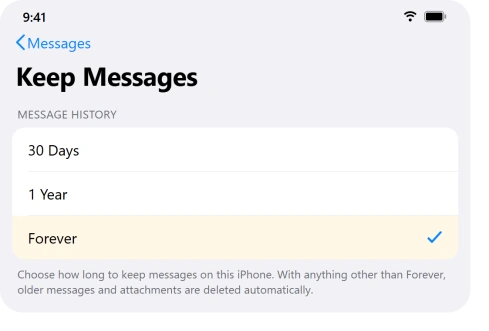
Important: Setting this to Forever stops future deletions but cannot bring back texts already removed. Those only come back from Recently Deleted or a backup.
Restart, Then Re-Check iMessage
A restart clears a Messages database that got stuck mid-rebuild during the update, and it is worth confirming iMessage is even pointed at this phone.
If iMessage refuses to activate at all, that problem has its own set of fixes.
- Restart the iPhone (hold the side and a volume button, drag to power off, wait 30 seconds, power back on), then give Messages a few minutes to re-sync.
- If iMessages still misbehave, go to Settings, Apps, Messages, turn iMessage off, wait, and turn it back on.
- Tap Send & Receive and make sure your phone number and the right Apple Account email are checked.
Fix the Dual-SIM iMessage Bug
This is the one Messages problem Apple officially admitted in iOS 26.
If you have a second SIM or eSIM sharing the same number, iMessage can fail to activate, so texts drop to green SMS or send from your email.
- Update to iOS 26.1 or later, which addresses it.
- Remove the duplicate inactive line in Settings, Cellular (eject a physical SIM, or tap an eSIM line and choose Delete eSIM).
- Re-tick your number under Settings, Apps, Messages, Send & Receive.
Restore From a Backup, Only as a Last Resort
If the texts are past the 30-day window and not in iCloud, a backup made before they vanished is the only way back. This one wipes the phone, so it is genuinely last.
- First rule out Recently Deleted, the Unknown Senders filter, and a fully finished iCloud sync.
- Find a backup dated before the loss in Settings, your name, iCloud, Manage Account Storage, Backups, or a computer backup.
- Back up the current phone first if you want any newer data, then erase and restore from the older backup during setup.
Important: Restoring erases everything newer than that backup, so only do this once you are sure the backup predates the loss.
The Short Version
Most "missing" iPhone messages after iOS 26 are not deleted. Check Recently Deleted, then the hidden Unknown Senders filter, then give Messages in iCloud time to finish downloading.
If old texts really are vanishing on a schedule, set Keep Messages to Forever to stop it.
A restart and a Send & Receive check fix the stragglers, the dual-SIM bug has an official fix in iOS 26.1, and a pre-loss backup is the final option if all else fails.
Where to Next
More Apple fixes: This guide is part of pcglance, your plain-English home for Apple fixes.
For more help with your iPhone, iPad, or Mac after an update, head to the pcglance homepage and pick your device.

Isaac Smith is the founder and editor of PC Glance, a website that covers computers, laptops, and technology. He is a tech enthusiast and a computer geek who loves to share his insights and help his readers make smart choices when buying tech gadgets or laptops. He is always curious and updated about the latest tech trends.