
You back out of the driveway, CarPlay flashes on, the map loads, and a minute later it drops and reconnects on its own. Then it does it again.
Plenty of drivers ran into that loop right after iOS 26, mostly on the iPhone 17 family.
The pattern is usually the same. CarPlay connects, plays for a bit, then drops and reconnects in a loop. Many people notice it happens right when the phone screen locks.
Let me take you through what actually holds, because most of the advice on this is guesswork.
New on iOS 27: CarPlay will not start at all
iOS 27 brought a different fault. CarPlay stops connecting at all, on phones and cars that worked the day before. Apple's forum thread on it has 50 Me too, from Toyota, Volkswagen, Mazda and Honda drivers.
If that is you, owners found four things that brought it back.
1. Turn off Connectivity Assist. It is new in iOS 27, and Apple says it "enables more seamless transitions between Wi-Fi and cellular networks". Wireless CarPlay runs over the car's own Wi-Fi.
One owner's route was "Settings>WiFi and make sure Connectivity Assist was off". They added: "When I checked, mine was on by default".
They also forgot the car on the phone and used their old cable: "Connected it using the same old cable that worked before for the 16, and it connected just like new."
2. Put Display Zoom back on Default. On iOS 27 it lives under Settings, Appearance, Display Zoom, in Apple's guide.
One owner switched "from Bigger Text to Default" and wrote: "Afterward CarPlay is working, even if I sett the Bigger Text back."
3. Turn off your VPN. The VPN section further down applies on iOS 27 too. One driver wrote: "I had to turn off VPN, which I absolutely should not have to do."
4. Check your car for a software update. A Level 8 adviser pointed out that "The firmware on the vehicle's stereo / infotainment system may need updating".
A Level 7 member's car got exactly that: "My 2024 Chevrolet Traverse recently received a software update from GM stating improved Car Play connectivity."
The usual resets did not help one Toyota owner: "I've tried resetting network settings, I've tried forgetting my car on the phone, I've tried different cables".
And going back is off the table: "You will find that downgrading back to iOS 26 is not possible."
What is actually going wrong
If you have an iPhone 17, 17 Pro, 17 Pro Max, or iPhone Air, the likely cause is the new in-house N1 wireless chip those four phones share. Its early firmware did not get along with some cars' Wi-Fi.
Wireless CarPlay rides on Wi-Fi and Bluetooth, so an N1 firmware quirk hits it directly.
The same chip is behind the iPhone 17 Bluetooth dropouts many owners hit on iOS 26.
One iPhone Air owner put it well: "It worked without issues on my old iPhone 15 Pro Max but disconnects every minute or so on my new iPhone Air."
The good news is that this is a software bug, not a broken phone. Apple has been chipping away at it, and there are settings you can change today to make it stable in the meantime.
Ignore one myth. If you read that the "C1X modem" causes this, that is a mix-up. The C1X is a cellular modem, it lives only in the iPhone Air, and cellular has nothing to do with CarPlay. The N1 chip is the real suspect.
Update your iPhone, but do not stop at iOS 26.0.1
This is the single highest-value step, with one catch. The disconnect wave started with iOS 26.0.
Apple's first patch, iOS 26.0.1, even mentions Wi-Fi and Bluetooth disconnects on iPhone 17 models in its release notes.
26.0.1 did not fix it for many people, though, and some complaints blamed that build for being worse. So if you are sitting on 26.0.1, do not assume you are on the good version.
The builds drivers credit with real, lasting improvement came later. These are user reports rather than spelled-out Apple fixes, but the pattern is consistent.
- iOS 26.1 (Nov 2025): steadier for many, especially with aftermarket adapters.
- iOS 26.3 (Feb 2026): the one many iPhone 17 Pro Max owners say ended months of dropouts.
- iOS 26.4 (Mar 2026): credited by drivers with calming the screen-lock drop in particular.
One driver summed it up after a long ordeal: "26.4 is the first time my phone has not disconnected from CarPlay."
To update, go to Settings > General > Software Update and install the newest version offered. Aim for 26.3 or later if you can. The point is not that newer is always magic, it is to get past 26.0.1.
Stop the lock screen from killing the connection
Since the drop so often happens the moment the screen turns off, the goal is to stop a locked phone from cutting CarPlay loose. A couple of settings help.
Start with the solid, well-documented one. Go to Settings > Privacy & Security > Accessories (called Wired Accessories on some builds) and choose Always Allow.
Drivers report this steadies both wired drops and lock-triggered wireless ones.
If your CarPlay car screen shows a per-car toggle named something like Allow CarPlay While Locked, turn it on. Find it under Settings > General > CarPlay, then tap your car.
Not every build exposes it, so do not worry if you do not see it.
Even then, some phones still refuse to connect while locked. As one user said, "My phone won't connect to CarPlay unless I unlock it." If that is you, the iOS update above matters even more.
Need to survive a road trip right now? Set Settings > Display & Brightness > Auto-Lock to Never.
It adds to any iOS 26 battery drain you already have, but it keeps CarPlay alive until you are on a fixed build.
Check that the update did not switch CarPlay off in Screen Time
This one catches people out. The iOS 26 update silently flipped CarPlay's permission off for some users under Screen Time, so the car simply stopped seeing the phone.
It is quick to check. Go to Settings > Screen Time > Content & Privacy Restrictions > Allowed Apps and make sure CarPlay is switched on. Some builds label the list "Allowed Apps & Features."
Apple confirms this is a real cause: "If your iPhone isn't detected by CarPlay, make sure that CarPlay isn't restricted." This is exactly the setting they mean.
One note: in iOS 26, changing Content & Privacy Restrictions can ask for your Screen Time passcode. Have it handy if you are prompted.
Forget the car and pair it again from scratch
If CarPlay used to connect fine and now misbehaves, a clean re-pair clears out a confused connection. This is Apple's own go-to reset step.
On the phone, go to Settings > General > CarPlay, tap your car, then tap Forget This Car and confirm.
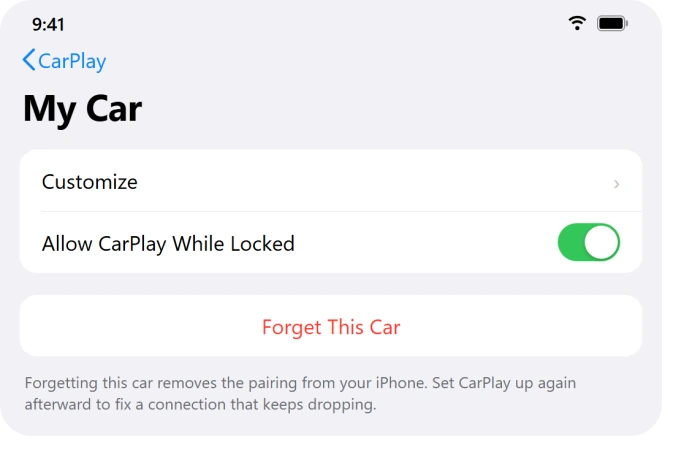
Do not stop there. The car keeps its own pairing record, so also delete your iPhone from the car's Bluetooth or phone list. Otherwise the car may not offer itself up for a fresh pairing.
Now set it up again. For a wireless-only car, put the stereo in wireless or Bluetooth pairing mode first, often by holding the steering-wheel voice button.
Then on the phone go to Settings > General > CarPlay, choose Available Cars, and pick your car.
A few drivers also rename the phone under Settings > General > About > Name before re-pairing, which occasionally helps.
Make sure wireless CarPlay's two radios are both on
Wireless CarPlay needs Bluetooth for the handshake and Wi-Fi for the actual screen data. If either is off, the link cannot hold, and updates sometimes toggle these without you noticing.
- Settings > Bluetooth must be on.
- Settings > Wi-Fi must be on. You are not joining a normal network, but CarPlay still needs Wi-Fi alive.
- In Settings > Wi-Fi, tap the (i) next to your CarPlay network and confirm Auto-Join is on, so the phone reconnects on its own.
While you are on that network's info screen, there is one more high-value toggle worth changing.
Turn off Private Wi-Fi Address for the car's network
iOS now defaults to a randomized "private" Wi-Fi address. That rotating address can break a car's saved pairing, because the car no longer recognizes your phone as the device it paired with.
This has been a reliable wireless CarPlay fix since iOS 18, and it still applies on iOS 26. Do it while parked.
Go to Settings > Wi-Fi, tap the (i) next to your car's Wi-Fi network, and set Private Wi-Fi Address to Off.
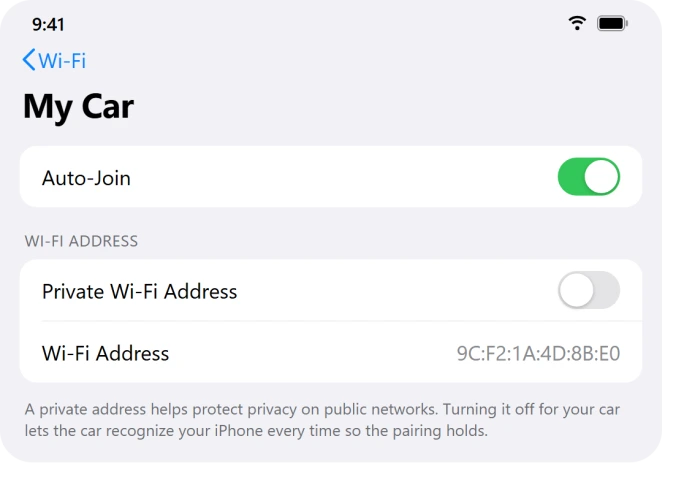
One driver's result was typical: "My iPhone connected very fast after I turned off Private Wi-Fi Address." Note the car's network only appears in your Wi-Fi list after you have connected to it wirelessly at least once.
If you wear an Apple Watch, try driving without it
This sounds odd, but it is a surprisingly consistent trigger. A connected, unlocked Apple Watch seems to add to the wireless juggling the N1 chip is already struggling with, and the link drops.
As one driver described it: "It only happens when I'm wearing my Apple Watch. Turn the watch off and CarPlay is fine."
To test it, either power the watch off for the drive, or switch off the watch's Wi-Fi and Bluetooth in its own Settings. It does not help everyone, but when it works, it works cleanly.
Switch off VPNs and Private Relay while connecting
A VPN running on your phone can interfere with the local Wi-Fi link CarPlay depends on. Drivers regularly find CarPlay refuses to connect until the VPN is off.
Turn the VPN off before you connect, and disable any always-on or kill-switch option it has. For stubborn cases, remove the profile at Settings > General > VPN & Device Management, restart, and test.
Apple's own iCloud Private Relay behaves like a built-in VPN, so rule it out too. Toggle it off at Settings > [Apple Account] > iCloud > Private Relay.
This one is more of a maybe than a sure thing, but it takes seconds to check.
Reset network settings if the toggles have not done it
If the re-pair and toggles have not worked, resetting network settings gives Bluetooth and Wi-Fi a clean slate. It fixes some people and does nothing for others, so treat it as a mid-tier step, not a first move.
Go to Settings > General > Transfer or Reset iPhone > Reset > Reset Network Settings and enter your passcode. The phone reboots in a couple of minutes.
The trade-off is real. This wipes every saved Wi-Fi password, Bluetooth pairing, and VPN setting on the phone. You will have to re-pair the car and re-enter your home and work Wi-Fi afterward.
The most reliable escape hatch: go wired
If you just need CarPlay to stay connected today, plug in. Wired CarPlay does not use the N1 chip's wireless reconnection logic, so it sidesteps the whole drop-and-reconnect loop. It is the steadiest fallback.
The one rule: use a real data cable, not a charge-only one. A cheap charge-only cable will not carry CarPlay.
Drivers specifically named working cables like an Anker USB-A to USB-C, the cable in the iPhone 17 box, and a shielded Belkin.
A few practical tips:
- Plug straight into the car's data USB port, the one marked with a CarPlay or phone icon, not a hub or extension.
- Keep the cable short. Long cables, hubs, and adapters all hurt reliability in a moving car.
- On a USB-C iPhone going into an older Lightning-cable car, Apple warns some adapter and cable combinations break the link, so a direct connection is best.
If your car only supports wireless, an inexpensive wireless-to-wired adapter is another way some drivers bypass the native problem. Just know those run their own firmware, which is the next section.
When it is the car or adapter, not your iPhone
Not every iOS 26 disconnect is the phone's fault, and once you spot the signs below you can stop fiddling with phone settings.
It is probably the car or adapter if:
- Wired CarPlay works perfectly but wireless does not. That points at the wireless hardware in the car or adapter, not iOS.
- The same iPhone works fine in a different car, or a friend's phone also fails in yours.
- The trouble started before any iOS update, or survives a full phone reset.
- Only one specific vehicle is affected.
In those cases the fix is on the car side.
Check the car's own infotainment menu for a system or software update, and search your car brand's forum or ask the dealer about a CarPlay service bulletin.
Apple agrees: "Make sure that your CarPlay stereo is using the latest firmware from the car manufacturer."
Third-party adapters need their own firmware too. CarlinKit, for one, acknowledged a 5.0 incompatibility with iOS 26 that disconnected iPhone 17 owners after a few minutes, then fixed it with an adapter update.
For most CarlinKit and Autokit units, you join the adapter's own Wi-Fi, open a browser to its config page, and tap Check Update.
Never unplug a third-party adapter mid-update, since interrupting it can permanently brick the dongle.
Two more edge cases to rule out. If two phones are paired to the same car they fight over the connection, so forget the spare phone in the car's Bluetooth list.
And cabin gadgets like dashcams or a personal hotspot can crowd the Wi-Fi channel CarPlay needs, so switch them off and re-test.
One thing that is not actually a disconnect
If your real complaint is "I stopped getting calls and texts in the car," that may not be a connection drop at all.
The old Do Not Disturb While Driving is now Driving Focus, and it silences notifications by design when CarPlay connects.
Check Settings > Focus > Driving to see how it is set. CarPlay can be working perfectly while Driving Focus quietly holds your messages.
Focus modes can silence calls and texts outside the car too.
And if CarPlay connects but lists your Apple Music playlists oldest first, the playlist order page has two workarounds owners use.
The Short Version
After iOS 26, wireless CarPlay started dropping for a lot of people, most heavily on the iPhone 17 family because of its new N1 wireless chip. It often cuts out the instant the screen locks.
It is a software bug, not a broken phone.
Start easy. Update past iOS 26.0.1, aiming for 26.3 or later. Set Accessories to Always Allow, confirm CarPlay is still allowed in Screen Time, and turn off Private Wi-Fi Address for the car's network.
If wireless still fights you, plug in with a real data cable, the most dependable fallback. And if wired works but wireless never does, the problem is the car or adapter, so update that firmware instead of your phone.
Where to Next
More Apple fixes: This guide is part of pcglance.
Where the car charges the phone as well as connecting it, wireless charging failing is a separate list.
Where Driving Focus never comes on by itself in the car, six things decide whether it triggers.
See the full iOS 26 problems and fixes hub, or head to the pcglance homepage and pick your device.

Isaac Smith is the founder and editor of PC Glance, a website that covers computers, laptops, and technology. He is a tech enthusiast and a computer geek who loves to share his insights and help his readers make smart choices when buying tech gadgets or laptops. He is always curious and updated about the latest tech trends.