

Your Time Machine backups have quietly stopped and you have no idea how long it has been. That is a horrible thing to discover, so let me help you check and fix it.
The NAS that quietly backed up your Mac for years went silent after the Tahoe update, and the failure only surfaced when you needed it.
What shifted is real: Tahoe changed how it talks to network drives over SMB.
Below is the mechanism behind it, and how to fix it without quietly downgrading your Mac's security.
Why Tahoe Suddenly Broke NAS Backups
Time Machine backs up over a protocol called SMB. SMB has a security feature called packet signing that cryptographically signs each packet so tampering can be detected.
For years this was relaxed.
As Apple's own KB on SMB signing puts it, packet signing has been "off by default" since macOS 10.13.4, turning on automatically only "when needed if the server offers it."
With Tahoe, the community consensus is that the SMB client got stricter about signing and negotiation. NAS units set up for older, looser SMB now fail the handshake Time Machine needs.
The pattern is specific. Your share still mounts fine in Finder, but the backup dies almost instantly after "Preparing backup." The most reported error string is `BACKUP_FAILED_DISCONNECTED_DISK_IMAGE`.
One honesty note up front. Apple has not published a page confirming that Tahoe flips SMB signing to required by default.
The breakage is real and widely reported, but the exact internal cause is community-attributed.
First, Confirm This Is the Signing Problem
Before changing anything, check whether your symptoms match. Mount the NAS share, then open Terminal and run a quick diagnostic.
Type `smbutil statshares -a` and read the output. Each mounted share lists its `SMB_VERSION`, the server, and a `SIGNING_ON` field.
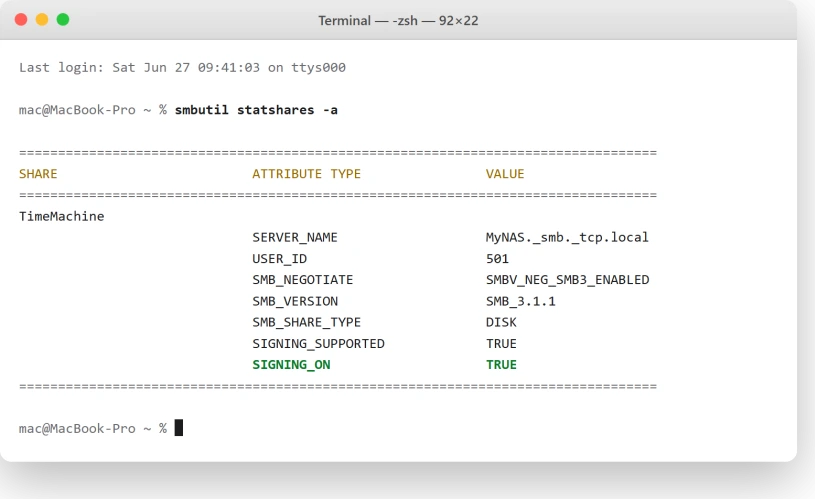
The rule of thumb, echoed by NAS vendor 45Drives, is simple. If `SIGNING_ON: TRUE` is not present, signing is effectively off on that connection. That is the axis you are diagnosing along.
You can also pull the logs right after a failed attempt. Run `tmutil destinationinfo` to confirm the destination, then `log show –predicate 'subsystem == "com.apple.TimeMachine"' –last 10m`.
If the logs show `Operation not supported (error 45)`, the share mounts fine, and backups die at validation, the signing problem is what you are dealing with.
If instead you see an authentication failure with `NAConnectToServerSync failed with error: 80`, jump to the credential-bug section near the end.
The Safe Fix: Update and Configure the NAS
Start here. This keeps your Mac's security intact, because instead of weakening the Mac to tolerate a weak server, you bring the server up to what Tahoe expects.
Begin by updating your NAS firmware or OS.
A Samba bug in some recent versions was reportedly clashing with Tahoe and got fixed in a newer Samba build, so a current DSM or QTS release is the foundation for everything below.
On Synology, go to Control Panel > File Services > SMB > Advanced Settings. DSM 7.2 exposes "Enable server signing" and SMB durable handles.
Turn on durable handles, set the maximum SMB protocol to SMB3, and make sure SMB1 is off.
Synology's own KB on enabling SMB signing warns that server signing can reduce read and write speed. Expect a small performance cost in exchange for a clean, signed connection.
On QNAP, open Control Panel > Network & File Services > Win/Mac/NFS > Microsoft Networking. Enable SMB3, disable SMB1, and confirm opportunistic locking is on.
QNAP has published a KB acknowledging Time Machine failures after the macOS 26 Tahoe update.
Whichever NAS you run, the single most important toggle is the per-share Time Machine option.
On Synology and QNAP alike, the backup folder must be explicitly marked as a Time Machine share, not just a generic SMB folder.
A QNAP owner on a recent QTS build confirmed a full recovery with a clean rebuild.
They deleted and recreated the Time Machine folder, rebooted both the NAS and the Mac, and re-enabled the "Time Machine backup folder" setting.
Their result said it all: "It worked. It is backing up now, has been for about 40 mins, and is at 104GBs and counting."
Pro tip: cap the backup size on the Mac too. In System Settings > General > Time Machine, select the disk, open Options, and set a Disk Usage limit.
Several people found a size cap was the difference between a stuck backup and a finished one.
The Cleaner Mac-Side Tweak, With Signing Still On
If the NAS is fully updated and configured but Tahoe still stumbles on the negotiation, a Mac-side config can help without lowering your security.
It keeps signing required and just makes the rest of the handshake deterministic.
This is the widely shared community config. It creates `/etc/nsmb.conf` with signing turned on, plus a few compatibility flags. That file affects every SMB connection on the Mac, so type it carefully.
In Terminal, run this exactly:
sudo tee /etc/nsmb.conf >/dev/null <<'EOF'
[default]
signing_required=yes
streams=yes
soft=yes
dir_cache_max_cnt=0
protocol_vers_map=6
mc_prefer_wired=yes
EOF
Then reboot, or eject and remount the share. The `[default]` header sits on its own line with each key beneath it.
The `protocol_vers_map=6` value allows only SMB 2 and SMB 3, so SMB 1 is off the table, and `mc_prefer_wired=yes` helps if Tahoe Wi-Fi keeps dropping.
Confirm it took with `cat /etc/nsmb.conf`, then re-run `smbutil statshares -a` after remounting to check the negotiated version.
Reports on this one are honestly mixed. Some people got fully unstuck, others found it was not enough on its own, and a few saw it regress in a later beta.
It is worth trying because signing stays on, but it is not a guaranteed cure.
The Risky Workaround: Turning Signing Off
You will see this fix thrown around casually, and it is the one to treat with the most caution.
Setting `signing_required=no` tells your Mac to stop insisting on signed packets so it can talk to a server that cannot sign.
It often works. It also lowers your security. Apple says it plainly: "If you turn off packet signing, you lower the security of the SMB connection."
Security note: without signing, someone on the same network path can tamper with your SMB traffic or relay your authenticated session in a man-in-the-middle attack. That relay risk is exactly why signing exists.
So only consider this on a trusted, private network you control, like a home LAN to your own NAS. Never on shared office, dorm, or public Wi-Fi, and only as a stopgap until the NAS can sign properly.
If you accept that trade-off, run:
sudo tee /etc/nsmb.conf >/dev/null <<'EOF'
[default]
signing_required=no
EOF
Then eject every mounted SMB share and reconnect with Cmd+K, or reboot. After remounting, `smbutil statshares -a` should no longer show `SIGNING_ON: TRUE` for that connection.
Undoing it matters just as much.
Open the file with `sudo nano /etc/nsmb.conf` and set the line back to `signing_required=yes`, or remove the file entirely with `sudo rm /etc/nsmb.conf`, then reboot.
Your Mac goes back to enforcing signing.
Re-add the Backup Disk Cleanly
Sometimes Tahoe just needs a fresh pointer to the destination.
Apple's troubleshooting page for failed backups starts with checking the backup disk, so mount the share first, then re-add it.
Open Finder, press Cmd+K, and enter your NAS address as `smb://your-nas-name`. Sign in and save the credentials in your Keychain.
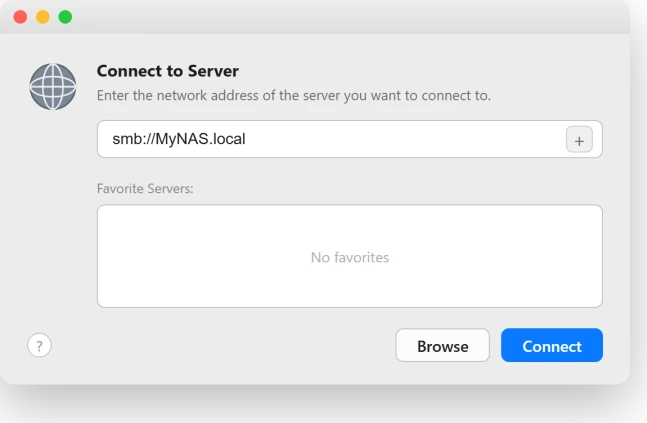
With the share mounted, go to System Settings > General > Time Machine > Add Backup Disk, pick the NAS volume, and let it set up. Re-entering the password here clears a lot of stale-connection states.
When a Non-ASCII Name Is the Culprit
Here is a separate, fully confirmed Tahoe bug that looks like the signing issue. If your Mac's name, the NAS share, or the backup volume contains accented or non-Latin characters, backups can fail outright.
Behind it is a Unicode mismatch. Tahoe creates the backup with the name stored one way, then later looks it up in a different normalized form, so it cannot find its own disk.
Characters like a Dutch "e with an umlaut" or Japanese kana trigger it.
The fix is refreshingly simple. Rename everything in the chain to plain English letters and numbers, with no accents or special characters.
Rename the Mac in System Settings > General > About, rename the share on the NAS, and rename the backup volume to ASCII only.
One user put it bluntly after renaming their volume: "I renamed it and immediately it started to work."
When Tahoe Forces a Full Backup Every Time
A different symptom from the same era: backups run, but Tahoe insists on a full backup every cycle instead of an incremental one. Logs often show "Permission denied" reading volume capabilities.
What drives it is stale machine-identity metadata. macOS no longer recognizes the existing destination as its own, so it starts over.
The common fix is removing the leftover extended attributes from the backup destination.
After mounting the share, the attributes people remove with `xattr -d` are:
- `com.apple.backupd.HostUUID`
- `com.apple.backupd.BackupMachineAddress`
- `com.apple.backupd.ComputerName`
- `com.apple.backupd.ModelID`
- `com.apple.timemachine.private.structure.metadata`
This one sits at medium confidence in the reports, and removing the wrong attribute is messy. If you are not comfortable in Terminal, recreate the destination instead of hand-editing attributes.
The 26.4 Credential Bug Is Apple's to Fix
Be honest about which problem you actually have, because one of them is not yours to solve.
macOS 26.4 introduced a distinct regression that broke network backups for huge numbers of people across Synology, QNAP, TrueNAS, Ugreen, and TerraMaster.
The signature is an instant authentication failure even though the same credentials still mount the NAS perfectly. The give-away in the logs is `NAConnectToServerSync failed with error: 80`.
Re-adding the disk and re-entering the password does not fix this one. There is an advanced root-level workaround that edits a plist, but it is risky and not for most people.
The good news is that this credential bug was reported fixed in the macOS 26.5 update.
If error 80 is your symptom, update to the latest build rather than hack around it, and if the installer itself fails, that has its own set of fixes.
Keep a local backup going in the meantime.
If Nothing Sticks, Plug In a Drive
Network backups depend on SMB negotiation, NAS firmware quirks, and sparsebundles that can corrupt silently. A directly attached USB or Thunderbolt drive sidesteps that entire failure class.
It is the most reliable Time Machine target, full stop. In System Settings > General > Time Machine > Add Backup Disk, pick the attached drive and you are done.
If the drive will not mount after Tahoe, sort that out first.
To format it first, open Disk Utility, choose View > Show All Devices, select the top-level device, and click Erase. Set Scheme to GUID Partition Map, then Format to APFS.
APFS only appears once GUID is selected.
Even if you do fix the NAS, this is good practice. A single network backup should never be your only copy, because a network sparsebundle can corrupt without warning.
One local drive plus the NAS is far safer than the NAS alone.
A Few Things Not to Do
Do not "fix" this by switching back to AFP. AFP is deprecated and SMB is Apple's sanctioned protocol for Time Machine.
From macOS 27 onward, Apple has said Time Machine will require SMBv2 or SMBv3, so reverting to AFP is a dead end.
Do not delete a corrupted sparsebundle without confirming you have another copy first. Rebuilding is sometimes the only honest option, but it wipes your backup history.
If your Mac is managed by an employer or school, do not hand-edit `/etc/nsmb.conf`. SMB signing should be set centrally through an MDM configuration profile, following IT policy, not per-machine tweaks.
The Short Version
Tahoe got stricter about SMB signing, and NAS units with older, looser settings stopped satisfying it.
Your share still mounts in Finder, but Time Machine dies at validation, usually with `BACKUP_FAILED_DISCONNECTED_DISK_IMAGE`.
The safe fix is to update and configure the NAS: current firmware, SMB3, durable handles, and the per-share Time Machine toggle. If that is not enough, the `signing_required=yes` config keeps signing on.
Turning signing off works too, but it lowers your security, so reserve it for a trusted home network and undo it once the NAS is sorted.
And watch for the look-alikes: non-ASCII names need renaming, forced-full backups need stale metadata cleared, and the error-80 credential bug is fixed in macOS 26.5.
When in doubt, plug in a local drive.
Where to Next
More Apple fixes: This guide is part of pcglance.
See the full macOS Tahoe problems and fixes hub, or head to the pcglance homepage and pick your device.

Isaac Smith is the founder and editor of PC Glance, a website that covers computers, laptops, and technology. He is a tech enthusiast and a computer geek who loves to share his insights and help his readers make smart choices when buying tech gadgets or laptops. He is always curious and updated about the latest tech trends.