
That little upload bar at the bottom of Photos has read "Syncing Paused" for three days now.
After iOS 26, iPadOS 26, and macOS Tahoe, this got more common. Most of the time it is normal, by-design pausing. Sometimes it is a real bug that landed with iOS 26.2.
The fixes are different, so it helps to know which one you have before you start deleting things.
This guide goes easiest-first. Charge and Wi-Fi, then the manual resume, then storage, then the genuine stuck-item bug, and only at the end the disruptive stuff.
Let me show you how to tell a normal pause from the one that is genuinely stuck.
First, Read What the Status Actually Says
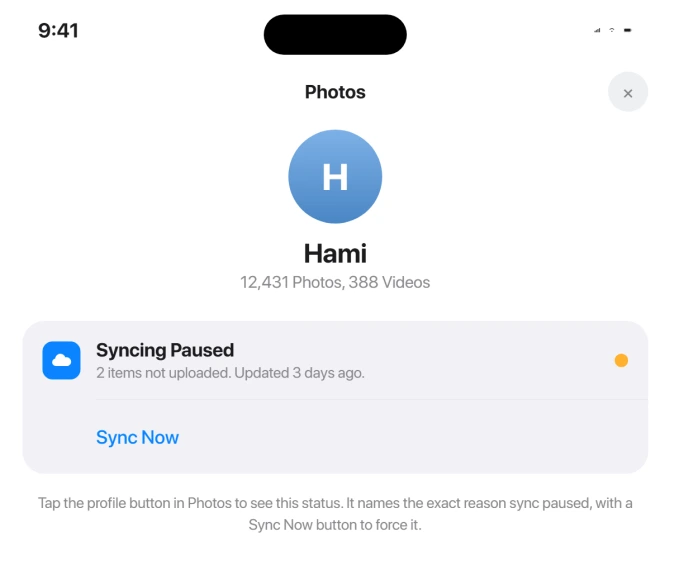
Apple changed where the sync status lives. On iPhone or iPad running iOS 26 or iPadOS 26, open Photos, tap Collections, then tap the profile button in the top corner.
Your library status sits right under your name and photo count.
(On iOS 17 and earlier it was Library tab, then All Photos, scroll to the bottom. That old path is gone.)
On a Mac with macOS Tahoe, open Photos, click Library in the sidebar, click All Photos, then scroll to the very bottom.
The status line shows the item count, when it last updated, a Pause or Resume control, and how many items couldn't sync.
The exact wording matters. The status message tells you the specific reason syncing paused, and that reason decides your fix. A green, yellow, or red dot sits next to it, along with a Sync Now button.
The One Rule: Don't Turn iCloud Photos Off
Before you touch anything, Apple's clearest warning: do not toggle iCloud Photos off when it looks stuck.
Apple's syncing paused support page says it flat out: "If your photos aren't syncing, don't turn iCloud Photos off."
Flipping that switch restarts the whole syncing process from scratch. On a large library that can mean re-checking tens of thousands of items, which makes a slow problem much slower.
Save that toggle for later. It belongs near the bottom of the list, not the top.
The Boring Fix That Works Most Often
Apple's number one instruction is almost dull: "Connect your device to power and to Wi-Fi, then let the device sync uninterrupted overnight."
Large libraries and big video files legitimately take overnight or longer. The counter can look frozen while real work is happening underneath.
One forum regular put it plainly: "Leave the phone connected to power for a couple of hours and it should finish syncing."
To give it the best shot, keep it on Wi-Fi and plugged in, and leave it locked. Some users also suggest setting Settings > Display & Brightness > Auto-Lock > Never and dropping brightness low.
Check again in the morning before you do anything drastic.
Charge It: Battery Pauses Are Real and Intentional
A huge share of "stuck" sync is just the battery rules doing their job. If the status says Low Battery, sync paused because charge dropped below 20 percent. The fix is exactly what it sounds like: charge the device.
If it says Low Power Mode, sync was deliberately paused to save battery. Turn it off at Settings > Battery (on iPhone 15 and later it lives under Settings > Battery > Power Mode).
On a Mac, set System Settings > Battery > Low Power Mode > Never.
One quirk worth knowing: Low Power Mode turns itself off once you charge to 80 percent or higher, and with Adaptive Power on it can switch itself on automatically below 20 percent.
So a phone that says it's paused for battery can resume on its own just by charging.
People report the paused-for-battery message even at 100 percent. Usually plugging in for a couple of hours and disabling Low Power Mode clears it anyway.
Chronic battery drain on iOS 26 has its own fixes.
Get on Wi-Fi and Off Low Data Mode
If the status reads Low Data Mode, sync paused to cut network data use. The cleanest fix is stable Wi-Fi for large uploads or downloads.
If Wi-Fi itself broke after the update, start with our iOS 26 Wi-Fi fixes.
If you must stay on cellular, switch to standard data at Settings > Cellular > Cellular Data Options > Data Mode > Standard. Also confirm Photos is allowed to use cellular under Settings > Cellular > Photos.
Messages like Optimizing Battery Power, Optimizing System Performance, or Poor Network Connection are temporary auto-pauses.
Apple's advice: "To force syncing, tap Sync Now, or wait a few minutes for syncing to resume automatically."
Let It Cool Down
If the status reads something like iPhone Needs to Cool Down, sync paused to protect the device from overheating. You might see a Sync Now option. If not, wait a few minutes and let it cool.
This shows up more after an iOS 26 update, when the device is busy re-indexing in the background and running warm.
It also drives iPhone overheating on iOS 26. Get it out of direct sun, off the wireless charger, and give it a breather.
Check Whether iCloud Storage Is Full
If the message says your iCloud storage is full, sync paused because you went over your limit. Free accounts only get 5GB, which a phone fills fast.
Check usage at Settings > [your name] > iCloud > Manage Account Storage. From there you can Change Storage Plan to upgrade to iCloud+, or delete large backups and files to make room.
Leave your photos out of that clear-out. With iCloud Photos on, deleting them in iCloud takes them off your iPhone too.
On a Mac, look under System Settings > [your name] > iCloud.
Once there's space, go back to Photos and tap Sync Now.
The "Move Photos to Personal Library" Trap
This one confuses people. If you see Move Photos to Personal Library to Continue Syncing, the problem isn't your storage at all. A Shared Library owner has hit their limit.
In Apple's words: "If you see a message that says Move Photos to Personal Library to Continue Syncing, syncing paused because a Shared Library owner has hit their storage limit."
If you got this after moving items into the Shared Library, move those items back to your Personal Library. Your Personal Library will sync again once the Shared Library owner upgrades their plan or frees up space.
Confirm the Sync Switch Is Actually On
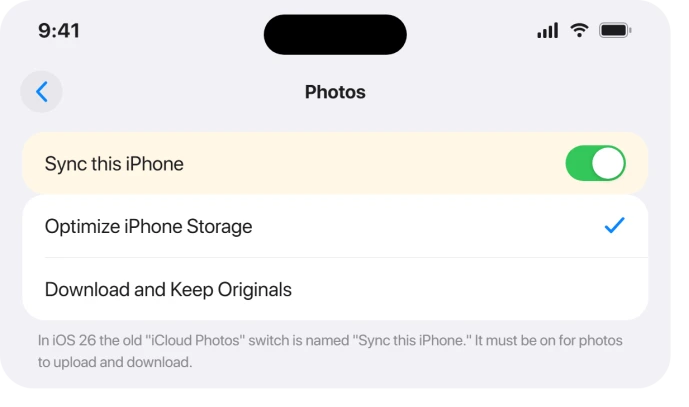
Apple renamed the master toggle, which trips people up. On iPhone or iPad, go to Settings > [your name] > iCloud > Photos and confirm Sync this iPhone (or Sync this iPad) is on.
That's the old "iCloud Photos" switch under a new name.
On a Mac, open Photos > Settings > iCloud and check that Sync this Mac is ticked. The same switch lives at System Settings > [your name] > iCloud > Saved to iCloud > Photos.
(On Tahoe that section is "Saved to iCloud," not the old "Apps Using iCloud.")
A quick reset: toggle Sync this iPhone off, wait about 30 seconds, turn it back on. Yes, this restarts sync, so try the gentler steps first.
A Restart and a Force-Quit
Plenty of transient pauses clear with a plain restart. Power the device fully off and back on (Settings > General > Shut Down), then open Photos and tap Sync Now.
If Photos itself feels frozen, force-quit it. On iPhone or iPad, swipe up and flick the app away. On a Mac, use Cmd + Option + Esc, pick Photos, then reopen it.
While you're at it, make sure the clock is automatic at Settings > General > Date & Time > Set Automatically. A wrong clock can break the iCloud handshake and stall sync.
The iOS 26.2 "Syncing N Items" Bug, and How People Beat It
Now the real defect. Since iOS 26.2, the most-reported symptom is Photos stuck on something like "Syncing 2 items…" forever, with no way to see which two items are jammed.
One user summed up the whole thread: their Photos app had been stuck "Syncing 2 items…" since updating to iOS 26.2, and restarts, toggling iCloud, and a full sign-out and restore didn't clear it.
The usual culprit is a single Live Photo that was edited and got left in a stuck, half-converted state.
As one poster found, the offending item was "a live image that had been edited and was in a stuck state", and removing the edit cleared it.
Batch-applying edits with "paste edits" is a common trigger.
To find the stuck item, open your recent photos one at a time and look for one showing a cloud icon with a slash through it instead of a checkmark.
Opening that photo for a few seconds, or making a tiny edit, often nudges it through. To revert an edit, open the photo, tap Edit, then Revert.
The most reliably confirmed fix is the album-nudge method. As one user put it, problematic photos "usually just need a nudge."
Add your recent photos to a new album, let it sync, remove them from that album on a second device, then open the remaining stuck originals to force a retry.
The original poster confirmed this finally cleared his stuck two items.
To narrow down the suspect, compare your device against iCloud.com > Photos in a browser. The device with more photos than iCloud.com usually holds the stuck one.
Also empty your Recently Deleted folder, since a black or corrupted thumbnail in there can block the queue too.
When Specific Items "Can't Upload"
If your status reads "Couldn't Sync [number of items] to iCloud" and a new Unable to Upload album appears, those few items are holding your whole counter hostage.
They are usually unsupported, corrupted, or have broken metadata.
Supported formats are HEIF, JPEG, RAW, PNG, GIF, TIFF, HEVC, MP4, and special iPhone formats like slo-mo, time-lapse, 4K video, and Live Photos. Anything outside that, or with a bad codec, lands here.
On iPhone or iPad: open the Unable to Upload album, tap Select, then Select All, then Share > Save to Files and choose On My iPhone.
Delete those items from the album and empty them from Recently Deleted. Then re-import them from Files using Share > Save.
On a Mac: open the Unable to Upload album (click View next to the status message, or click it in the sidebar), press Cmd + A, then File > Export > Export Unmodified Original.
Delete the items, empty Recently Deleted, then File > Import the exported files.
One catch: re-importing strips any edits and keywords you'd applied to those items.
A second catch on a library sorted by Recently Added: a re-imported photo counts as added today, so it moves to the end even though the picture is old.
Switching to Sort by Date Captured puts it back, and our guide to iPhone photos out of order covers how.
Apple's Unable to Upload page confirms they "will be lost." It's a fair trade to unjam everything else, but know it going in.
Big Mac Libraries That Crawl for Days
On macOS Tahoe, a large library can stall for days or longer with almost no visible progress, and that is often not a bug. One Apple Community case had a 40,000-photo library frozen around 21,000.
The real blockers there were a handful of corrupt .MOV files, photos that errored after being edited in other apps, and unsupported video codecs.
The method that worked: export unmodified originals, then import them into a fresh test library in batches of about 2,000 so Photos flags the incompatible items.
Then fix or replace those specific files. Don't toggle iCloud Photos off and on, and keep the Mac awake and online.
Mac sync also stalls every time the Mac sleeps, and slows to a crawl when free disk space drops below the size of the library being downloaded.
Plug in, set System Settings > Battery > Low Power Mode > Never, and free up space under System Settings > General > Storage.
If toggling and waiting do nothing, rebuild the library. Quit Photos, hold Option + Command, then open Photos, and click Repair in the window that appears.
This rebuilds the database and clears many stuck or false "Unable to Upload" states. It can take hours, so start it when you don't need the Mac.
After a repair, iCloud rechecks every item, and a big library can say Restoring from iCloud for days; our Mac page covers that wait.
If Photos on the Mac pauses for lack of local storage instead, the Mac storage page shows why the free space in Finder can mislead you.
When It's Normal, Not a Bug
Several of these are working exactly as designed. None of the following are broken, and fighting them with sign-outs and library wipes only makes things worse.
- Battery below 20 percent. Sync pauses on purpose. Plug in.
- Low Power Mode or Low Data Mode on. Both deliberately pause sync. Turn them off.
- Cellular with a Wi-Fi-only setting. It waits for Wi-Fi by design.
- iCloud storage full. New items simply can't upload until you free space or upgrade.
- A genuinely huge library. Tens of thousands of items can take days or weeks. One report had 10,000 photos take five days; a 60,000-item library was estimated at months on a slow uplink. Slow is not the same as broken.
If other iCloud services like Mail, Contacts, or Messages are also failing, the problem isn't Photos.
Check your Wi-Fi, check Apple's System Status page for an outage, and confirm every device is signed into the same Apple Account.
A VPN can also interfere, so try turning it off.
Update, Then the Last Resorts
A point release sometimes fixes these stalls outright. Apple did exactly that before, when an iOS 18 sync-stuck-at-99% problem was cured by the 18.3 update.
So check Settings > General > Software Update and install the latest iOS 26, iPadOS 26, or macOS Tahoe release.
There is also a separate iOS/iPadOS 26.4 bug that broke cross-device sync notifications, patched in 26.4.1 on April 8, 2026. macOS Tahoe was not affected by that one.
If your trouble started with 26.4 and isn't Photos-specific, updating to 26.4.1 is the move.
Only after all of the above: sign out of iCloud on every device and back in, after confirming the same Apple Account and the latest OS. This can affect other synced data, so it's a late step, not an early one.
The true nuclear option is for a corrupted local database that nothing else clears. Back up your photos first, then with iCloud Photos off, remove all local pictures and re-enable it for a clean re-sync.
As one writer who tried everything else found, "turning off and on iCloud Photo Library without deleting any remaining pictures on the device doesn't fix the issue." Do this only when you genuinely have a full backup.
The Short Version
- Read the actual status first: Photos > Collections > profile button on iPhone or iPad, or the bottom of Library > All Photos on Mac.
- Don't turn iCloud Photos off. It restarts the whole sync.
- Most pauses are normal: charge above 20 percent, turn off Low Power Mode and Low Data Mode, get on Wi-Fi, and free up iCloud storage.
- Plug in on Wi-Fi and let a big library run overnight before doing anything drastic.
- Tap Sync Now or Resume for the temporary "Optimizing" and "Poor Network" pauses.
- For the iOS 26.2 "Syncing N items" bug, find the stuck (often edited Live) photo with the cloud-and-slash icon, remove its edit, or use the new-album nudge.
- Clear the Unable to Upload album by exporting and re-importing those items.
- On Mac, plug in, free disk space, and Repair the library (Option + Command while opening Photos).
- Update to the latest release; sign-out and full local wipe are genuine last resorts.
Duplicates rather than a stall: If the library finished syncing and you are now staring at doubled-up photos, our guide to an empty Duplicates album explains the two conditions detection needs before it will run at all.
Where to Next
For more iOS 26 fixes across the rest of your iPhone and iPad, see our iOS 26 problems and fixes hub.
Where it is screenshots specifically that never reach the library, something changed and it is not a fault.
Where the pictures missing are the shared ones rather than your own, the Shared Library has separate rules.
And if search inside Photos has gone dead while syncing carries on, indexing is the reason.
Where iCloud Backup is greyed out entirely rather than paused, that is a different list.
Where the photo syncs but Visual Look Up never offers anything, six things stop it.
Where it is iCloud Drive on a Mac stopping after sleep rather than Photos, that has a cause of its own.
Where Settings shows a badge offering an iCloud storage upgrade you never bought, it is a cosmetic glitch Apple is removing.
You can also browse everything else on the PCGlance homepage.

Isaac Smith is the founder and editor of PC Glance, a website that covers computers, laptops, and technology. He is a tech enthusiast and a computer geek who loves to share his insights and help his readers make smart choices when buying tech gadgets or laptops. He is always curious and updated about the latest tech trends.