
You start a podcast on your morning walk, a text lands, the voice cuts out, and twenty minutes later you realize it never came back. Or a song stops the second you open Maps.
After iOS 26, paused audio that refuses to resume has become one of the most reported headphone complaints, and the cause is rarely what people assume.
A couple are iOS 26 bugs Apple has only partly fixed. This guide goes from the easiest and most common cause down to the rarest.
Let me take you to the setting behind it, and I will tell you which of the causes is the common one.
Start With Announce Notifications, Because iOS 26 Probably Switched It On
If your audio ducks or pauses on AirPods or Beats every time a message arrives, and a robotic Siri voice reads it aloud, this is your culprit.
iOS 26 re-enabled Announce Notifications for many people during the upgrade, even those who had turned it off years ago.
When Siri announces a notification, it grabs the audio session to speak. On some headphones playback resumes cleanly; on others it pauses and never comes back.
One longtime user put it bluntly after updating: "Apple also enabled audio readouts of notifications to my headphones. I absolutely never want this."
Turn it off at Settings > Apple Intelligence & Siri > Announce Notifications, then switch off the top toggle.
Apple's Announce Notifications support page covers the same switch for AirPods and Beats.
On some builds the older path Settings > Notifications > Announce Notifications still works and lands in the same place.
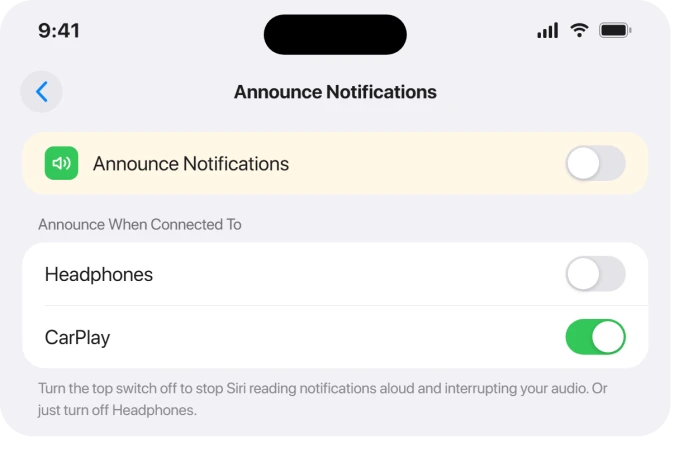
You do not have to kill it everywhere. Below the master switch are separate Headphones and CarPlay scope toggles, so you can keep announcements in the car but stop them on AirPods.
Lower still is a per-app list where you can silence just the chatty offender, like Messages.
One detail trips people up. The Reply without Confirmation switch inside Messages only changes how spoken replies are sent.
It does nothing to stop the interruption, so do not bother with it if your goal is uninterrupted audio.
When a Notification Chime Ducks Your Music and Never Un-Ducks
Different symptom, no Siri voice involved: a notification dings, your music drops in volume or pauses, and it stays that way. The volume dip itself is intentional.
An Apple Community moderator confirmed it plainly: "Volume is reduced momentarily when a notification comes through and there is no setting to change that."
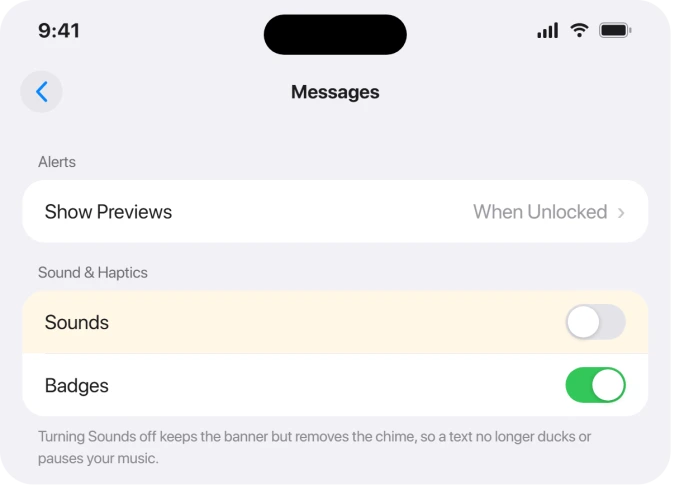
There is no off switch for ducking. What you can do is stop the chimes that trigger it.
Open Settings > Notifications, tap the noisy app, and turn off its Sounds toggle while leaving banners on. The alert still arrives silently, so it no longer disturbs playback.
If the volume sticks low after the notification disappears, there is an odd but reliable trick: swipe down into Notification Center and clear a notification, any notification, not necessarily the one that caused it.
That tends to restore full volume. A restart works too.
For a quieter blanket fix, flip the physical Ring/Silent switch if your iPhone still has one, press and hold the Action button if it does not, or enable a Focus from Control Center.
Note one catch: contacts with Emergency Bypass will still lower your volume, and iOS 26 has a separate bug where a Focus can switch on quietly in the background, so check Settings > Focus if things feel off.
The Facebook Bug That Killed Audio in Every App
For a stretch in early October 2025, people blamed iOS for the worst version of this: music from any app stopped the instant Facebook was closed or minimized. It was not iOS.
It was a bad Facebook update, and it hit iOS 18 devices too.
The pattern was unmistakable. As one person described it, "Opening the FB app with music playing is fine but as soon as I close it music stops. This seems to happen everytime." The same person added the fix: "There was an update for FB in the App Store. I installed it and the issue seems to be fixed."
Meta shipped the corrective update around October 7, 2025. If you still see this, update Facebook from the App Store.
If updating alone does not take, delete Facebook, restart the iPhone, then reinstall the current version. The same advice applies to Messenger and Instagram.
The AirPods Resume Click That Stopped Working
Here is a sneaky one specific to iOS 26 and 26.1. You pause with a single click on AirPods Pro, then click again to resume, and nothing happens. The same AirPods resume fine on an iPad or Mac.
Apple Support traced it to Automatic Device Switching: "this is a bug in the Automatic Device Switching feature in iOS 26. The resume click is being interpreted as a device switch command rather than resume playback."
The workaround is a Bluetooth setting, the same control that matters when AirPods will not switch between your iPhone and Mac.
Go to Settings > Bluetooth, tap the info button next to your AirPods, open Connect to This iPhone, and change it from Automatically to When Last Connected to This iPhone.
The resume click starts behaving again.
Apple Music That Pauses the Instant You Press Play
A smaller group hit something maddening right after updating: tap a song and it pauses immediately, every single time. One user: "Whenever I click on a song it pauses it. Regardless of how many times I hit play, it instantly pauses." Twenty-eight people marked the same.
Restarts, disabling Automix, and signing out elsewhere did nothing for them.
The workaround that stuck was strange but worth a try: enable Airplane Mode and turn off Bluetooth, then reverse both (Airplane Mode off, Bluetooth on).
Reversing the toggles cleared the stuck state.
While you are in the Music app's settings, rule out two non-bugs that mimic random pausing.
Turn off Settings > Apps > Music > Song Transitions > Crossfade if it is on, and on AirPods, turn off Automatic Ear Detection in Settings > Bluetooth > AirPods, since a bud that wrongly thinks it left your ear pauses the track.
Spotify, YouTube Music, and Audiobooks That Quit in the Background
When a streaming app or audiobook stops on screen lock or app switch, a few standard settings are usually starving it.
Make sure Background App Refresh is ON for that app at Settings > General > Background App Refresh.
Background audio runs on a different mechanism from Background App Refresh, so this switch is not what stops a track resuming.
Our guide to Background App Refresh on iOS 26 covers what it does and does not control.
Two battery-related settings matter as much.
Disable Low Power Mode, which Apple's power modes guide now puts at Settings > Battery > Power Mode on iPhone 15 and later, and watch that Adaptive Power does not switch it back on at 20 percent.
If lock-triggered pausing is the issue, set Settings > Display & Brightness > Auto-Lock to a longer time.
Audible has its own quirk when the screen locks. Try Settings > Audible and turn off Allow Audible to Access Media & Apple Music, then relaunch.
Spotify support also points to Settings > Accessibility > Per-App Settings, where disabling Autoplay Video Previews stops some interruptions.
A clean reinstall clears corrupted cache when nothing else works.
Maps Navigation and CarPlay
Spoken directions are supposed to duck your podcast briefly, not stop it.
If Maps hard-pauses instead of lowering for the prompt, adjust the navigation voice volume inside the Maps app rather than hunting through system settings.
CarPlay and Bluetooth got genuinely shakier after iOS 26.0.1, with frequent CarPlay disconnects that persist into 26.1 and audio that cuts on an incoming call and does not return.
If your car connection keeps dropping, try Settings > General > Transfer or Reset iPhone > Reset > Reset Network Settings, then re-pair the vehicle.
When It Is Genuinely the App or iOS, Not Your Settings
Some of this is not yours to fix. Whether audio auto-resumes after an interruption is decided by the app's code.
Apple's own developer docs explain that when an interruption ends, iOS sends a hint asking whether to resume, and "Media playback apps should always look for this flag… If it's not present, playback should not begin again until initiated by the user."
If a third-party app ignores that flag or uses the wrong audio session type, it will sit paused no matter what you change. That is why a reinstall sometimes helps and why behavior differs app to app.
The fix has to come from the developer.
There are real iOS 26 bugs in the mix too. Home Screen web apps lose audio after first use because the audio engine crashes.
Only a restart or clearing Safari data recovers it, and it is improved but not fully fixed as of 26.2.
The app-switch pausing was widespread on 26.0.1, with one moderator noting in December that "the issue has already been fixed with the last update," though others on the headphones and CarPlay variant still saw it.
So keep iOS current at Settings > General > Software Update, since Apple has been chipping at these across 26.1 and 26.2.
If you have ruled out Announce Notifications, notification sounds, Facebook, and the Bluetooth settings above and it still happens, you are likely looking at an app-side or OS-side bug.
Reporting it at feedback.apple.com is the next step.
Wired EarPods have a separate fault of their own. If a single press will not pause your music while volume and Siri still work, a restart and a Siri workaround keep you going.
The Short Version
- Audio pauses with a spoken readout on AirPods: turn off Settings > Apple Intelligence & Siri > Announce Notifications, or just the Headphones scope.
- A chime ducks music and it stays low: turn off that app's Sounds in Settings > Notifications, and clear a notification from Notification Center to restore volume.
- Audio stops whenever you close Facebook: update Facebook, or delete, restart, and reinstall it.
- AirPods single-click resume does nothing: set Settings > Bluetooth > AirPods > Connect to This iPhone to When Last Connected to This iPhone.
- Apple Music re-pauses on play: toggle Airplane Mode on, Bluetooth off, then reverse both.
- Spotify/Audible quit in the background: turn Background App Refresh on, turn Low Power Mode off, and reinstall if needed.
- Web apps lose sound, or it persists after everything: restart the iPhone, keep iOS updated, and report it to Apple.
Where to Next
When downloads go missing rather than playback pausing, that is a storage rule rather than a fault.
And if a recorded video has no sound at all, that is a separate list starting with playback.
Where it is Background Sounds cutting out rather than music, six fixes apply to that one.
Sound that is quiet rather than interrupted is a different fault. Silent mode, a blocked opening, and the Bluetooth cause Apple never names.
- More iOS 26 fixes: iOS 26 problems and fixes
- Back to the start: pcglance home

Isaac Smith is the founder and editor of PC Glance, a website that covers computers, laptops, and technology. He is a tech enthusiast and a computer geek who loves to share his insights and help his readers make smart choices when buying tech gadgets or laptops. He is always curious and updated about the latest tech trends.