
You unlock your iPhone and half the home screen looks asleep. Dimmed icons, each one labeled "Waiting…", and none of them are budging. Tap one and nothing. Open the App Store and the spinner just turns.
This wave hit hard right after the iOS 26 install in September 2025, and it kept showing up through 26.0.1 and again at 26.5, with a separate server outage in early 2026.
The good news: most cases clear in under a minute.
Work top to bottom. The first few moves are quick and fix the bulk of cases. Save the resets and the reinstall for when the easy stuff fails.
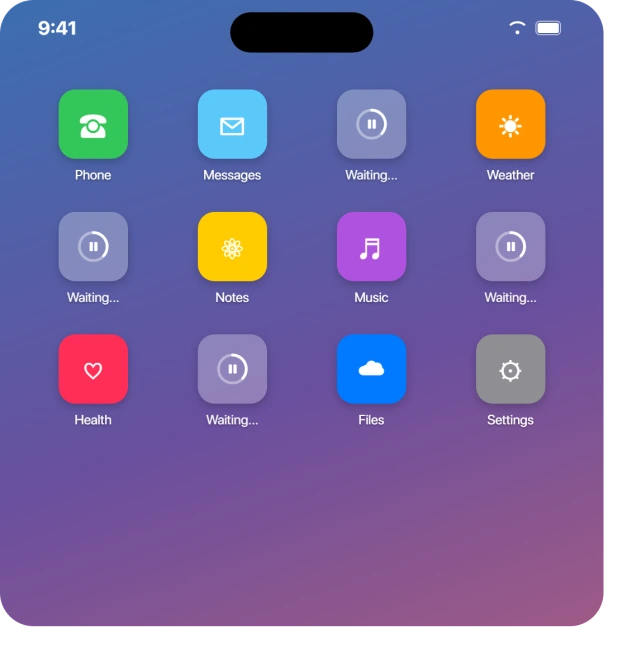
Tap the greyed icon to pause, then tap again to resume
This is the single most reliable quick fix, so start here. On the home screen or in the App Library, tap the stuck app icon once. The label flips to "Paused." Wait about ten seconds, then tap it again to resume.
That little pause-and-resume cycle re-kicks the download queue and snaps a frozen "Waiting…" item back into motion. One tap pauses or resumes; it does not delete the app, so you can do this without losing anything.
If you have an iPhone 6s or later, you can also touch and hold the icon to get Resume Download, Pause Download, or Cancel Download in the pop-up menu.
Push one app to the front with Prioritize Download
When several apps are queued at once, they line up and some sit on "Waiting…" behind the others. Apple's own fix for stuck downloads is to jump one ahead.
Touch and hold the stuck app icon, then choose Prioritize Download. Apple's support article words it exactly: "From the Home Screen, touch and hold the app. From the menu that appears, choose Prioritize Download." Users report a useful side effect: hitting Prioritize on one app sometimes cascades, and the rest start downloading one by one.
It does not always fire instantly, so give it a moment.
Pause and resume everything from the App Store account screen
If the whole queue is jammed, manage it in one place. Open the App Store, tap your profile picture in the top-right corner, and scroll to the list of pending downloads.
Pause individual items, or tap Update All, or resume the queue to restart it. Pull down on that list to refresh it, which often clears a frozen state across every app at once.
Note: iOS 26.4 moved the updates list behind an extra tap. After tapping your profile you may now need to tap a separate Updates option. A long-press on the App Store icon gives you an Updates shortcut too.
Check Apple's System Status before you blame your phone
If the App Store servers are down, downloads hang for everyone, and no amount of resetting will help. It is worth checking this first.
Open apple.com/support/systemstatus and look at the App Store row. If it is not green, the fix is to wait, not to troubleshoot.
This is real and recent: on February 25, 2026, Apple confirmed a server outage on its Status page that knocked out App Store access for about an hour.
As MacRumors put it during that outage: "Not all users are affected, but if you've been having trouble accessing or downloading apps, the outage is the reason why."
Free up storage if downloads silently die
A full device is the most common reason a download never finishes or throws "Unable to Download App." iOS needs roughly twice an app's size free to unpack it, and without that room it just stalls.
Go to Settings > General > iPhone Storage (it reads iPad Storage on iPad). You will see a usage bar and a list sorted by size. Delete or offload apps you do not use, clear large videos, then retry the stuck app.
iOS 26 itself wants roughly 8 to 10 GB free. If you recently saw a "Storage Almost Full" warning, this is almost certainly your problem.
If a bloated System Data category ate the space, shrink System Data first.
Sort out a billing hold (this blocks free apps too)
If Apple could not charge your card for a past purchase, you have an unpaid balance, and Apple blocks all downloads until it clears, even free ones.
A valid payment method can be required for free apps regardless.
Go to Settings > [your name] > Media & Purchases > View Account > Purchase History.
A blocked order shows in red text reading "Amount You Owe." Tap it, then Pay with Apple Account Credit or add a working card.
Apple's unpaid balance page says that with an outstanding balance "you might be unable to" make new purchases, download free apps or use subscriptions, and that normal service resumes once it is paid.
Note the hedge: Apple says might, and it no longer mentions updates at all.
Update a declined or expired card under Payment & Shipping while you are there.
Sign out of Media & Purchases, then back in
A glitched purchase session is a top cause of stuck "Waiting" apps. Refreshing it is low-risk and quick.
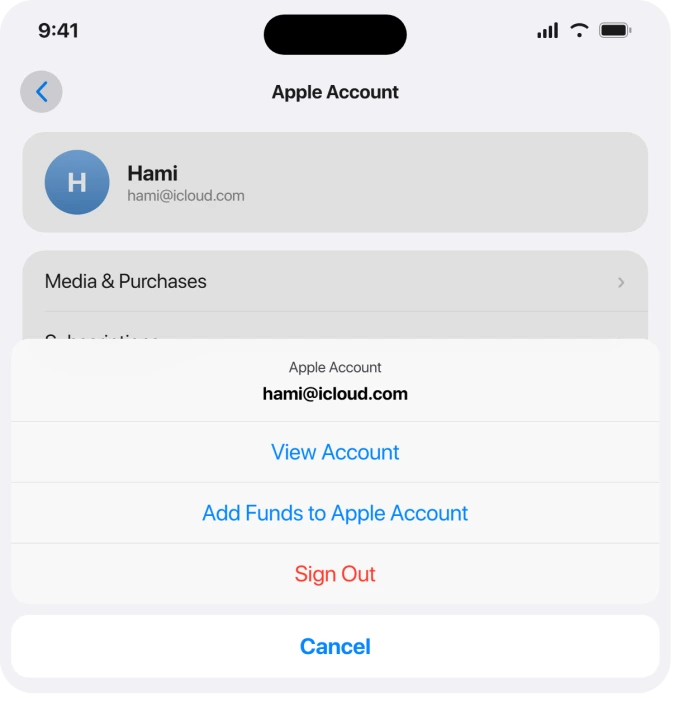
Open Settings > [your name] > Media & Purchases > Sign Out. Tap Media & Purchases again to sign back in with your Apple Account password, then return to the App Store and retry.
This signs you out of media only, not your whole iCloud account, so your data stays put.
If your phone then keeps asking you to sign in, that loop has its own fix.
One thing to rule out: if the app was bought under a different Apple ID, it will never update under yours. This is common when a phone was set up by cloning someone else's device.
As one Apple Community reply explained, "Apps downloaded on his Apple ID will not load and work under your ID."
Sign in with the account that bought the app, or delete and reinstall it under yours.
Reset the network connection
Many stuck downloads are just a confused Wi-Fi or cellular state. The fastest reset is Airplane Mode: flip it on in Control Center, wait 10 to 15 seconds, then flip it off and let the connection rebuild.
If you are on cellular, large apps over about 200 MB sit on "Waiting" by default. Either switch to Wi-Fi or open Settings > Apps > App Store > Cellular Data > App Downloads and choose Always Allow.
Still stuck?
Try a genuinely different network, as one Apple support thread suggested: "office, library, coffee shop, your cousin's house." A captive or weak Wi-Fi network stalls downloads more often than people expect.
A VPN or iCloud Private Relay can also break the connection, so toggle those off and retry.
If Wi-Fi itself has been flaky since the update, fix Wi-Fi on iOS 26 before blaming the App Store.
Fix a wrong clock
If your device date and time are off, the App Store's secure certificate check fails and downloads refuse to start. This often happens after a restore or a SIM swap.
Go to Settings > General > Date & Time and turn on Set Automatically. Give it about ten seconds to pull the correct time, then retry one app.
If that toggle is greyed out, a Screen Time restriction is holding it and you will need to relax that first.
Check Screen Time restrictions (especially on family devices)
If app installs are restricted, downloads are blocked with no clear error, which looks exactly like a stuck download. This is easy to miss on a child's or shared phone.
Open Settings > Screen Time > Content & Privacy Restrictions > iTunes & App Store Purchases and set Installing Apps to Allow.
There is also an iOS 26-specific twist: the update enforces app age ratings more strictly, so some apps vanish or blink in and out.
One parent fixed it by raising the limit under Content Restrictions > Apps from 12+ to 17+: "Then my daughter was able to use WhatsApp, Instagram, Snapchat on her phone after the update again."
Restart, then reinstall the stubborn one
If individual fixes have not worked, a restart clears the temporary glitches behind frozen downloads. Settings > General > Shut Down, wait 30 seconds, power back on.
To force restart a frozen screen: press and release Volume Up, press and release Volume Down, then hold the Side button until the Apple logo appears.
When one specific app stays stuck and nothing else helps, wipe the broken partial download. Touch and hold the icon > Remove App > Delete App, then reinstall fresh from the App Store.
This clears a corrupted file pause and resume cannot.
A non-destructive middle option: offload the app instead.
As one Apple Community fix described it, "Off-load the impacted apps, and then go through your home screen and click the impacted icons (it will say in iCloud), as opposed to Waiting. Then they should come back like normal."
When the problem is Apple's servers or a confirmed bug
Some of this is genuinely not fixable on your end, and it is worth knowing when to stop poking.
There was a confirmed "Update All" bug starting around iOS 26.0.1: the button processes only a few apps then stops dead and reverts to "Update." It also hit users on iOS 18.7, which points to a server-side fault.
The workaround is to update apps one at a time, or restart the device, which fixed it completely for some.
In June 2026, specific apps (eBay, Tesla, DoorDash and others) got stuck in an update loop on iOS 26.5 and the 26.6 betas. Reinstalling, hard resets, and sign-out all failed.
The only thing that worked was waiting: "Just periodically try. Mine did that and eventually updated." If roughly 10% of your apps are random and stuck, this is the back-end, not you.
Last resorts
If you are still stuck, two heavier options remain. Reset All Settings (Settings > General > Transfer or Reset iPhone > Reset > Reset All Settings) clears config conflicts without erasing your photos or data.
Reset Network Settings in the same menu wipes saved Wi-Fi passwords but clears cached network state.
A full factory reset comes last, and only after a backup. It did fix the worst post-iOS 26 cases where apps opened to blank black screens.
One affected user reported: "I chatted with Apple support and I had to factory reset my phone and it is working properly now."
Update to the latest iOS 26 point release first, since several waves were patched that way.
The Short Version
- Tap the "Waiting" icon once to pause, tap again to resume. Fastest fix, fixes most cases.
- Touch and hold the icon > Prioritize Download to jump one app to the front of the queue.
- Check apple.com/support/systemstatus before deep troubleshooting; outages are real and not your phone.
- Settings > General > iPhone Storage: a full device silently stalls downloads.
- Settings > [your name] > Media & Purchases: clear any red "Amount You Owe" billing hold (it blocks free apps too), then sign out and back in.
- Toggle Airplane Mode, allow large downloads over cellular, set Date & Time to automatic, and check Screen Time app restrictions.
- Delete and reinstall a single stubborn app; restart for the rest.
- A confirmed "Update All" bug and a June 2026 app-update loop were server-side: update one at a time, or wait.
Where to Next
Where the apps never arrived on a new phone in the first place, that is a transfer problem rather than a download one.
- More iOS 26 fixes: iOS 26 problems and fixes
- Back to the home page: PCGlance

Isaac Smith is the founder and editor of PC Glance, a website that covers computers, laptops, and technology. He is a tech enthusiast and a computer geek who loves to share his insights and help his readers make smart choices when buying tech gadgets or laptops. He is always curious and updated about the latest tech trends.