
Your friend got a Check In alert and you arrived home perfectly safely, so now you are wondering what you did wrong.
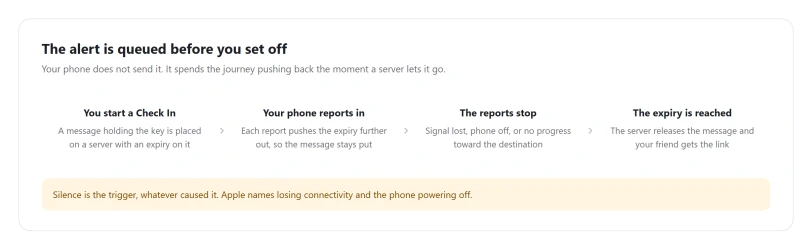
Nothing. Check In does not sit waiting for something to go wrong. It alerts by default, and your phone spends the whole journey postponing a message that was queued from the start.
Let me show you exactly what your friend received, because it is less than most people fear.
What your friend was actually sent
You picked a sharing level when you set it up, and there are two. Which one you picked decides how much just went out.
Apple's iOS 26 page prints both:
"Limited: Share your current location, in addition to the network signal and battery details of your iPhone and Apple Watch."
"Full: Share the data above (current location, network signal, and battery details), in addition to the route you've traveled and the last time you unlocked your iPhone or removed your Apple Watch."
Read the Full line carefully, because Apple describes it two different ways.
Its Personal Safety guide says Full includes "your route traveled and the location of your last iPhone unlock and Apple Watch removal".
Time in one place, location in the other. Apple has not reconciled those two sentences, and the difference matters to anyone deciding which level to use.
Who can read it is the part Apple states outright.
Its security documentation says the message carrying the key "is end-to-end encrypted between the user and their designated contact", and that "Apple doesn't have access to the Check In key and can't access the uploaded data."
So the data does sit on Apple's servers, encrypted, and the only person who gets the key is the friend you picked.
None of this runs through Find My, which is a separate chain with its own switches, and our guide to location sharing not working covers that one.
A text that only gives your arrival time comes from another feature, and Share ETA in Maps can send one on every trip to a pinned place.
Why it fired when you were fine
Apple does explain the mechanism, though not on the page you would look at first. From its Check In security page:
"While the initiating user's device is making progress toward its destination, it periodically sends a heartbeat message to iMessage servers, which extends the expiry time before the Check In encryption key message is delivered. If the device is turned off or loses connectivity, iMessage servers automatically release the iMessage containing the encryption key to the contact when the expiry time is reached."
So the alert is already queued. Your phone spends the whole journey pushing it back. Stop pushing and it goes.
Apple lists four circumstances that release it: your phone does not arrive, you are significantly delayed and do not respond to the prompt to add time, you place an Emergency SOS call and do not answer the follow up, or a timer runs out with no response.
Apple's legal page adds Crash Detection and Fall Detection to that list.
And it warns about the signal case directly: "If you start a Check In and then lose service or your iPhone powers off, your Check In recipient may get a delayed or early notification."
A lost phone behaves the same way. Apple: "If your phone is lost while Check In is running, your contact receives notifications as if you weren't responding."
Our reading is that a battery that dies mid-journey lands in the same bucket, along with a long tunnel, a lift, a rural blackspot or Airplane Mode.
Apple says only "loses connectivity" and never names any of those, so treat that list as ours.
If your friend was alerted in error
Apple has a sentence for exactly this, and it is the most useful one on any of its pages:
"In the event your friend has been notified in error, you can end the session by tapping End Check In, and let them know by contacting them in the Messages or Phone apps, for example."
That is the whole of Apple's advice. There is no undo, no recall, and no way to pull the link back once it has gone.
What ending it buys you is also not spelled out.
Apple's cancel sentence covers its own server copy, and the 24 hour monitoring window described further down runs after the event rather than until you stop it.
So end the session, tell the person yourself, and do not assume those are the same thing.
It is still running after the alert
Ending the session matters more than it looks, because the alert is not the end of it. From Apple's Check In and Privacy page:
"Your device(s) will continue to monitor your progress and update your friend on your device status for up to 24 hours after the event. Your device and your friend's device will keep your Check In information downloaded locally for up to seven days."
Up to a full day of continued updates, and up to a week of the data sitting on both phones.
Cancelling clears Apple's copy and nothing else. Apple: "If the user cancels a session, the encrypted data and iMessage containing the Check In encryption key are securely deleted from the server."
That is the server. Whatever already reached your friend stays on their phone for up to seven days, and Apple publishes no way to remove it.
Changing what it will share next time
The level lives at Settings > Apps > Messages > Check In Data.
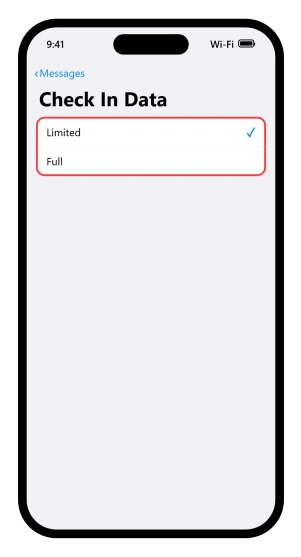
Note that route, because it moved. On iOS 17 it was Settings, Messages, Check In Data, with no Apps step.
The iOS 17 route sent you somewhere that no longer exists, and our guide to where app settings went covers that reshuffle.
Ending one, and why you might not manage it in time
Apple's iOS 26 route is to open the conversation, and "On the Check In message, tap Details, then tap Cancel Check In and confirm." If the prompt is already on your screen instead, the two buttons are End the Check In and Add More Time.
Apple names that control four ways across three of its own pages, so tap whichever wording your screen shows.
There is one documented reason you might fumble it under pressure: "Ending a Check In session requires user authentication." So Face ID has to work, or you need your passcode, at the moment you are trying to stop a false alarm.
If you are running a travel Check In and the phone decides you are not progressing, Apple gives you 15 minutes to respond before your friend is told. That number applies to the travel prompt only.
Apple publishes no response window for the end of a timer, so do not assume you get the same grace there.
If that prompt is on your screen right now, the answer is Add Time: "You can also choose to Add Time, which allows you to add 15, 30, or 60 more minutes to your Check In."
And if it keeps firing when you have genuinely arrived, the setting to change is the arrival radius.
Apple: "To set your location arrival radius, tap Small, Medium, or Large at the bottom of the screen." Large is the one for a big car park or a building with more than one entrance.
What it needs at both ends
More than expected, and it is where a Check In that never arrives usually falls over.
"Check In requires iOS 17 or later for both the sender and recipient." Beyond that, Apple's legal page adds: "You and your Check In friend will both need to have enabled iMessage and be signed in with your own Apple Account and have two-factor authentication enabled."
Two-factor authentication, on both accounts. Apple states that one only on its legal page, not in the iPhone guide.
It is an iMessage feature, and Apple states that requirement without ever mentioning SMS.
Our reading is that a contact showing up as a green bubble will not receive one, though Apple never writes that sentence.
If yours will not send at all, our guide to iMessage that will not activate covers the switch behind it.
One regional note Apple quietly dropped from the iPhone guide but kept in its safety guide: "Location sharing isn't supported in South Korea and might be unavailable in other regions due to local laws."
On a work or child device, Apple's Check In pages say nothing at all.
What we can say is that it needs Location Services and iMessage, and both can be locked from Settings, Screen Time, Content and Privacy Restrictions, which our guide to location sharing not working walks through.
Apple never connects those screens to Check In, so treat that as ours.
If either end is missing something on that list, that alone can explain what your friend did or did not get, so I would check both before assuming a fault.
What does not help
Advice on this feature often sends people into Location Services to hunt for a Check In switch. There is not one.
We read Apple's Location Services pages, its privacy legal page and its feature availability page, and none of them names Check In.
The two controls that actually exist are the sharing level and Add Time.
Status: checked at iOS 26.6, and nothing about Check In changed in the 26 cycle. The server holds the alert, your phone only postpones it, and there is no recall.
What does Check In send if I do not respond?
At the Limited level, your current location plus the battery and network signal of your iPhone and Apple Watch. At Full, that plus the route you traveled and your last iPhone unlock. Apple describes that last item as a time on one page and a location on another.
Why did Check In alert my friend when nothing was wrong?
Most likely your phone stopped reporting in. Apple documents that losing service or the phone powering off can produce a delayed or early notification, and that a lost phone triggers alerts as though you were not responding. The alert is queued from the start and released when the phone goes quiet.
Can I undo a Check In alert?
No. Apple publishes no recall. Its own instruction is to end the session and then contact the person directly through Messages or Phone. The information they received stays on their device for up to seven days, and Apple's advice stops there, which is the whole of what it publishes.
Does Check In work with an Android phone?
No. Apple requires iOS 17 or later on both sides, iMessage enabled for both people, each signed into their own Apple Account, and two-factor authentication switched on for both. A phone that cannot run iOS cannot be on either end of one.
Where do I change what Check In shares?
Settings, then Apps, then Messages, then Check In Data, where you pick Limited or Full. On iOS 17 that same setting sat at Settings, Messages, with no Apps step in between. The level you pick is the one that applies the next time an alert fires.
The Short Version
- It alerts by default. Your phone spends the journey postponing a message that is already queued.
- Losing signal or powering off can trigger it, in Apple's own words, early or late.
- Limited sends location, battery and signal. Full adds your route and your last unlock.
- Apple describes that last item two different ways, as a time on one page and a location on another.
- There is no recall. End the session, then tell the person yourself.
- It keeps updating for 24 hours after the alert, and the data sits on both phones for seven days.
- Ending it needs Face ID, Touch ID or your passcode, which matters when you are trying to do it fast.
- Both people need iOS 17 or later, iMessage, and two-factor authentication.
Where to Next
Check In alerts by default, so nothing went wrong and you did not misuse it. Your phone spends the journey holding back a message that was written the moment you started.
Knowing that, the useful thing is to add time when you are running late rather than letting it fire and explaining afterwards.
If your friend got something different to what I have described, tell me what it said, because that is worth documenting.

Isaac Smith is the founder and editor of PC Glance, a website that covers computers, laptops, and technology. He is a tech enthusiast and a computer geek who loves to share his insights and help his readers make smart choices when buying tech gadgets or laptops. He is always curious and updated about the latest tech trends.