
You are copying a six-digit code across by hand again, flicking between Messages and the app and hoping you remember all six. Your iPhone used to offer it right over the keyboard.
Losing a small convenience like that is more frustrating than it sounds, and I would like to get it back for you.
Six things stop it, and only one of them is a switch you can flick. The rest are about where the code went.
1. The code did not land in Messages
Start here. Apple's description of the feature is narrower than it looks.
Apple, on SMS passcodes: "iPhone can detect the passcode in Messages and display it above the keyboard."
In Messages. Not in Mail. Not in a chat app, not in an authenticator, and not in a phone call that reads the number out to you.
So the first question is where your code actually arrives. Did the service email it, or push it through its own app? Then there is nothing for iOS to detect, and no setting changes that.
Open Messages and look. If the code is sitting there and the suggestion still never appeared, carry on down the list with me.
2. Messages filed it under Unknown Senders
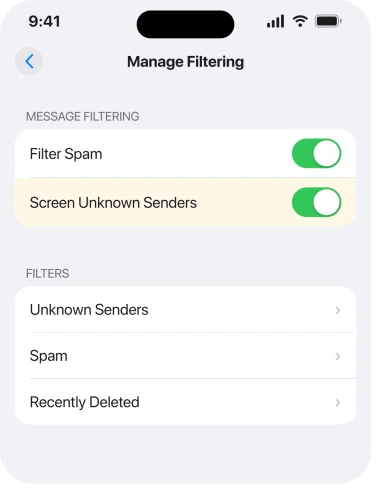
This is the cause that grew in iOS 26, and it catches people who never changed a setting.
Apple: "When you turn on Screen Unknown Senders, messages from unknown senders appear in the Unknown Senders filter."
Now read Apple's definition of an unknown sender: "anyone you haven't previously interacted with in Messages or someone who isn't in your contacts."
A bank sending you a login code is exactly that. You have never texted them back. They are not in your contacts. So the message can go straight into a filter you never open.
Joining those two sentences is ours. Apple documents the filter and documents the definition, and says nothing anywhere about what either does to code detection.
Worse, you may not have chosen this. Apple: "Screen Unknown Senders is off by default in iOS 26. If you had the Filter Unknown Senders setting turned on in iOS 18, Screen Unknown Senders is on when you upgrade to iOS 26."
So an old iOS 18 preference carried itself forward under a new name.
To check, open Messages, tap the Filters button, then Manage Filtering, and scroll to Unknown Senders. There is a second route at Settings, Apps, Messages.
If more than codes have gone quiet, our page on messages that vanished after iOS 26 covers the rest of that filter properly.
3. There is no keyboard for it to appear over
Simple, and it explains the cases where everything else checks out.
Apple's sentence again: the phone displays the passcode above the keyboard. That is the whole delivery mechanism. No keyboard means no suggestion.
It sounds obvious until you count how often the field is unfocused when the text lands. You tap Send. You switch to Messages to read the code. You come back, and the field has let go.
The fix is a habit, not a setting. Leave the code field tapped and the keyboard up. Let the text arrive while you sit on that screen, and the suggestion appears on the QuickType bar without you leaving the app.
If you already left, tap the empty field once more. The suggestion usually returns for a short window after the message arrives.
4. AutoFill is switched off
One real setting, and it governs more than passwords.
Go to Settings, General, AutoFill & Passwords. Confirm AutoFill Passwords and Passkeys is on.
Turn it off, restart, turn it back on. It is the one piece of standard advice on this topic that earns its two minutes, and it also revives a phone that has stopped offering saved passwords as well as codes.
I will be straight about its record, though.
That exact sequence is what Apple's own community specialists recommend on the threads about this, and on the two biggest ones nobody came back to say it worked. One of those threads carries 52 Me Too votes and the other 14, so the problem is real and common, and the standard answer has nothing behind it.
Two minutes is still worth spending. Do not be surprised if it changes nothing.
While you are there, check which app is set as your password provider. If a third-party password manager is handling AutoFill, its own settings decide what it offers, and I have seen that catch people who switched managers months ago.
5. The code box is a row of separate squares
Now we are into the specific case, and it is a design that iOS handles badly.
Plenty of apps and sites split a six-digit code into six little boxes rather than one field. Tap the suggestion and the whole code can drop into the first box. The other five stay empty.
Developers reported exactly this on Apple's own developer forums during the iOS 26.0.1 to 26.3 period, in apps built with multiple text fields for one code.
That is a developer report rather than an Apple statement, and I have not verified whether a later build changed it.
So look before you tap Submit. If the digits all went into one box, clear it and paste instead. Touch and hold the code in Messages, tap Copy, then touch and hold the first box and tap Paste.
Most split fields spread a pasted string correctly even when they fumble the suggestion.
6. You are waiting on the wrong feature entirely
Read this if you set up codes in the Passwords app and expected them to appear over your keyboard.
iOS has two things with almost the same name, and they do not overlap.
- SMS passcodes, which is causes 1 to 5. The code is texted to you and iOS reads it out of Messages.
- Verification codes generated on the phone, where the Passwords app becomes your authenticator. Apple: "iPhone can automatically generate these verification codes without your reliance on SMS messages or additional apps."
The second one produces its own code on a timer. No text message is involved. So nothing appears over your keyboard when one arrives, because none ever arrives.
You reach those at Passwords, your account, then the code shown under the user name and password. To set one up, Apple's route is Edit, then Set Up Code.
If it is your Apple Account rather than a third-party site that keeps asking, that is a different loop with its own causes.
What does not help
- Reinstalling the app. The detection happens in Messages, on the far side of the app entirely.
- Reset All Settings. It clears Wi-Fi passwords, wallpaper and permissions, and none of the six causes here lives in the things it resets.
- Turning iMessage off and on. Codes arrive as SMS from a short number, so iMessage was never carrying them.
- Changing the phone's region. It does not affect passcode detection and it will change your App Store and your date formats.
- Waiting for the code to be resent. A second copy of the message goes to the same filtered place as the first.
One more thing owners report, and it is worth knowing so you do not chase your own tail.
On a community thread about this, somebody wrote that the suggestion simply came back on its own: "yesterday I received a code from my phone and to my phone and was able to click and enter the code instead of manually entering. Maybe there was a fix but sure would like to know from one of the Community Wizards what was happening and how to prevent in the future."
Nobody on that thread could tell them why. So if yours comes back without you touching anything, do not go hunting for what you changed.
Nothing published explains it, and nothing published stops it going again.
Status: iOS 26.6, checked 17 August 2026. Apple documents passcode detection happening in Messages, and documents Screen Unknown Senders carrying an iOS 18 preference forward.
Why is my iPhone not autofilling verification codes?
Because the code has to arrive in Messages for iOS to detect it. Apple states that "iPhone can detect the passcode in Messages and display it above the keyboard", so a code sent by email or through an app cannot be offered. Check the Unknown Senders filter as well.
Where do verification codes go if not the main inbox?
Into the Unknown Senders filter, if Screen Unknown Senders is on. Apple defines an unknown sender as anyone not in your contacts and not previously messaged, which describes almost every service that texts you a code. Open Messages, tap Filters, then Unknown Senders.
Does turning on AutoFill Passwords fix verification codes?
Check it at Settings, General, AutoFill & Passwords, since the same switch governs saved passwords and passkeys. It will not help if the code never arrived in Messages or if it went into a filter, which are the two commoner causes.
The Short Version
- Apple's own wording says the code must be detected in Messages, so email and in-app codes cannot be offered.
- Screen Unknown Senders can route a code into a filter you never open.
- That setting turns itself on if you used Filter Unknown Senders on iOS 18.
- No keyboard means no suggestion, so leave the code field tapped while the text arrives.
- Check AutoFill Passwords and Passkeys under Settings, General, AutoFill & Passwords.
- A code box split into separate squares can take the whole code into the first one. Paste instead.
- The Passwords app authenticator is a separate feature and it never sends a text at all.
Where to Next
The useful thing to hold on to is that this is rarely broken. iOS is reading your texts for a code, and anything that stops the text being in the obvious place stops the reading.
Find out where the code actually lands first. That single check answers cause 1 and cause 2 between them, and those two account for most of it.
If the code is sitting in your main Messages list, the field is tapped, AutoFill is on, and the suggestion still never comes, tell me which service is sending it, because a few of them word the message in a way iOS does not read.

Isaac Smith is the founder and editor of PC Glance, a website that covers computers, laptops, and technology. He is a tech enthusiast and a computer geek who loves to share his insights and help his readers make smart choices when buying tech gadgets or laptops. He is always curious and updated about the latest tech trends.