
You put the phone on its charger on its side, expected the big clock, and got a locked screen like any other night. Or the opposite: it came on and then stayed on until three in the morning, lighting the whole room.
Either version is irritating in its own way, and I can usually sort out which one you have in a couple of minutes.
They are two different problems with two different answers, so start by deciding which is yours.
1. The step almost everyone misses
Do this first if StandBy never appears at all.
Apple's instructions have four parts, and the fourth is the one people skip. Apple, on using StandBy: "Connect iPhone to a charger and set it down on its side, keeping it stationary. Press the side button."
Press the side button. Not tap the screen, not wait. A press of the side button, once the phone is already lying on its side and charging.
All four conditions have to hold together. On a charger. On its side. Not moving. Then the button.
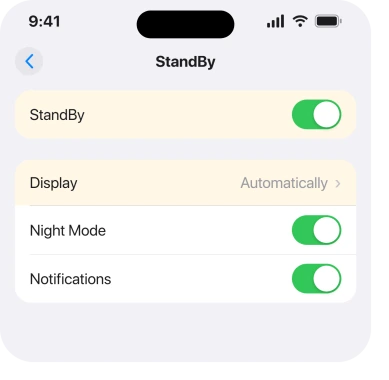
And check the switch exists at all: Settings, then StandBy, and make sure StandBy is on.
2. Your phone may not have Always-On, which changes everything
Read this before you decide anything is broken, because for a lot of phones the behaviour you are calling a fault is the design.
Apple: "With the Always-On display (on supported models), StandBy stays on to show useful information. For all other iPhone models, it's easy to activate StandBy any time by either tapping the screen, gently nudging the table your iPhone is on, or using Siri."
So on a phone without Always-On, StandBy going dark is correct. It is meant to sleep and wake on a tap or a nudge.
Always-On is a Pro feature. If yours is a standard iPhone, expect a dark screen most of the night and a clock when you touch the table.
That single paragraph accounts for a large share of the reports I read, and no page I found quotes it.
3. If it stays on all night, the display setting is the switch
Now the opposite complaint, and there is a real control for it.
Apple gives three options under Settings, StandBy, Display:
- Automatically: "The display turns off when iPhone isn't in use and the room is dark."
- After 20 Seconds: "The display turns off after 20 seconds."
- Never: "The display stays on as long as StandBy is on."
If your screen never goes dark, check whether that is set to Never. If you want it dark at night, After 20 Seconds is the reliable choice, because Automatically depends on the room actually being dark.
4. The ambient light cause nobody would guess
This one came from an owner who worked it out themselves, and it is the best thing on this page.
On a community thread about StandBy staying on after iOS 26.1, the person who started it stopped blaming iOS and looked at their bedside table instead.
Turning their clock radio's brightness down to its lowest setting "resulted in the iPhone Standby display once again shuts off after no motion is detected for about 20 seconds."
Read that against Apple's own wording for Automatically, which turns the display off when the room is dark.
A lit clock radio, a bright standby light, a streetlamp through a gap in the curtains: any of them can keep the room from being dark enough.
So before you change a setting, look at what else is glowing near the phone. On the same thread another owner reported it staying on all night and lighting the room, and a third simply wrote "Still an issue". It is not universal.
It is still two seconds of looking.
5. Low Power Mode gets in the way
Deeper down because it only bites at the end of the day, which is exactly when you set the phone down.
Low Power Mode reduces background activity and drops Auto-Lock to thirty seconds, and owners report StandBy failing to hold while it is running.
The awkward part is that you may not have switched it on. On iPhone 17 and iPhone Air, Adaptive Power ships enabled and turns Low Power Mode on by itself at 20 percent battery, which our page on Auto-Lock greying out covers in full.
Check the battery icon before you put the phone down. Yellow means the mode is running.
6. Rotation lock, and the other small blockers
Last, and each of these takes a few seconds.
StandBy needs the phone in landscape, so Portrait Orientation Lock stops it dead. Swipe down from the top right and check that the padlock-with-an-arrow button is off.
Then the surface. Apple's word is stationary, and a phone on a wobbly stand or a soft surface that keeps shifting never settles.
Then the charger. A stand that holds the phone upright and steady is what StandBy was designed around, and a cable draped over a bedside table often will not hold the angle.
One more worth knowing: with MagSafe, Apple says StandBy remembers your preferred view per location, so a clock in one room and photos in another is expected rather than a glitch.
If the widgets are the thing changing rather than the screen, that is a separate setting and it has its own page.
On iOS 27, some owners find StandBy random. One wrote: "Mine has been very random since updating to iOS 27". Another traced it to their Apple Watch.
With the watch on its charger, they wrote, "the phone turns to standby mode 100% of the time". Without it, "the phone does not turn to standby mode". If you wear one, test both ways.
What does not help
- Turning Always-On off. Suggested on the community thread and reported as not resolving the stays-on complaint.
- Reset All Settings. It clears Wi-Fi passwords, wallpaper and permissions, and nothing here lives in those.
- Restarting. Fine as a first move, but every cause on this page is a setting, a model limit or something in the room.
- A different charging cable. Only relevant if the phone will not hold its angle. StandBy does not care about wattage.
- Turning Night Mode off. It changes the colour of the screen at night, not whether StandBy appears.
Status: iOS 26.6, checked 17 August 2026. Apple documents the four conditions, the Always-On difference and the three Display options. The ambient-light finding is user-reported.
Why is StandBy not turning on on my iPhone?
Usually because one of Apple's four conditions is missing. The phone must be charging, on its side, stationary, and then you press the side button. Portrait Orientation Lock also stops it, and StandBy has its own switch under Settings, StandBy.
Why does my iPhone StandBy screen stay on all night?
Check Settings, StandBy, Display. If it is set to Never the screen stays on by design. Automatically only turns it off when the room is dark, so a lamp or a lit clock near the phone can keep it awake, which one owner traced on a community thread.
Does StandBy work without an Always-On display?
Yes, but differently. Apple says StandBy stays on only on models with the Always-On display. On every other iPhone it sleeps and you wake it by tapping the screen, nudging the table or asking Siri.
The Short Version
- Charging, on its side, stationary, then press the side button. All four, in that order.
- StandBy has its own switch under Settings, StandBy.
- Without an Always-On display, a dark screen is correct and a tap or a nudge wakes it.
- Settings, StandBy, Display has three options, and Never keeps the screen on all night.
- Automatically only turns the screen off when the room is dark, so check what else is glowing nearby.
- Portrait Orientation Lock blocks StandBy entirely.
- Low Power Mode gets in the way, and it can switch itself on at 20 percent.
Where to Next
The reason this feels so unreliable is that StandBy has two failure modes that look like one complaint. It will not come on, which is nearly always a missing condition.
Or it will not go off, which is nearly always a display setting or the light in your room.
Decide which one you have first, then read only that half. It is a two minute job once you have split it.
If yours will not come on and you have checked all four conditions, tell me which iPhone you have, because whether it has an Always-On display changes what you should expect from it.

Isaac Smith is the founder and editor of PC Glance, a website that covers computers, laptops, and technology. He is a tech enthusiast and a computer geek who loves to share his insights and help his readers make smart choices when buying tech gadgets or laptops. He is always curious and updated about the latest tech trends.