
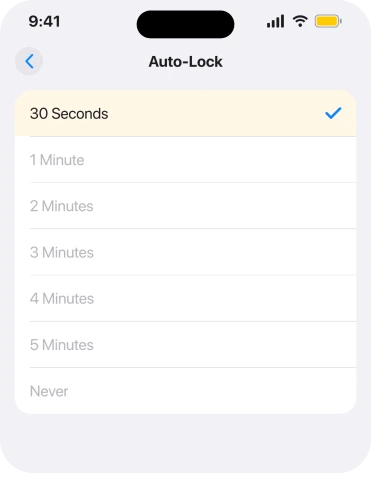
You are in Settings, Display & Brightness, looking at Auto-Lock. The list is right there. 30 Seconds has the tick, and tapping any other row does nothing at all.
Nobody enjoys a setting that ignores them, and I understand why this one reads as a fault.
It almost never is. Something on your phone is holding it, and only a handful of things can. Before you reset anything, work down these in order, because I have put the common one first.
1. Low Power Mode is on, and it takes Auto-Lock with it
Look at the battery icon in your status bar. Yellow?
Then you have your answer. Apple publishes a list of what Low Power Mode changes, and one line on it is the whole story.
Apple: "Auto-Lock: defaults to 30 seconds"
Not suggests. Defaults. The setting is taken out of your hands for as long as the mode is running, which is why the rows will not respond.
Turn it off in Settings, then Battery. On iPhone 15 and later you tap Power Mode first. Control Center works too: swipe down from the top right and tap the battery icon.
Go back to Auto-Lock and it will be tappable again. That colour check is the first thing I do whenever somebody sends me this, and it settles it most of the time.
It settles it on Apple's own forum too. In one community thread the person stuck was told to look at the colour of the battery indicator, and they came back with: "Solution? It was on low power mode! Problem solved."
2. Do nothing at all, and charging releases it
Know this before you go hunting for a setting.
Apple: "When you charge the device to 80% or higher, Low Power Mode turns off."
So a phone on a charger fixes this by itself. If you saw the problem at 11 percent and it had cleared by lunchtime, that is what happened.
It also explains the reports of Auto-Lock repairing itself overnight. Nobody repaired anything.
3. You never turned Low Power Mode on, so look at Adaptive Power
This is the part that catches people out, and it is new enough that most advice has not caught up with it.
Your phone can switch Low Power Mode on without asking.
Apple lists what Adaptive Power does when it is turned on, and one item on that list is "Turn on Low Power Mode when your battery reaches 20 percent".
On some phones it has been running since the day you unboxed them. Apple: "Adaptive Power is on by default on these models", and the four it names are iPhone 17, iPhone 17 Pro, iPhone 17 Pro Max and iPhone Air.
Read that beside the greyed-out setting and the pattern makes sense. You get to 20 percent, Adaptive Power flips Low Power Mode on, and your screen starts locking after half a second while the Auto-Lock list refuses to move.
You never touched a thing.
On iPhone 16, iPhone 16e and iPhone 15 Pro it is off unless you turned it on.
Apple never puts those two sentences on the same page. The Auto-Lock line lives on the Low Power Mode article and the 20 percent line lives on the Adaptive Power one, so joining them is ours.
To check yours, go to Settings, Battery, then Power Mode. Adaptive Power sits at the top of that screen.
You can also ask it to speak up. Turn on Adaptive Power Notifications in the same place. The phone then tells you when it steps in, rather than leaving you to work it out from a setting that stopped responding.
4. Never is missing but the shorter times still work
Different symptom, different cause. Read this one properly, because the fix is not on your phone.
If 30 Seconds through 5 Minutes all tap fine and only Never has gone, a configuration profile is doing it, usually a work, school or university one. Apple documents the exact rule.
Apple, in its device management guide, on the Maximum Auto-Lock setting: "iPhone, iPad, and Apple Vision Pro devices enrolled with User Enrollment honor this key, but the user is unable to choose 'never.'"
That is deliberate and it is written down. Whoever manages your phone can cap how long the screen stays awake. Under one kind of enrolment, that cap takes Never off your list and leaves everything else alone.
Check for a profile at Settings, General, VPN & Device Management. Anything sitting under Configuration Profile is your answer.
Do not delete a profile from your employer to win back a setting. It usually carries your work mail, your Wi-Fi and your certificates, and removing it can lock you out of all three.
I would ask whoever manages it instead, because they can often relax the cap for you.
5. The list is dead, the battery is not yellow, and there is no profile
Now you are in the small remainder. Work through these in order.
Restart the phone, an ordinary restart rather than a force restart. It clears a Settings pane that has stopped answering taps.
Then back out and come back in. The Auto-Lock pane does not always redraw the second Low Power Mode releases it, so a setting that looks dead can already be free.
Then update, because point releases have unstuck Settings panes before. It is one minute at Settings, General, Software Update.
Reset All Settings comes last, never first. It clears your Wi-Fi passwords, your wallpaper, your keyboard dictionary and every per-app permission you ever granted.
You will find it at Settings, General, Transfer or Reset iPhone, Reset.
I want to be straight with you about this rung, because it is where the reports run out.
A community thread from people who hit this after iOS 26.1 collected suggestions about work profiles, IT administrators and restoring from a backup, and nobody came back to say any of it worked.
An older thread titled for exactly the not-on-Low-Power-Mode case ends the same way: an Apple Community Specialist recommends a full restore, and there is no follow-up at all.
So if you are past rung 4 with nothing to show for it, I would book a Genius Bar appointment rather than start erasing things on the strength of advice nobody has confirmed.
6. Auto-Lock is set long and the screen still goes dark early
Read this one if your setting works fine and the phone still locks early, because it is a different problem and tapping Auto-Lock will never touch it.
Your screen dims before it locks, and several things dim it early. Low Power Mode drops brightness on purpose. So does a warm phone.
So does a low battery. Our page on what turns an iPhone screen down separates those properly.
One more thing is designed in and reads as a fault. Apple: "The iPhone display stays on while you're looking at it, but it dims and eventually locks (for your security) when you look away for a while."
So the number you picked is a floor, not a ceiling. While you are looking, the phone holds the screen on past it, then dims and locks once you look away, which is why that dim can feel like it came from nowhere.
If it is the Lock Screen itself that looks wrong rather than the timing, the Always-On display is the more likely answer.
If the screen instead stays on well past your Auto-Lock time, the screen that won't turn off page covers the switch behind it.
What does not help
- Screen Time. It genuinely greys out other settings, and Cellular is one of them. Auto-Lock is not on that list, and turning Content & Privacy Restrictions off will not free it.
- Reset Network Settings. It wipes every saved Wi-Fi password you own and has nothing to do with the display.
- Toggling Auto-Lock off and on. You cannot. That is the symptom.
- Force restarting. An ordinary restart does the same job here with less risk of interrupting something.
- Changing the passcode. A profile enforces the cap whatever your passcode is.
Status: iOS 26.6, checked 17 August 2026. Apple documents Low Power Mode forcing Auto-Lock to 30 seconds, and Adaptive Power switching Low Power Mode on at 20 percent battery.
Why is Auto-Lock greyed out on my iPhone?
Low Power Mode, nearly every time. Apple's own list of what it changes includes "Auto-Lock: defaults to 30 seconds", and the setting stays locked until the mode ends.
Turn it off in Settings, Battery, or charge the phone to 80 percent and it releases itself.
Why does my iPhone screen lock after 30 seconds?
Because Low Power Mode is running and 30 seconds is the value it forces. On iPhone 17 and iPhone Air this can happen without you doing anything, since Adaptive Power is on by default and switches Low Power Mode on at 20 percent battery.
Why is Never missing from my iPhone Auto-Lock list?
A configuration profile is capping it. Apple's device management documentation says devices enrolled through User Enrollment honour that cap and the user cannot choose Never.
Look under Settings, General, VPN & Device Management to see whose profile it is.
The Short Version
- A yellow battery icon means Low Power Mode, and that is the answer most of the time.
- Apple's list says Auto-Lock defaults to 30 seconds while the mode runs, so the rows will not respond.
- Charging to 80 percent turns Low Power Mode off by itself, and Auto-Lock comes straight back.
- If you never switched it on, Adaptive Power did, at 20 percent battery.
- Adaptive Power ships on by default on iPhone 17, 17 Pro, 17 Pro Max and iPhone Air.
- If only Never has gone, a work or school profile is capping it, and Apple documents that rule.
- Never delete an employer's profile to get the setting back.
- Screen Time does not touch Auto-Lock, whatever else it greys out.
Where to Next
A setting that will not respond feels broken in a way a missing setting does not. This one is usually just occupied, and by something that hands it back on its own.
Look at the battery icon before anything else. One second, and it answers the whole question. It will answer it again the next time you drift near 20 percent.
And if it is Stolen Device Protection refusing to turn off rather than Auto-Lock, that has a timer behind it.
Where Require Passcode is stuck on Immediately, something changed and it is not your battery.
Where StandBy refuses to start when charging, the conditions for it are specific.
Where the flashlight and camera shortcuts vanished from your lock screen, there is a reason and a way back.
If your battery icon is not yellow, there is no profile listed, and the rows still will not move, tell me which iPhone you have and what Auto-Lock is currently set to, because those two together narrow it down fast.

Isaac Smith is the founder and editor of PC Glance, a website that covers computers, laptops, and technology. He is a tech enthusiast and a computer geek who loves to share his insights and help his readers make smart choices when buying tech gadgets or laptops. He is always curious and updated about the latest tech trends.