
You have gone into Settings to change something and the row sits there grey and dead, as though the phone has decided for you. Your phone is not faulty.
A row that has gone grey means something is blocking changes to it, and on an iPhone I would bet on Screen Time before anything else.
Go to Settings, Screen Time, Content & Privacy Restrictions, and look through the Allow Changes To section for anything set to Don't Allow. For most people that is the whole fix.
Do this first
It costs nothing and it explains most cases.
Apple, on a greyed-out Apple Account: "Open the Settings app, then tap Screen Time." Then "Tap Content & Privacy Restrictions." Then "If Content & Privacy Restrictions is turned on, scroll down to the Allow Changes To section."
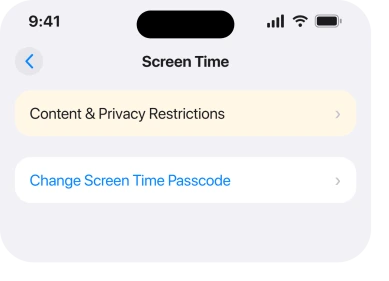
The next line is the one that matters, because it covers a row Apple has never named: "check if any other settings are set to Don't Allow. If so, tap the setting, then choose Allow. If asked, enter your Screen Time passcode."
So read down the whole section. Do not go hunting for a row with the word cellular on it.
What a grey row actually means
Grey does not mean broken. On the iPhone it means locked, and something on the phone put the lock there.
Apple: "If your Apple Account is grayed out in the Settings app, you might have certain Screen Time restrictions enabled for your device."
That is Content & Privacy Restrictions doing its job. When it holds a setting, the setting stops responding to taps and goes pale. It does not warn you, it does not say which rule did it, and it looks exactly like a fault.
Which is why the sweep above works on any dead row, not just this one.
Once you read a grey row that way, you stop hunting for a fault, and I think that is the most useful thing on this page.
Three things can dim a row
Apple puts all three in one sentence, and that sentence lives on a page about the clock.
Apple, on not being able to change the time or time zone: "The option to turn Set Automatically on or off might not be available with all carriers or in all countries and regions. If the device has a Screen Time passcode or a corporate profile with device restrictions installed, the setting might be dimmed (grayed out)."
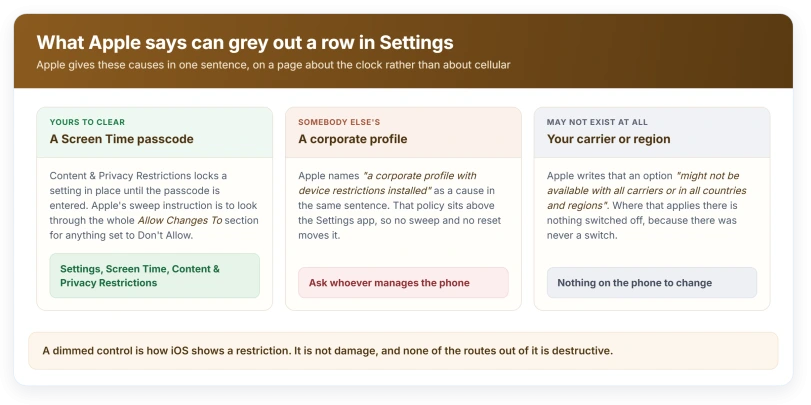
Only the first is yours to clear.
- A Screen Time passcode. Yours, or set by whoever manages the device.
- A corporate profile with device restrictions. A work or school phone, and a policy rather than a setting.
- Your carrier, or your country or region. Apple's wording is "might not be available", which means there may be nothing to switch on.
Work out which of the three you are in before you spend an evening on it.
If you cannot find a row that says Cellular
Plenty of people open that section, see no row with the word cellular on it, and assume they are in the wrong place.
You are not.
Apple's instruction for the section is deliberately general: "Allow changes to other settings: Tap an option below Allow Changes To, then tap Allow or Don't Allow." It never lists what those options are, on any page we could find.
So do not scan for a heading you recognise. Read every row in that section and change anything reading Don't Allow to Allow. That is Apple's own method, and it is the reason it catches a row it never names.
Greyed out is not No Service
These get treated as one problem. They are unrelated.
Where the status bar reads No Service or Searching, Apple's definition is that "your device isn't connected to a cellular network." That is about signal.
A dimmed row is about permission. A phone can be in either state without the other.
If your status bar is the thing that is wrong, our page on an iPhone stuck on SOS or No Service covers that side, including the carrier settings update and the Airplane Mode cycle Apple asks for.
Status: iOS 26.6, checked 16 August 2026. Apple documents the dimming mechanism on two pages, neither of them about cellular, and publishes no list of what the restrictions section contains.
If it is a work or school phone
This is the case where nothing you do in Settings will help, and knowing that early saves an evening.
A corporate profile is installed by whoever manages the device, and its restrictions sit above your Settings app. Apple names this cause directly, alongside the Screen Time one.
The tell is simple. You sweep Screen Time, find nothing set to Don't Allow, and the row is still grey. At that point the way out is a person, not a reset.
It might not be the row you think
Dimmed controls are common enough on the iPhone that it pays to check which one you are actually staring at.
Personal Hotspot has its own separate story, where the usual cause is the carrier rather than the phone, and our page on why Personal Hotspot is greyed out covers that one properly.
The same mechanism turns up again on the clock, where our page on the wrong time hits the identical Screen Time sentence from the other direction.
Why is my cellular option greyed out?
A greyed row in Settings means a restriction is holding it rather than that anything has failed. Apple names three causes: a Screen Time passcode, a corporate profile with device restrictions, or a carrier, country or region where the option is not offered. The route to check the first is Settings, Screen Time, Content & Privacy Restrictions, then the Allow Changes To section.
Does turning Screen Time off fix it?
Clearing the specific restriction is the documented route, and Apple's instruction is to set the offending option to Allow rather than to switch the whole feature off. If a Screen Time passcode is in the way, Apple's separate route is Settings, Screen Time, Change Screen Time Passcode, then Turn Off Screen Time Passcode.
Will resetting the phone bring cellular back?
Nothing in Apple's documentation points at a reset for a dimmed row, because a restriction is not damage. If the cause is a corporate profile, a reset does not remove the policy either. The documented steps are all about permissions, and none of them is destructive.
Is a greyed cellular row the same as No Service?
No. Apple defines No Service and Searching as the device not being connected to a cellular network, which is about the signal. A dimmed row is about whether you are allowed to change a setting. They can happen together and neither causes the other.
The Short Version
- A dimmed Settings row is a restriction, not a fault or a hardware failure.
- Apple's route is Settings, Screen Time, Content & Privacy Restrictions, Allow Changes To.
- Apple's instruction is to check the whole section for anything set to Don't Allow.
- Apple documents the mechanism on pages about the Apple Account and about the clock.
- Apple names three causes: a Screen Time passcode, a corporate profile, or your carrier or region.
- Apple does not publish what the Allow Changes To section contains.
- On a work phone the restriction sits above Settings, and the manager is the way out.
- No Service is a connection state and is a different problem entirely.
Where to Next
When a row will not respond, read it as a rule rather than a fault. That one habit collapses a whole family of these problems into a single place to look.
Sweep the whole Allow Changes To section rather than hunting for one named row, because Apple's own instruction is to do exactly that.
If your phone came from work or school, the answer is a conversation rather than a setting, and no reset will argue with it.
Where Wi-Fi Calling is the switch that will not move, six things grey it out and most are carrier side.
Where mobile data stopped the day you updated rather than being greyed out, there are seven things worth working through.
Where the option is Guided Access rather than cellular, six things can grey that one out too.
If it is your own phone and that section is empty, tell me in the comments and I will help you work out what else is holding it.

Isaac Smith is the founder and editor of PC Glance, a website that covers computers, laptops, and technology. He is a tech enthusiast and a computer geek who loves to share his insights and help his readers make smart choices when buying tech gadgets or laptops. He is always curious and updated about the latest tech trends.