
You set Auto-Lock to 30 seconds, but your iPhone screen stays lit on the desk for minutes. Auto-Lock seems broken since the update.
That is annoying when battery matters. I read Apple's pages on Auto-Lock and attention settings, and a MacRumors thread where an iPhone 18 Pro Max owner chased the same thing.
What one owner found
In the iOS 27 bug thread, which has about 14,000 views, an owner reported Auto-Lock "not working on iPhone 18 pro max." Later the same day, they took the bug report back.
In their words: "It's basically the front camera detecting your face and keeping display on!"
Another owner wanted the same thing switched off, because their phone "sits on a stand facing me" at a desk. If your iPhone faces you, it may think you are still reading.
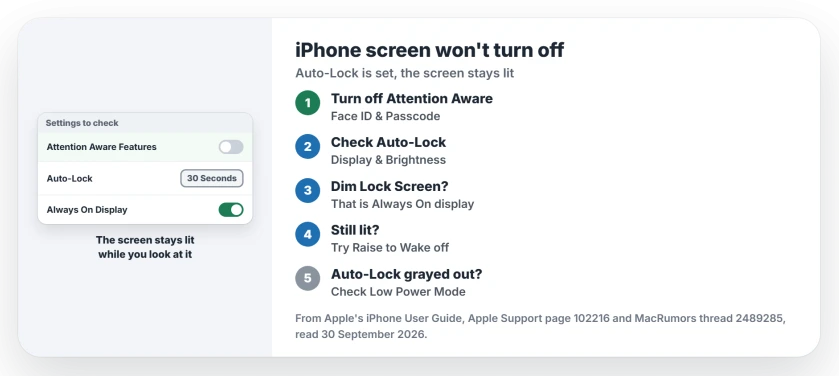
Status: checked 30 September 2026. Apple says your screen stays lit as long as you look at it. Turning off Attention Aware Features lets Auto-Lock run on time, even when the phone faces you.
1. Turn off Attention Aware Features
Apple's own guide explains it. While your eyes are on the screen, it stays lit. Dimming, and then locking, only start after you have looked away.
Its Attention Aware page puts it more plainly: the dimming waits until you stop paying attention to the phone.
To turn it off, open Settings, tap Face ID & Passcode, enter your passcode, then switch Attention Aware Features off. The same switch also sits in Settings under Accessibility, then Face ID & Attention, if that is easier to find.
2. Check the Auto-Lock time
Next, check the timer itself. Apple's steps: "Tap Display & Brightness, then tap Auto-Lock." Then choose a length of time.
If Auto-Lock says Never, nothing locks the phone for you. Apple also warns that a longer Auto-Lock "may increase power consumption."
3. Tell the Always On display apart
On supported models, a locked iPhone keeps a dim copy of the Lock Screen visible. Apple calls it Always On display, and ships it switched on.
So a dim clock on a locked phone does not mean Auto-Lock failed at all. Apple says the dim screen switches off when the phone is face down or in a pocket, in Low Power Mode, and during Sleep Focus.
If you would rather see a black screen, open Settings, tap Display & Brightness, then turn off Always On Display.
4. Try Raise to Wake if it still stays lit
The first owner found a second switch that mattered on their 18 Pro Max. They wrote that with Raise to Wake turned off, Auto-Lock worked again.
It sits under Display & Brightness. It is user-reported, so I would test it after Attention Aware, not before.
5. Check whether Auto-Lock is grayed out
If Auto-Lock is grayed out and you cannot change it, check Low Power Mode first. And if the screen stays on only while the phone charges on its side, that is StandBy, which the StandBy page covers.
Screen dimming too soon instead?
The opposite problem has its own causes. The screen dimming page goes through them, from Auto-Brightness to the heat limits.
Why does my iPhone screen stay on when Auto-Lock is set?
On iPhones with Face ID, Attention Aware Features keep the display lit while the front camera sees you looking. Turn it off in Face ID & Passcode.
Is Auto-Lock broken on the new iPhone 18 models?
One owner thought so, then found the front camera was keeping the display on. Turning off Attention Aware Features is the switch to test first.
Does the Always On display mean my iPhone is unlocked?
No. It shows a dimmed Lock Screen while the phone stays locked. It is on from the start on supported models.
The Short Version
- Looking at the screen keeps it awake.
- Turn it off in Face ID & Passcode.
- Check Auto-Lock in Display & Brightness.
- A dim Lock Screen is the Always On display.
- Turn off Always On Display for a black screen.
- One owner also needed Raise to Wake off.
- Grayed out Auto-Lock points to Low Power Mode.
Where to Next
Open Face ID & Passcode now and switch Attention Aware Features off. Then prop it facing you and time it.
If your screen still stays lit after that, post your model and Auto-Lock setting in a comment. I will add what turns up.

Isaac Smith is the founder and editor of PC Glance, a website that covers computers, laptops, and technology. He is a tech enthusiast and a computer geek who loves to share his insights and help his readers make smart choices when buying tech gadgets or laptops. He is always curious and updated about the latest tech trends.