
A frozen slider is one reason an iPhone won't power off; using the wrong button combination is another. Open Settings > General > Shut Down first when the screen still responds. That avoids relying on a troublesome physical button.
A force restart starts the phone again. Once it responds, use the ordinary shutdown control if the goal is to leave it switched off.
Use Shut Down while the screen still responds
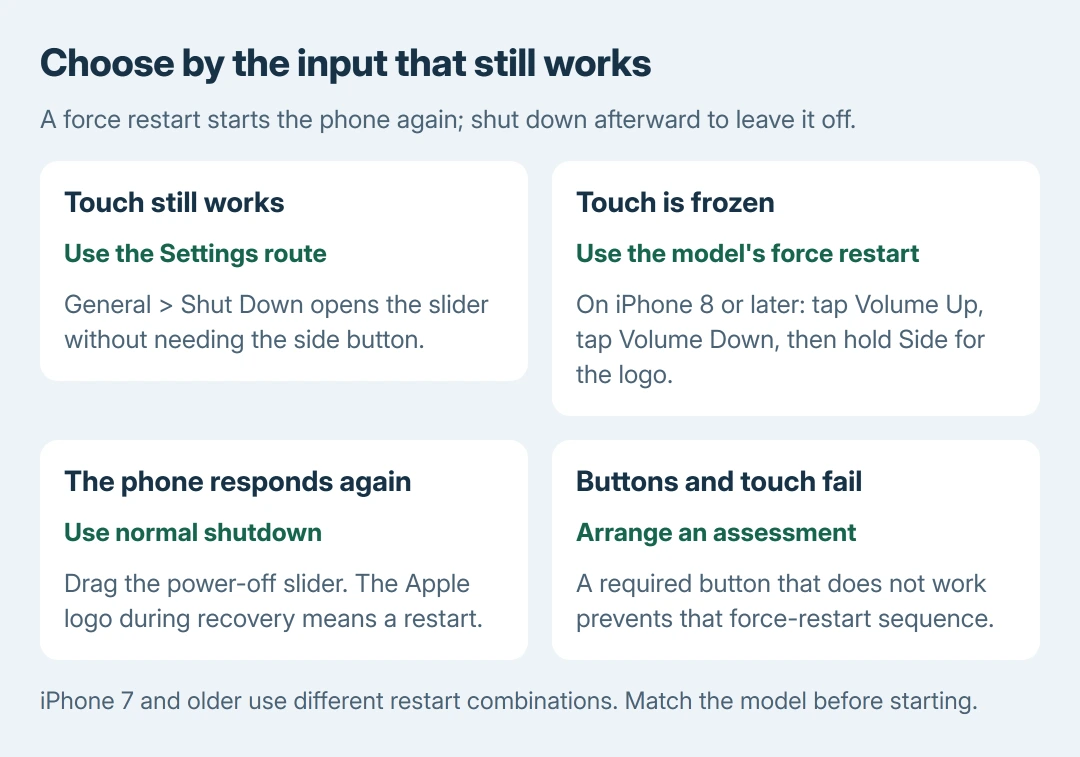
Open Settings, choose General, scroll to Shut Down and drag the power-off slider. Apple documents this button-free route in its iPhone shutdown instructions.
On current software, another route is Control Center: touch and hold its power control in the upper-right corner, then drag the slider. Both routes still require working touch input.
Status: Apple's shutdown, frozen-iPhone and button guidance checked October 27, 2026. Restart combinations depend on model. These procedures were not performed on an iPhone.
If the complaint is only that the lit display never sleeps while the phone otherwise works, use the iPhone screen-sleep checks. Auto-Lock does not shut down the whole device.
Use the shutdown buttons for this iPhone model
Apple says a Face ID model uses Side plus either Volume button, held until the sliders appear. Release both buttons once the sliders appear. Drag the power control to request shutdown.
On iPhone 6, 7, 8 and SE second or third generation, hold Side alone for the slider. On SE first generation, iPhone 5 and earlier, hold the top button instead.
Apple's restart-by-model page says to allow 30 seconds after dragging the slider for shutdown. These are shutdown combinations; the force-restart combinations differ.
If a Face ID phone opens Siri when Side is held alone, use the volume button too. If the slider appears but cannot be dragged, move to the frozen-screen procedure rather than pressing the same combination repeatedly.
Our recommendation is to stop at the first slider and choose Settings when holding both controls is difficult. Continuing to hold Side and Volume can also engage Emergency SOS behavior; it is not a better way to request shutdown.
Force restart when the slider or touch screen is frozen
Apple states that a force restart is appropriate when the phone does not respond and cannot be turned off normally. It restarts iOS without selecting an erase or restore operation.
For iPhone 8 or later, including SE second and third generation:
- Quickly press and release Volume Up.
- Quickly press and release Volume Down.
- Hold Side until the Apple logo appears, then release it.
The first two presses are separate taps. The final press is held. Apple warns in its unresponsive-iPhone guidance that the hold can exceed 10 seconds before a logo appears.
For iPhone 7 or 7 Plus, hold Side and Volume Down together until the logo appears. For iPhone 6s or earlier, including first-generation SE, hold Home and Side or Top together until the logo appears.
Wait for the phone to finish restarting. If touch works again, return to Shut Down to leave it off. A restored response confirms that shutdown controls are accessible again; it does not explain why a recurring freeze began.
Separate a failed button from a recurring freeze
If Settings can shut the phone down but a physical button consistently fails, use the iPhone button assessment for that fault. A working touch screen provides the shutdown workaround while repair is arranged.
Apple's button support page advises removing an obstructing case and checking for dirt around the control. A damaged, intermittent or still-unresponsive button needs service. Leave a displaced button for repair.
When both touch and a required restart button fail, the steps here cannot force a working input. Contact Apple Support or an authorized repair provider and explain which controls respond. Avoid an erase merely to attempt a shutdown.
If the phone freezes again after restarting, back up while it is accessible and tell support the iOS version and the action that triggers it. Repeated forced restarts are a recovery action, not a lasting fix for a continuing fault.
The Short Version
Use Settings > General > Shut Down with working touch. Otherwise check the model's button sequence. Frozen input calls for a force restart, then normal shutdown.
Apple needs to assess failed buttons or recurring freezes.

Isaac Smith is the founder and editor of PC Glance, a website that covers computers, laptops, and technology. He is a tech enthusiast and a computer geek who loves to share his insights and help his readers make smart choices when buying tech gadgets or laptops. He is always curious and updated about the latest tech trends.