
So you are pressing the button and nothing is happening, and you have already started working out what a repair is going to cost you. Hold on a minute before you book anything.
There is a fair chance the button itself is fine. Wet fingers stop an iPhone button working, and so do hand cream and sun lotion, and that is Apple's own note rather than mine.
Get your hands dry, take the case off, press again. If it still does nothing, the way the button feels is what tells you which of eleven separate faults you are looking at.
Dry hands, no case, then press again
Apple gives repair technicians two quick checks before anything else, and both are free.
Apple: "Remove any covers or cases from the device before troubleshooting, to verify that the actual button or switch is being activated."
A case with a slightly shallow cutout presses the rubber, not the button. It fails intermittently, which is why people blame software.
The second one almost nobody prints. Apple: "Moisture, lotions, sweat, or oils on fingers may affect button operation."
So a button that dies at the gym, in the kitchen or on a beach and works fine an hour later is not a broken button.
Clean around the button too, with a dry lint-free cloth. Grit packed into the seam is common on a phone that lives in a pocket.
Do all three before you go further. If the button comes back, I have just saved you a repair bill.
It presses normally and nothing happens
This one usually is a fault. There is a test that splits it in two.
Press the button somewhere else. Volume buttons should move the slider in Music, work the shutter in Camera, and dismiss an alarm. The side button should wake the screen and, held with a volume button, bring up the power slider.
If the button does one job and not another, the hardware is fine and a setting is in the way. If it does nothing anywhere, you are looking at the button itself.
Before you accept that, force restart the phone. It is the one software step worth doing, because a wedged input daemon looks exactly like a dead button and clears in ten seconds.
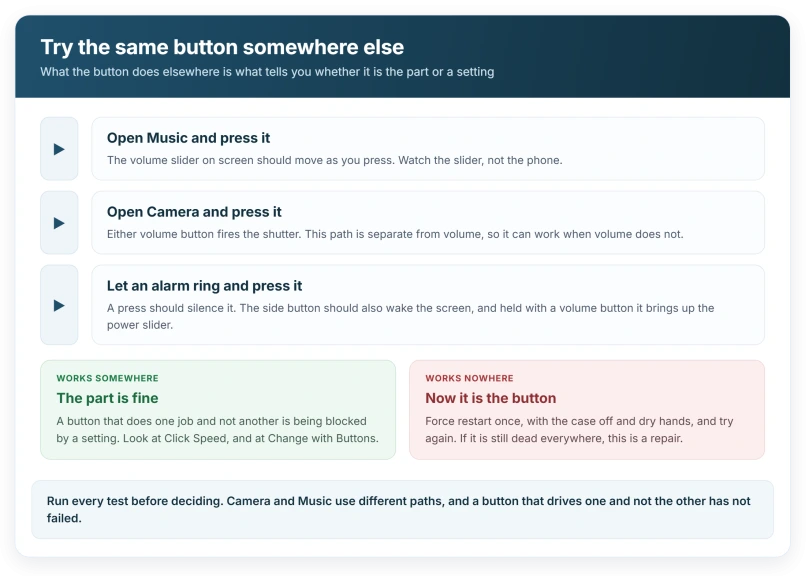
If the button works in one app and not another, you can relax about the hardware. I would go straight to the Accessibility rows further down.
It feels wrong before anything happens
Apple's technicians are given eleven separate descriptions of a button that is "not working", and most describe how it feels rather than what it does.
Among them: too difficult to click, poor tactility or button feel, unusual clicking sounds, and button sunk in, misaligned, loose, or rattling.
Those are mechanical. No reset touches them.
A button that has sunk into the frame, or rattles when you shake the phone, has physically moved. It needs hands on it.
iFixit puts the same point in one line on its volume button page: "A dent in the wrong place can cause a button to stick in one position."
If the phone has been dropped on that edge, that is your answer, and no amount of Settings will change it.
It works sometimes, or presses itself
Apple's list also carries intermittent or unexpected button response and accidental button press as their own faults, separate from a dead button.
Intermittent usually means the case. Take it off. Live without it for a day before you book anything.
A phone that turns itself down in your pocket is the same fault from the other side, and Apple names it as a fault rather than a quirk.
You press it and feel nothing back
No haptic feedback when pressing button sits on Apple's list too, and Apple sends that one somewhere else entirely: to the Taptic Engine, which it calls the vibe motor.
So a button that works but has gone silent under your thumb is a vibration problem, not a button problem. Our page on an iPhone that stopped vibrating covers what actually drives that.
Say it that way at a repair counter and you save an argument, because the two land on different parts.
Double clicking stopped, single presses are fine
There is a setting that does exactly this, and almost nobody looks at it.
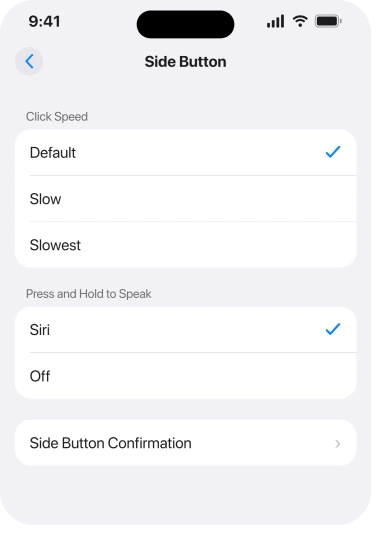
Go to Settings, then Accessibility, then Side Button on a Face ID iPhone or Home Button on a Touch ID one. The first row is Click Speed.
Apple: "Choose the speed required to double-click or triple-click the button". The options are Default, Slow and Slowest.
Set to Slow or Slowest, your normal double click is too fast to register. Apple Pay stops opening, the App Store stops confirming, and every single press still works perfectly.
That combination, single fine and double dead, is the signature. It gets set by accident more often than you would think, usually by someone exploring Accessibility.
The same screen holds Press and Hold to Speak, which Apple describes as choosing "whether Siri responds when you press and hold the button". Turn that off and holding the side button feels broken.
Your volume buttons may be working perfectly
If the complaint is that the buttons will not change the ringer, they are probably fine.
Ringer volume has its own switch. Apple: "Turn on Change with Buttons to use the volume buttons on your device to change the alarm volume." With it off, the buttons still move media volume and leave the ringer alone.
That is deliberate, it lives in Sounds and Haptics, and our page on a silent alarm works through the whole slider.
Two controls that are not really buttons
Apple groups them with the buttons, then treats them separately, and the reason matters.
Its technician list covers Action button not working (on models with an Action button) and Camera Control not working (on models with Camera Control), and adds two symptoms no ordinary button can have: unresponsive scroll and accidental button scroll.
Camera Control senses a light press and a slide. So "not working" can mean the slide is ignored while the press is fine. Test both.
The Action Button has the opposite trap. It does whatever you assigned it, and if nothing is assigned it does nothing at all, which reads as dead. Open Settings, then Action Button, and see what is assigned.
The middle button on wired EarPods gets lumped in here too. If its single press stopped pausing music, that is an iOS fault with its own workaround, not a problem with the iPhone's buttons.
Get every button back while you decide
Do this before you book anything. It costs nothing and takes about a minute.
Apple, on AssistiveTouch: "You can use AssistiveTouch to adjust volume, lock your screen, use multi-finger gestures, restart your device, or replace pressing buttons with just a tap."
Turn it on at Settings, then Accessibility, then Touch, then AssistiveTouch. A small round button appears. Drag it to any edge you like.
Apple lists two other ways in, and one of them matters when the side button is the dead one: ask Siri to turn on AssistiveTouch, or add it to the Accessibility Shortcut.
A phone with a dead side button can still be locked, restarted and turned off from that menu. That turns an urgent repair into one you can book for a convenient week.
AssistiveTouch can take screenshots too. On iOS 27 that action moved, and the AssistiveTouch screenshot page shows where it went.
Status: iOS 26.6, checked 16 August 2026. Apple's owner page for a button that is not working, doc 102327, was last published on 28 January 2026 and still runs to three steps.
What does not work
- Reset All Settings. It will wipe your wallpaper, your keyboard dictionary and your network settings, and Apple does not name it anywhere in its button advice. If Click Speed is your problem, changing that one row does the same job.
- Restoring the phone. Same argument, much bigger cost. Worth it only after the button has failed in every app and a force restart changed nothing.
- Pressing harder. On a button that is sunk or misaligned, more force is how a bad situation becomes a worse one.
- Blaming the update. Apple's own troubleshooting for this is physical from the first line to the last, and none of the eleven button symptoms it lists is software.
If the button is genuinely gone, Apple's page ends the same way: set up a repair. Ours ends by saying you can keep using the phone properly in the meantime, which its page does not mention.
Why did my iPhone volume buttons stop working suddenly?
Sudden is a useful word here. A button that worked yesterday and does nothing today is usually the case, the seam, or your hands, because mechanical wear arrives slowly and those three arrive overnight. Test the buttons in Music, in Camera and against an alarm before assuming a part failed.
How do I turn my iPhone off without the side button?
Turn on AssistiveTouch, tap the onscreen button, then use the Device menu, which carries Lock Screen and Restart. Apple documents it as a replacement for pressing buttons. There is also a Shut Down row at the bottom of Settings, General, which needs no buttons at all.
Is it the button or the software?
Sort it by whether the button ever works. Working in one app and not another points at a setting, and Click Speed or Change with Buttons will usually be the one. Doing nothing in any app, after a force restart and with the case off, points at the button.
The Short Version
- Dry hands and no case first. Apple names moisture, lotions, sweat and oils as things that stop a button working.
- Test the button in more than one app. One job working and another not is a setting, not a fault.
- How it feels is the diagnosis. Sunk, loose, rattling, too hard or oddly loud are all mechanical.
- Double click dead while single press works is Click Speed in Accessibility, not a broken button.
- Buttons that will not move the ringer are usually fine. That is Change with Buttons.
- No haptic when you press is the vibration motor, and Apple routes it to a different part.
- AssistiveTouch gives you volume, lock, restart and shut down from the screen, for free.
Where to Next
Work it in this order: hands, case, seam, then the same button in three different apps, then the feel of it, and only then Accessibility.
Most people run that backwards, start with a restore, lose a day and still have a sticky button.
Where the Action button works but silent mode has vanished from its list, that is a separate change.
And if it does turn out to be dead, switch AssistiveTouch on before you go anywhere. A phone you can still lock and restart is one you can hand over when it suits you rather than today. Tell me how you get on.

Isaac Smith is the founder and editor of PC Glance, a website that covers computers, laptops, and technology. He is a tech enthusiast and a computer geek who loves to share his insights and help his readers make smart choices when buying tech gadgets or laptops. He is always curious and updated about the latest tech trends.