
You double-tap the AssistiveTouch button to grab a screenshot, and since iOS 27 nothing happens. When you go to set it up again, Screenshot is nowhere in the list.
It is still there, filed under a heading you would not guess. The forum thread I followed has 57 Me too clicks, and one reply found it within hours. The rest I compared with Apple's AssistiveTouch guide.
What the owner saw
Searching on an iPhone 16 Pro, they had been thorough: "I checked System and the other action categories, but Screenshot is completely missing".
They had also tried the basics. In their words: "I have also restarted the iPhone and checked the AssistiveTouch settings again". And they missed the old way: "Double-tapping the AssistiveTouch button was much more reliable".
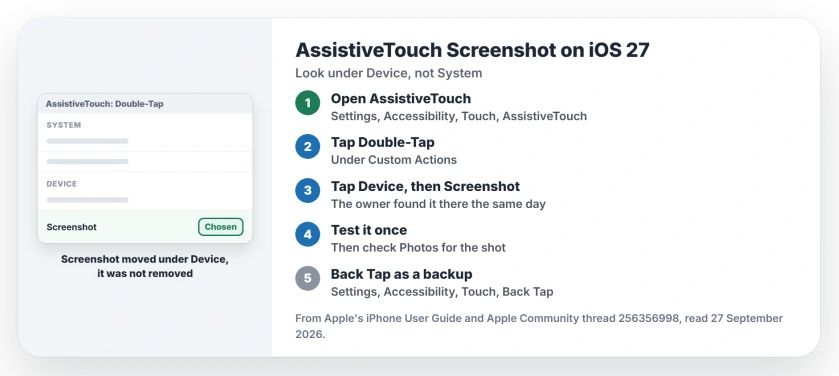
Status: iOS 27, checked 27 September 2026. Screenshot now sits under Device in the Custom Actions list. The owner confirmed it the same day.
1. Open the Double-Tap action
Start in Settings, then Accessibility, then Touch, then AssistiveTouch.
Apple says in its AssistiveTouch guide that the Single-Tap, Double-Tap and Long Press options let you "Assign custom actions that run when you interact with the menu button".
Tap Double-Tap, or whichever of those you used before the update.
2. Tap Device, then Screenshot
A second owner answered with a path: "AssistiveTouch -> Custom Actions -> Double-Tap -> Device -> Screenshot".
The first owner's reply settled it: "I completely missed the Screenshot option under Device". So the action was never removed, only moved out of the System group.
3. Test it on a busy screen
Open any app, double-tap the button, and check Photos for the new screenshot. If a double tap feels slow, a Long Press on the same list may suit you better. That suggestion is ours.
Apple still counts screenshots among the jobs AssistiveTouch can do, listing "Take a screenshot" in its guide.
4. On an iPad, check the same place
The problem is not only on iPhones, since a later reply said the same option was missing on an iPad Pro.
The iPad has the same AssistiveTouch settings, so look under Device there too. No iPad owner has confirmed it in the thread yet, so that reading is ours.
5. Keep Back Tap as a second route
Back Tap is another way to take a screenshot without the buttons. Apple says tapping the back of the phone two or three times "can open Control Center, take a screenshot, trigger accessibility-specific actions, and more".
Set it in Settings, then Accessibility, then Touch, then Back Tap. The first owner found it less reliable than AssistiveTouch, so use it as a backup rather than a swap.
Other iPhone button problems
If a physical button has stopped working, the iPhone button page shows how AssistiveTouch stands in for it. And if your screenshots are taken but never appear, the screenshots page covers where they go.
And if the Text Size control in Control Center lost its switch for one app, the per-app text size page has the Display Zoom trick that brings it back.
Where is the screenshot option in AssistiveTouch on iOS 27?
It sits under Device: open Settings, Accessibility, Touch, AssistiveTouch, tap Double-Tap, then tap Device and choose Screenshot.
Did iOS 27 remove the AssistiveTouch screenshot?
No. It moved out of the System group into Device, and the owner who reported it missing found it there.
Can I take a screenshot without the buttons on iPhone?
Yes. Set Screenshot on an AssistiveTouch action, or use Back Tap and knock twice on the iPhone's back.
Does restarting bring the Screenshot option back?
No. The owner restarted first and still could not see it, because it had only moved.
The Short Version
- Screenshot moved, it was not removed.
- Open AssistiveTouch in Accessibility.
- Tap Double-Tap under Custom Actions.
- Tap Device, then Screenshot.
- iPad owners report the same change.
- Back Tap works as a backup.
Where to Next
Open Settings now, set Screenshot under Device, and double-tap the button once to test it. Then check Photos for the shot.
Using AssistiveTouch on an iPad? Leave a comment saying whether Screenshot sits under Device for you too, and I will note it here.

Isaac Smith is the founder and editor of PC Glance, a website that covers computers, laptops, and technology. He is a tech enthusiast and a computer geek who loves to share his insights and help his readers make smart choices when buying tech gadgets or laptops. He is always curious and updated about the latest tech trends.