
The Wi-Fi Calling switch will not move, or the row has gone from Settings altogether, and you are sitting somewhere with no signal. That is a rotten combination and I am sorry you have hit it.
One owner put it plainly: "yes it was working perfectly .but after udate it lost". Their thread has 41 Me Too votes.
I want to be honest about the shape of this from the start. Three of the six fixes are on your phone. The other three end at your carrier.
1. Check the right screen, and the right line
More reports than you would expect are a switch that was never actually missing.
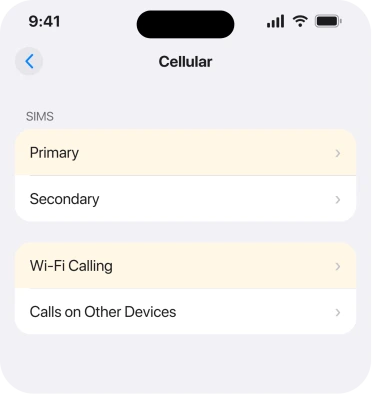
Apple, in Make a call with Wi-Fi Calling: "Open the Settings app. Tap Cellular. If your iPhone has multiple SIMs, tap the line you want to use Wi-Fi Calling. Tap Wi-Fi calling and turn it on."
Read the second sentence again. On a dual SIM phone the setting is per line. Open the wrong line and you get a switch that looks dead because the feature belongs to the other number.
Older guides send you to Settings, Apps, Phone instead; go through Cellular and pick the line by name, because that is where Apple puts it and where the per-line control lives.
2. Restart the phone, properly
Boring, free, and one owner got the whole thing back this way.
sjh1858, on a thread carrying 49 Me Too votes, reported it in one line: "A full reboot of the phone seems to have fixed it."
Power the phone all the way down. Wait a minute. Start it again. Then go back to the Cellular screen. Do that before you decide anything else.
Owners report this working because a carrier feature is negotiated when the phone registers on the network, so a genuine restart is not a superstition here. It makes the phone ask again.
3. Answer the emergency address prompt, because it gates the switch
Here is a step people abandon halfway through without realising the switch never actually turned on.
Apple: "Tap Enable. You might need to enter or confirm your address for emergency services."
If you tapped the toggle, saw an address form and backed out, Wi-Fi Calling did not turn on. Apple documents that step for a reason, and the address is not optional paperwork.
It is what tells the emergency service where you are when a call travels over the internet instead of over a mast.
Apple explains why it matters: "When cellular service is available, your iPhone uses it for emergency calls. If you turn on Wi-Fi Calling and cellular service isn't available, emergency calls might use Wi-Fi Calling."
Go back, tap Enable, and fill the address in completely.
Once it is on, Apple gives you the check: "If Wi-Fi Calling is available, you'll see 'Wi-Fi' in the status bar while viewing Control Center." Swipe down from the top right and look.
4. Accept that this is your carrier's switch, not Apple's
This rung saves people from resetting a phone that was never at fault.
Two Level 10 members say the same thing on two separate threads. KiltedTim (235,700 points) treated it as a carrier feature question and sent the iOS 26 poster to their carrier.
lobsterghost1, a Community+ member, was more specific still: the feature is carrier-provided rather than Apple-controlled, and the failures trace back to provisioning rather than to the iOS release.
That means two things. Row missing entirely from your Cellular screen? Your carrier does not offer it on that plan. Vanished after an update? The update did not remove it. It knocked something loose at the network end.
Ring them and use their words. Ask whether Wi-Fi Calling is provisioned on your line.
5. Get the line reprovisioned, which is the fix that actually worked
The deepest rung, the slowest one, and the only one in the record that fixed a case nothing else touched.
smarches described the full sequence after an update killed it on Verizon.
Second-level support at both carriers involved, the eSIM reprovisioned, a new SIM activation validated through a text link, then Reset Network Settings on the phone and a reboot. Wi-Fi Calling came back.
jemelle513 got there a shorter way, and it still took about ninety minutes: a hard network reset from the carrier's side, done while on the phone to their tech support, plus a network settings reset locally.
Both owners flagged that Reset Network Settings erases your saved Wi-Fi passwords, so have them to hand before you run it.
Notice the pattern in both accounts. The carrier does something at their end, then you reset at yours, in that order. Resetting first and hoping does not appear to have worked for anybody.
6. If it works on the phone but not your Mac or iPad
The narrowest case, and it is a completely separate switch.
Apple: "If your carrier supports Wi-Fi Calling on iCloud-connected devices, you can also make and receive Wi-Fi calls on other devices."
The route is its own screen: turn on Wi-Fi Calling on This iPhone, then go back and tap Calls on Other Devices, then turn on Allow Calls on Other Devices and pick each device you want.
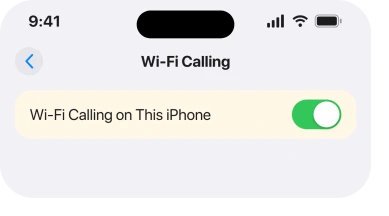
Two conditions there, and both can fail quietly. Your carrier has to support it on iCloud-connected devices at all, and each device has to be ticked individually. Calls failing on the iPhone too, not just on the other devices?
Then iPhone Call Failed is your page. If they arrive silently instead, calls going straight to voicemail covers the Focus side.
What does not help
- Toggling Airplane Mode. Every page suggests it and no owner in the threads read reported it fixing a greyed switch.
- Resetting network settings on its own. Both confirmed fixes involved carrier-side work first, then the reset.
- Reinstalling or erasing the phone. The provisioning lives on the carrier's system, not in your backup.
- Waiting for the next iOS release. One owner did see 18.2 clear it, but the same fault recurred for others, so it is not a plan.
Status: iOS 26.6.1, checked 18 August 2026. Reported on iOS 26 with 41 Me Too and no fix posted. The confirmed fixes come from iOS 18 era threads and are carrier-side.
Why is Wi-Fi Calling greyed out on my iPhone?
Most often because the switch belongs to a different SIM line, because the emergency address step was never completed, or because the line is not provisioned for it at the carrier.
The row missing entirely usually means the carrier does not offer it.
Where is Wi-Fi Calling in Settings on iOS 26?
Settings, then Cellular, then the line you want, then Wi-Fi Calling. On a dual SIM iPhone the setting is per line, which is why it can look dead when you open the wrong number.
Does turning Wi-Fi Calling on need my address?
Yes, often. Apple says you might need to enter or confirm an address for emergency services when you tap Enable, and backing out of that form leaves the feature switched off.
Can my carrier fix Wi-Fi Calling?
Usually they are the only ones who can. The confirmed fixes on Apple's forums involved carriers reprovisioning the line, followed by a network settings reset on the phone in that order.
The Short Version
- On a dual SIM iPhone the switch is per line, so check you opened the right one.
- Apple's route is Settings, Cellular, your line, Wi-Fi Calling.
- Tapping Enable can ask for an emergency address, and backing out leaves it off.
- Control Center shows Wi-Fi in the status bar when it is genuinely working.
- Two Level 10 members say this is a carrier feature rather than an Apple one.
- The fixes that worked were carrier reprovisioning first, then a network reset.
- Calls on other devices is a separate switch with its own carrier condition.
Where to Next
This looks exactly like an iOS bug, and it is almost never fixed like one. People reset, restore and update while the actual blockage sits on a provisioning record they cannot see.
So spend ten minutes on the phone side, checking the line, the address and a proper restart. Then stop, and give the carrier the specific words: is Wi-Fi Calling provisioned on this line.
If your carrier did reprovision and it came back, I would like to know which carrier and how long it took.
The two accounts I found run from ninety minutes to several calls across two companies, and a realistic expectation would save the next person a lot of frustration.

Isaac Smith is the founder and editor of PC Glance, a website that covers computers, laptops, and technology. He is a tech enthusiast and a computer geek who loves to share his insights and help his readers make smart choices when buying tech gadgets or laptops. He is always curious and updated about the latest tech trends.