
Two feet away sits your printer, green light on, ready. Your iPhone insists there is nothing there. I know exactly how silly that feels when you want one page, so let me give you the list in the order that costs you least.
One thing to settle before you start. AirPrint finds printers over your network, so almost every failure here is a network problem wearing a printer costume.
1. The ordered power cycle, and the order is the whole point
Do this first. It is free, it takes ten minutes of waiting, and it is the most confirmed fix on the subject.
Everything goes off. Then back on in a specific sequence. That way each device gets a clean look at the network before the next one joins.
On a community thread about exactly this, a senior member set it out like this: "Power off the router, the printer, the iMac, the iPad, the iPhone, and all other devices. Wait two to three minutes. Power on the router. Wait two to three minutes. Power on the printer. Wait a minute or two."
Then bring the iPhone back last. The owner who asked came back the next day: "I have done exactly what you said just with my iPhone, and it has worked!"
The reason the order matters is that your printer announces itself to the network when it starts. If it wakes up before the router is ready, nothing hears it.
2. Confirm the printer is on the same network, not just on Wi-Fi
Cheap. It catches a surprising number of people who are certain both are connected.
Apple's requirement is exact: "Make sure that your printer and device are connected to the same Wi-Fi network."
Two networks that look like one is the usual trap. A guest network. Separate 2.4GHz and 5GHz names from one router. A mesh system with a second SSID. Or an iPhone that quietly moved to a neighbor's open network.
Read the network name on the printer's own display and read it in Settings, Wi-Fi on the phone. Same characters, or you have found your problem.
If your iPhone slipped onto cellular because the Wi-Fi dropped, nothing will appear either.
Our page on Wi-Fi that connects but does nothing covers that, and if you were sharing the printer over a hotspot that keeps disconnecting, that is a different page again.
3. Check the printer is actually an AirPrint printer
Narrower. It saves you an evening of resetting things that were never broken.
Apple states the requirement plainly: "Confirm that your printer supports AirPrint, which requires Wi-Fi or wired network connections."
One sentence on Apple's AirPrint page decides a lot of these cases: "Printers categorized as USB-only support driverless printing or scanning only from your Mac via USB connection. If your printer isn't listed, check with the manufacturer."
So your printer can be modern and on your Wi-Fi, and still be invisible, because it was never an AirPrint model.
Apple keeps a searchable list of AirPrint printers on its AirPrint page. Look yours up before you touch another setting.
4. Rule out the two connections AirPrint cannot use
Very specific, and it kills two ideas people spend hours on.
Apple: "AirPrint devices connected to the USB port of an Apple AirPort Base Station or AirPort Time Capsule, or to your computer using Bluetooth connection, can't use AirPrint."
So pairing your printer to the iPhone over Bluetooth will never work. Neither will a printer hanging off the USB socket of an old AirPort router.
The printer needs its own place on the network, either over Wi-Fi or by ethernet cable into the router. Nothing else counts.
5. Turn on the router setting AirPrint depends on
Now we get into the router, which is where the stubborn cases live.
AirPrint uses Bonjour. Bonjour finds things by sending small announcements to every device at once.
Plenty of routers throttle or block that traffic, usually under a name that gives no clue what it does.
In your router's settings, look for and turn on anything called multicast, mDNS, Bonjour or local network discovery. If you see IGMP snooping, turn that one off, because it filters out the very announcements AirPrint needs.
Then turn off AP isolation or client isolation, which stops devices on the same network from seeing each other at all.
Guest networks almost always have client isolation on by design. That alone explains a printer that is genuinely on your Wi-Fi and genuinely invisible.
6. Check AirPrint is switched on inside the printer
Narrower again, and the one nobody thinks of. The setting is not on the phone.
Many printers have their own web page. Find the printer's IP address on its display or its network report. Then type it into a browser on any device on that network.
Inside, look for a services or network page and confirm AirPrint, Bonjour or mDNS is enabled. Some printers ship with it off. Some firmware updates turn it off.
While you are in there, update the printer's firmware.
Ours, and marked as ours: across the threads read for this article, an out-of-date printer is far more often the cause than an out-of-date iPhone, and Apple's own pages never mention printer firmware at all.
7. When there is no Print option at all
Last rung, and it is a different fault from everything above.
If you cannot even find Print, the printer is not the problem. Apple says so on its own printing page: "Not all apps support printing. If you can't find the print option, check the app's User Guide or Help section."
Apple's route is to open the app, tap the Share button or the Actions button, scroll down, and tap Print. Then tap No Printer Selected and choose your printer.
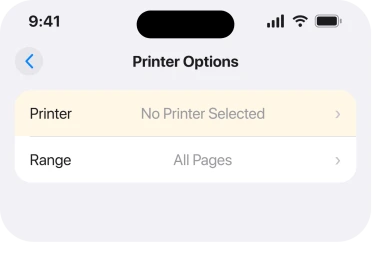
Test with a photo in the Photos app before you blame anything. If Photos prints and one app will not, that app has no print support. No amount of network work will change it.
What does not help
- Resetting network settings first. It sometimes clears a stale entry, and it costs you every saved Wi-Fi password. Work through the seven rungs before you pay that.
- Installing the printer manufacturer's app. It gives you a second way to print, which is a workaround rather than a repair, and it does not make AirPrint start working.
- Pairing the printer over Bluetooth. Apple states outright that AirPrint cannot use it.
- Updating iOS. Worth doing generally, and this has not been an iOS fault in the threads read for this page.
Status: iOS 26.6.1, checked 19 August 2026. Apple documents the requirements and none of the failures. The ordered power cycle in rung 1 is an owner fix with a confirmation behind it.
Why does my iPhone say my printer is offline when it is on?
Because AirPrint decides a printer is offline when it stops hearing the printer's network announcements, not when the printer loses power. The commonest causes are the phone and printer being on different networks, and a router blocking the multicast traffic that AirPrint relies on to find things.
Why can my iPhone not find my printer at all?
Either the printer is not an AirPrint model, or the two are on different networks, or your router is isolating devices from each other. Apple publishes a searchable list of AirPrint printers, and checking yours takes a minute.
Can I print from an iPhone over Bluetooth?
No. Apple states that printers connected by Bluetooth cannot use AirPrint. The printer has to be on your Wi-Fi network or plugged into the router by cable.
Does turning the router off and on really fix printing?
It did for the owner in rung 1, and the order is what makes it work. Router first, then the printer, then the phone, with a wait between each. It lets the printer announce itself to a network that is ready to listen.
The Short Version
- Power everything off, then on in order: router, wait, printer, wait, iPhone.
- Read the network name on the printer and on the phone and check they match exactly.
- Confirm the printer is an AirPrint model on Apple's list before anything else.
- Bluetooth printing and printers on an old AirPort USB port cannot work.
- Turn on multicast and turn off client isolation in the router.
- Open the printer's own web page and check AirPrint or Bonjour is enabled there.
- No Print option at all means the app does not support printing.
Where to Next
The pattern worth carrying away is that the phone is almost never the thing that broke. Six of these seven rungs are about the network or the printer, and that is where I would spend your time.
And on a Mac where scanning is the half that fails, that has its own answers.
If you get stuck, tell me the printer make and model and whether it has its own screen. Those two facts decide which rung is worth your evening, and I read every comment.

Isaac Smith is the founder and editor of PC Glance, a website that covers computers, laptops, and technology. He is a tech enthusiast and a computer geek who loves to share his insights and help his readers make smart choices when buying tech gadgets or laptops. He is always curious and updated about the latest tech trends.