
Your phone announces a text to a quiet room, you grab the volume buttons and press down four or five times, and the next one arrives just as loud. I know how small and daily that embarrassment is, and I can end it for you in about a minute.
The short answer first. Alert volume has its own slider, the buttons usually do not touch it, and Apple sets it up that way on purpose.
1. The slider that actually controls your alerts
Go straight here, because this is the control your volume buttons never reach.
Open Settings, then Sounds & Haptics. Apple's instruction on that screen could not be plainer: "Drag the slider below Ringtone and Alerts to set the volume for all sounds."
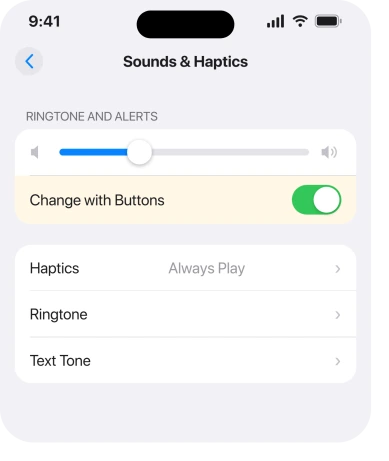
Drag it left. Your phone plays a sample as you go, so you set it by ear rather than by guesswork.
Read that wording again. It is doing a lot of work.
The slider is for all sounds of that kind. Ringtone, text tone, Mail alert, calendar alert. They all move together, and this screen has no control for just one of them.
That limit is real and people do ask about it. Owners report wanting alerts and alarms on separate levels on Apple Community thread after thread, going back years, and the answer on iOS 26 is that you cannot. Rung 3 is what you do instead.
2. Why the volume buttons did nothing
Now the reason your instinct failed, and it is a design decision rather than a fault.
Apple states the rule on its volume page: "When you're on a call or listening to songs, movies, or other media on iPhone, you can use the buttons on the side of your device to adjust the audio volume. Otherwise, the buttons control the volume for the ringer, alerts, and other sound effects, unless the ringer and alert volumes are locked in Settings."
So the buttons follow whatever is playing. A podcast, a video, a game, even a paused media session. Every press then moves media volume and leaves your alerts where they were.
Apple's own heading for the switch that decides this, on the volume page, reads "Lock the ringer and alert volumes in Settings", and its instruction is to open Settings, Sounds & Haptics, then turn off Change with Buttons.
That naming trips people constantly, so hold on to the inversion. Change with Buttons on means the buttons can move your alert volume. Off means they cannot, and the slider in rung 1 becomes the only way in.
Pick deliberately. Leave it on for quick control, and accept that your alert volume will drift as you use media.
Or turn it off. Set the slider once. It then stays where you put it.
3. Quieten one app instead of all of them
Narrower, and the right answer when one app is too loud rather than the phone.
The slider moves everything together, so single out an app by changing its sound rather than its level. A short, soft tone cuts through far less than a long, bright one at the same volume.
For an app with its own tone choice, look inside that app's settings. For Messages and Mail, go to Settings, Apps, then the app, then Notifications.
A second route skips sound entirely. On any notification banner, swipe left, tap Options, then Deliver Quietly.
That app then lands in Notification Center with no sound and no banner. It is the real answer for whatever keeps interrupting your meetings.
4. Attention Aware, which quietly does this for you
More specific, and the rung almost nobody has heard of.
Has your iPhone got Face ID? Then it can drop the alert volume the moment it sees you looking at the screen. Apple documents the behavior plainly: "When you're looking at your device, it will lower the volume of your alerts."
So a phone that stays at full volume while you stare straight at it may have this switched off. Check Settings, Face ID & Passcode, then look for Attention Aware Features.
Apple's route to turn it off runs through the same screen: "open the Settings app, tap Face ID & Passcode, and turn off Attention Aware Features."
One warning before you switch it on. The same feature is a known cause of an alarm too quiet to wake you, because the phone lowers the sound when it detects a face nearby.
Our page on an iPhone alarm that will not wake you covers that side of it. So weigh the two against each other. Do not flip the switch and forget.
5. Alerts that ignore your slider on purpose
Narrower again, and it explains the alerts that seem immune to everything.
Some alerts override your settings on purpose. Emergency and government alerts have their own switch. Apple describes what it does: "Turn on Always Play Sound to have Emergency Alerts play a sound even if iPhone is in Silent mode."
They sit at the very bottom of Settings, Notifications, under Government Alerts, past every app. AMBER and Public Safety alerts can be turned off there. Presidential or national alerts cannot.
Alarms are the exception the other way. On iOS 26 and earlier, an alarm follows the same Ringtone and Alerts slider as everything else, and the Clock app only lets you pick the sound, not how loud it plays.
iOS 27 changed that. Apple's iOS 27 alarm guide puts a separate control below Alarms and Timers in Settings, Sounds & Haptics: "Turn off Match Ringtone Volume, then drag the volume slider."
So on iOS 27 your alarm can be quieter or louder than your alerts.
If what you are hearing is a sound with no visible alert attached to it at all, that is a different question, and an iPhone buzzing with nothing on screen works through the eight causes of it.
6. In the car, on headphones, or through a speaker
Last rung, and the narrowest. Reach for it when the phone is fine and something else is shouting.
Connect your iPhone to anything and alert volume stops being one number. A car system, a Bluetooth speaker and a pair of headphones each hold their own level. The phone's slider is not what you are hearing.
Three things to check when it only happens in one place.
The car or speaker's own volume, which usually remembers the last thing you played rather than a sensible alert level.
Whether Announce Notifications is reading messages aloud through that connection, at Settings, Notifications, Announce Notifications. And on headphones, whether Reduce Loud Sounds is on at Settings, Sounds & Haptics, Headphone Safety.
The tell is simple. If alerts are only too loud in one place, fix that place. If they are too loud everywhere, rungs 1 and 2 are your answer.
What does not help
- Pressing volume down harder or more often. If media is playing, or if Change with Buttons is off, you are moving a level that was never the problem.
- Silent mode as a permanent setting. It works, and it costs you calls. Rung 3 gives you the same quiet for the one app that is causing it.
- Turning off notifications for the app entirely. You stop hearing it and you stop seeing it. Deliver Quietly keeps the message.
- Waiting for an update. Nothing on this page is a bug, so nothing here gets fixed by a point release.
Status: iOS 26.6.1, checked 19 August 2026, and corrected for iOS 27 on 25 September 2026: alarms now have their own volume under Alarms and Timers, so the alarm no longer has to follow the Ringtone and Alerts slider. Apple documents every rung here. Change with Buttons is the part that catches people, because off is what Apple calls locked.
Why are my iPhone notifications so loud when I turn the volume down?
Because the volume buttons follow whatever audio is playing. Apple states that they control the ringer and alerts only when nothing else is using them, and only when Change with Buttons is on. The reliable control is the Ringtone and Alerts slider in Settings, Sounds & Haptics.
Can I set notification volume separately from music on an iPhone?
They are already separate. The Ringtone and Alerts slider handles alerts, and the volume buttons handle media while media is playing. What you cannot do on iOS 26 is set individual alerts to different volumes, because Apple's slider is described as setting the volume for all sounds of that type.
What does Change with Buttons actually do?
On, it lets the side buttons move your ringer and alert volume when no media is playing. Off, it locks that volume so only the slider in Settings can change it. Apple's own heading for turning it off is Lock the ringer and alert volumes in Settings.
Why is one app louder than the others?
Because tones differ in length and brightness even at the same volume. Change that app's alert sound rather than the phone's level, or swipe left on one of its banners, tap Options, and choose Deliver Quietly.
The Short Version
- Alert volume lives at Settings, Sounds & Haptics, on the Ringtone and Alerts slider.
- The side buttons change media volume whenever media is playing, which is why they seem to do nothing.
- Change with Buttons on means the buttons can move alerts. Off is what Apple calls locking them.
- The slider moves every alert together. To quieten one app, change its tone or use Deliver Quietly.
- Attention Aware lowers alerts when you look at the phone, and the same feature can make an alarm too quiet.
- Emergency and government alerts are built to ignore your slider. Alarms are not. An alarm follows the slider, and what it ignores is Silent mode.
- In a car or on headphones you are hearing that device's volume, not the phone's.
Where to Next
If you only take one thing from this page, take the inversion in rung 2. Most people who say the buttons do not work have Change with Buttons off and have never seen the setting.
Set the slider once, decide whether you want the buttons in play, and you should not have to think about it again.
And if a clip refuses to send for being too long, that has seven answers.
Where an emergency alert is stuck on screen and will not dismiss, that one has its own answer.
If your phone is doing something this page does not cover, tell me what you were doing when the loud alert arrived, because whether media was playing is usually the whole answer.

Isaac Smith is the founder and editor of PC Glance, a website that covers computers, laptops, and technology. He is a tech enthusiast and a computer geek who loves to share his insights and help his readers make smart choices when buying tech gadgets or laptops. He is always curious and updated about the latest tech trends.