
That short buzz from your pocket, and then a Lock Screen with absolutely nothing on it. It happens again twenty minutes later and you start doubting your own ears.
That is unsettling rather than merely annoying, and I am sorry it is happening. There is a real list of things that vibrate an iPhone without leaving a mark, and I want to hand it to you.
Work down it. The first two are quick and settle the majority, and the ones further down are where the invisible cases live.
1. An app that alerts you with sound and haptics but shows nothing
The commonest cause by a wide margin, and it takes a minute to check.
An app can be allowed to make noise and vibrate while every visual style is off. Nothing reaches the Lock Screen, nothing lands in Notification Center, and you get a buzz from thin air.
Go to Settings, then Notifications, and work down the apps under Notification Style. For each one, check that Lock Screen, Notification Center and Banners are ticked.
Apple's own route for the opposite job is on the notification settings page: "To turn off notifications for an app, go to Settings > Notifications, tap the app, then turn off Allow Notifications."
Messaging apps and Mail are the usual suspects. People mute the banner. They forget the sound and the haptic stayed on.
2. Show Previews set to Never, on a locked phone
A close relative of rung 1, and it gets its own check. The setting lives one screen deeper, so people rarely reach it.
Previews control what an alert says. Not whether it appears. On a locked phone with the wrong combination you get an alert you cannot read. Glance at it and you may not register it as an alert at all.
Apple lists three choices: "Scroll down, tap Show Previews, then select one of the following: Always, When Unlocked, Never."
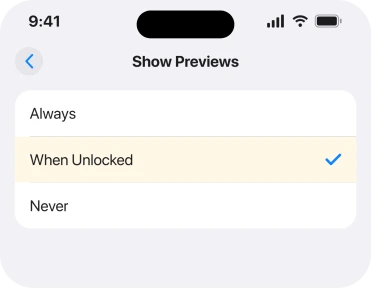
Set it to When Unlocked while you diagnose. A phantom buzz with a name attached stops being a phantom.
3. An app vibrating you with its notifications switched off entirely
This case breaks the standard advice. There is a clean owner-documented example of it.
One owner with an iPhone 14 Pro tracked theirs to a game running background location. Their own summary once it stopped: "I also had my notifications for Pokémon go off, but my location on always, so I guess that was the problem."
So notifications were off for that app. It still buzzed the phone.
Three other people on the thread reached the same app by different routes.
One found the fix inside the app rather than in Settings: "I did go into Pokemon Go and noticed in the notification settings of the game app a Vibrations options so I turned it off. This has solved the issue."
Another changed only the location permission: "Just change the settings in your iPhone settings from always to only when using the app. That's what I did and no vibrations since!" A fourth simply removed the app and the buzzing stopped.
Ours, and marked as ours: the pattern across those four reports is that an app running in the background can trigger a haptic through its own code, outside the notification settings iOS shows you.
Apple does not describe that on any page read for this article, so treat it as a reading of four owner reports rather than documentation.
So the practical move is short. Take any app you have granted Always location. Go to Settings, Privacy & Security, Location Services, tap the app, and drop it to While Using the App.
Then look for a vibration switch inside the app's own settings.
4. Government and emergency alerts, which have their own rules
Narrower, and easy to miss because these alerts can clear themselves off the Lock Screen.
Apple documents that these are on by default in the United States: you "can turn AMBER, Public Safety, and Emergency Alerts (which include both Severe and Extreme Imminent Threat Alerts) on or off (they're on by default)."
There is a switch here that explains a buzz on a silenced phone. Apple: "Turn on Always Play Sound to have Emergency Alerts play a sound even if iPhone is in Silent mode."
The same page adds a sentence that matters if yours behave oddly: "Government alerts vary by carrier and iPhone model, and may not work under all conditions."
Open Settings, then Notifications, and scroll past every app to the Government Alerts section at the very bottom.
A test alert or a short local one can arrive, buzz, and vanish before you look.
5. Haptics that are not notifications at all
Now the buzzes that were never alerts, which is where people waste the most time.
Your phone vibrates for plenty of things that are not messages. A cable making and losing contact, an accessory connecting, an app confirming a background action, or Face ID failing while the phone lies face down in a bag.
Apple's definition is worth having in front of you: "Haptic feedback is the vibration you feel on your iPhone when you perform some actions, such as when you touch and hold any icon on the Home Screen."
Apple gives you a way to separate the two. Go to Settings, Sounds & Haptics, tap Haptics, then choose Never Play.
Apple states what that does: "When Haptics is set to Never Play, you won't hear or feel vibrations for incoming calls and alerts."
If the buzzing continues with that set to Never Play, you have proved it is not a call or an alert. That narrows the hunt enormously before you start opening apps.
If the opposite is your problem and the phone will not vibrate when it should, an iPhone that stopped vibrating is the page for that.
6. The charging cable that keeps letting go
Specific and physical, and the pattern reads exactly like a mystery notification.
Your iPhone vibrates when charging starts. A frayed cable, a loose adapter or a port full of pocket lint will connect and disconnect repeatedly. Every reconnection is another buzz.
The tell is timing. If it only happens while the phone is plugged in or resting on a charger, this is your answer and no notification setting will touch it.
Try a different cable, then a different adapter, then look into the port with a light. If the phone is also charging strangely, our page on an iPhone that says it is charging and is not covers what the status bar is telling you.
7. A notification that was already cleared before you looked
Narrower still. People refuse to believe this one until they check.
Read a message on your Mac or iPad and the alert clears everywhere. The phone still buzzed. By the time you looked, the notification had gone.
Check Notification Center. Swipe up from the middle of the Lock Screen, or down from the top of any other screen, and scroll back through the day. A cleared alert is gone, but one you simply never opened is still sitting there.
If the buzzing turns out to be an alert that was simply too loud rather than invisible, iPhone notifications too loud covers the volume side.
A Scheduled Summary does something similar in reverse. Set one up and alerts you expected in real time arrive in a batch. That changes when things buzz you.
8. When nothing on this list stops it
Last rung, and the one nobody wants.
Say the buzzing survives every check, Haptics on Never Play included. Then it is either a software fault or the Taptic Engine. Two things separate them.
Restart the phone, then use it for a day with no new apps installed. A recently added app is the likeliest culprit, and removing it proves the case in an afternoon.
If a restart, a software update and Haptics set to Never Play all change nothing, book a Genius Bar appointment. Describe the pattern, not the symptom.
Three facts help them most: when it happens, how often, and whether it is plugged in at the time.
I would not reset all settings for this. It costs you a great deal of configuration, and none of the eight causes here is stored in a way a settings reset repairs.
What does not help
- Turning vibration off entirely and calling it fixed. It stops you noticing the problem, and you lose every alert you wanted.
- Restoring from a backup. If an installed app is the trigger, the backup brings it straight back.
- Blaming the latest update. Owners have reported this exact pattern across several iOS versions and several iPhone models, going back years.
- Checking notification settings over and over. If rungs 1 and 2 are clean, the cause is one of the six that do not live in that screen.
Status: iOS 26.6.1, checked 19 August 2026. Apple documents the alert-style and haptics settings. The most useful finding, an app buzzing you with its notifications off, comes from owners.
Why does my iPhone vibrate when there is no notification?
Most often because an app is allowed to play a sound and a haptic while all its visual alert styles are switched off, so nothing reaches the Lock Screen. If those settings are clean, the next likeliest causes are a background app with Always location, a charging cable losing contact, and an alert already cleared on another device.
Can an app vibrate my iPhone if its notifications are off?
Owners report exactly that. On one Apple Community thread, four people traced random vibrations to a game whose notifications were switched off, and the fixes were the app's own in-app vibration setting and dropping its location permission from Always. Apple does not document this behavior, so it is well reported rather than confirmed.
How do I tell a notification buzz from a system haptic?
Set Settings, Sounds & Haptics, Haptics to Never Play. Apple says that stops vibrations for incoming calls and alerts. If your phone still buzzes afterwards, whatever is doing it is not a call or a notification.
Why does my iPhone buzz only when it is charging?
Because the phone vibrates each time charging starts. A worn cable, a loose adapter or debris in the port makes and breaks the connection repeatedly, and every reconnection is a fresh buzz. Change the cable before you change any setting.
The Short Version
- Check each app's alert styles first. A sound and a haptic can be on with every visual style off.
- Set Show Previews to When Unlocked while you diagnose, so a real alert becomes readable.
- An app with Always location can buzz you with its notifications off. Drop it to While Using the App and look for a vibration switch inside the app.
- Scroll to Government Alerts at the very bottom of Settings, Notifications.
- Set Haptics to Never Play to prove whether it is an alert at all.
- Buzzing only while plugged in is a cable or a port, not a notification.
- Read back through Notification Center. Another device may have cleared it.
Where to Next
The reason this one is so maddening is that seven of the eight causes leave nothing behind, so there is no evidence to work from unless you go looking for it deliberately.
When the badge is the thing that will not go rather than the buzz, a count that will not clear has six fixes.
Where one contact should always ring through and does not, Emergency Bypass has its own causes.
If you catch yours, I would really like to know which rung did it, and especially if it turned out to be an app nobody has named yet. Send me the app and what you changed and I will add it here.

Isaac Smith is the founder and editor of PC Glance, a website that covers computers, laptops, and technology. He is a tech enthusiast and a computer geek who loves to share his insights and help his readers make smart choices when buying tech gadgets or laptops. He is always curious and updated about the latest tech trends.