The Cannot Complete Action error while accepting new iCloud terms needs a device update: install the latest software available for your iPhone or iPad, then try accepting again. Accepting the terms won't install the update for you.
These steps apply when the error appears in the new iCloud terms prompt. A password rejection, a locked account or an app that can't connect is a different problem, even when it also interrupts iCloud.
In this guide
1. Check that the error belongs to the terms prompt
Open Settings and return to the pending iCloud terms notice. Check whether the message appears when you try to accept the agreement, rather than when entering your account password or buying more storage.
Apple says to update the device for failed iCloud terms acceptance. The page covers iPhone, iPad and Apple Vision Pro. Follow the phone and tablet steps here.
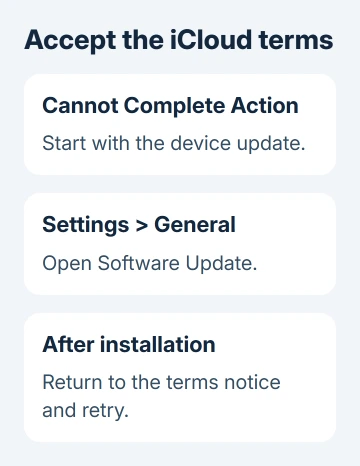
Note your installed software version in Settings > General > About. Then check Software Update for an offered release. The version a different person installed isn't necessarily available for your model.
If the device already shows its latest supported version, tell support that it's up to date rather than assuming it can run the newest major release. Older iPhones and iPads can have a different last supported operating system.
Don't sign out of your account or erase the device as the first move. Updating is the recommended fix for this terms error. Removing your account adds extra work when you're just trying to accept the agreement.
2. Back up, then install the available update
Back up the iPhone or iPad before updating. If iCloud backup won't complete while the terms are pending, use a computer backup instead. Start the update only after your backup has finished.
Connect the device to power and Wi-Fi. Open Settings > General > Software Update and let the check complete. Check which version is installed and which update is offered on that screen.
Tap Download and Install when offered, then follow the prompts and enter your device passcode if requested. Leave the device connected to power while installation finishes. A downloaded update still needs to be installed.
If the screen offers several supported update options, read each choice before continuing. Choose the latest software your device supports, rather than a beta or a version mentioned in an old error report.
The iPhone update walkthrough explains the normal update screen. An iPad follows Settings > General > Software Update too, with iPadOS shown instead of iOS.
Once the device restarts, unlock it and return to the terms notice in Settings. Read the agreement and accept it if you agree. Check whether Settings lets you finish instead of showing the same action error again.
3. Clear the update obstacle that actually appears
If Software Update reports insufficient space, open Settings > General > iPhone Storage or iPad Storage. Review what uses space and remove or offload content you can recover, rather than deleting files you still need.
An update can offer to temporarily remove apps to make room. Choosing Continue lets the process do that; the apps are reinstalled after installation. If you choose Cancel, make space manually before retrying.
Extra iCloud capacity won't expand the device's local storage. The update needs space on the iPhone or iPad itself. The update storage guide separates those two limits.
If the update can't reach its server or can't be verified, retry on the current connection first. If the same alert returns, use another trusted Wi-Fi network. Save the alert's wording to distinguish a network failure from a space warning.
During a slow update download, pause other large downloads. A slow download hasn't yet reached the installation stage. Wait until the device notifies you that the update is ready. Downloading time doesn't mean installation has failed.
If a downloaded update repeatedly fails, open the device's Storage page, find the update in the app list, and tap Delete Update. Download it again through Software Update. This removes the update package, not your photos.
If the update isn't listed there, or the replacement download fails too, use a computer. I'd try the computer next rather than repeat the same download on the device.
4. Update through a Mac or Windows computer
Use a trusted computer and a working USB cable. Unlock the device and respond to the trust prompt when shown. Keep it connected until the update has finished, even if the display changes during installation.
For macOS Catalina or later, launch Finder. Click the connected iPhone or iPad in the sidebar. Select General > Check for Update, then Download and Update, and follow the onscreen instructions.
On Windows with Apple Devices, select the iPhone or iPad in the app's sidebar, choose General, then Check for Update if needed and Update. Check that you've selected the device you want to update.
For a Mac using macOS Mojave or earlier, or Windows using iTunes, open iTunes instead. Select the device button, open Summary, then use Check for Update and Download and Update. Follow the passcode prompts on the device.
Choose Update, not Restore, for this procedure. Restore is an erase-and-reinstall action; a normal software update is the recommended fix for the terms error. Stop and read any prompt that changes that choice.
After updating, reopen Settings on your device to retry the pending agreement. The fix has worked when you can accept the terms without the action error. Check the iCloud feature you originally needed once that finishes.
5. Send a continuing terms error to iCloud support
If acceptance still fails on the latest compatible software, contact Apple Support and choose Apple Account or iCloud for the issue. Explain that you can't accept the terms, rather than just saying iCloud doesn't work.
Include the exact error, device model, installed version and whether the update completed wirelessly or through a computer. A screenshot of the error can help, but keep passwords and account recovery information out of it.
If Software Update says the device is current but it can't run a newer major release, tell support. Ask how to accept the terms on that model. Repeating an update instruction won't help when no compatible update is offered.
The Short Version
Update the iPhone or iPad, then retry the iCloud terms in Settings. Resolve the update warning or use a computer if needed. If acceptance still fails on current supported software, give iCloud support the exact error and device version.
Checked November 12, 2026.