To turn vibrate on for iPhone calls and texts, open Settings > Sounds & Haptics > Haptics. Pick Play in Silent Mode for quiet alerts, or Always Play to allow vibration with the ringtone too.
The alert's vibration pattern and the phone's main Vibration switch also matter. Keyboard taps use a separate setting, so enabling keyboard feedback won't by itself make an incoming call vibrate.
In this guide
Choose when calls and alerts should vibrate
Open Settings > Sounds & Haptics and tap Haptics. On versions with this menu, the four choices control whether call and alert vibrations play in ring mode, Silent Mode, both or neither.
Select Always Play to allow vibration in both modes. Select Play in Silent Mode if you want a buzz while the phone is silent but don't need it to accompany the ringtone.
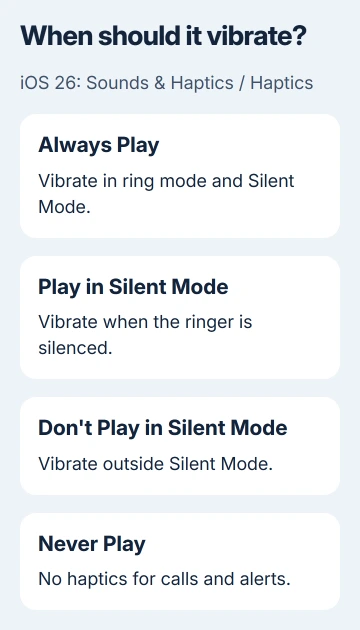
The other two choices limit or stop vibration: Don't Play in Silent Mode allows haptics outside Silent Mode, and Never Play disables them for calls and alerts. Check that you haven't left an old preference selected.
These four labels are shown in the iOS 26 guide. Apple says to choose Play in Silent Mode in its vibration repair steps.
Older versions may show separate vibration switches for ring and silent use instead. Enable the switch for the situation you need. The iPhone's side control changes Silent Mode, not the vibration preference.
Next, check the vibration pattern for the alert you want. Even with Haptics enabled, a call or text won't buzz if its own vibration pattern is turned off.
Pick a vibration pattern for calls and messages
Return to Settings > Sounds & Haptics > Ringtone. Open Haptics and tap one of the available vibration patterns. The preview lets you feel the pattern before you leave the screen.
For texts, return to Sounds & Haptics > Text Tone > Haptics and select a pattern there too. Calls and texts have separate settings, so choosing a pattern for calls won't set one for texts.
Choose a pattern instead of None when you want that alert to vibrate. A quiet ringtone and a disabled vibration pattern can leave a call with no useful audible or physical alert.
The current sounds and vibration controls also let you change patterns for other categories, including calendar alerts. Open the category you need rather than changing every alert at once.
For a personal pattern, choose Create New Vibration and tap the screen to record it. Save it with a recognizable name, then select it for the alert. Previewing it first helps you choose a rhythm you'll notice.
If only one person's calls behave differently, check their contact settings. Open Contacts, select them, tap Edit, then check Ringtone or Text Tone and its haptic choice. Choose the category for the missing alert.
Make sure the main Vibration control is enabled
Open Settings > Accessibility > Touch and turn Vibration on. This is the main vibration switch. It works separately from the call, text and keyboard settings in Sounds & Haptics.
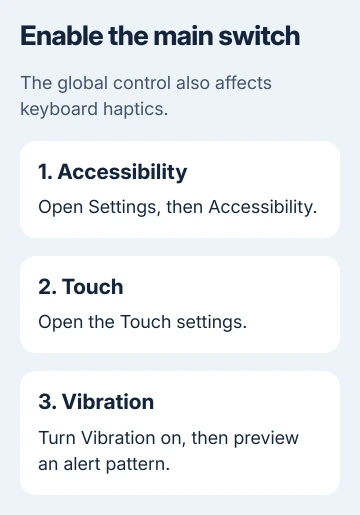
Turning this control off also turns off vibrations for earthquake, tsunami and other emergency alerts. Keep that consequence in mind when changing it to silence a keyboard or a single unwanted notification.
If none of the pattern previews buzzes, check this switch before changing individual alerts again. If turning it on gets the preview working, try the call or text you were checking again.
I'd check the preview before asking someone to keep calling. You can feel whether the vibration setting works without a contact's notification preferences or a missed call getting in the way.
Test Silent Mode with the control your model has
On an iPhone with a Ring/Silent switch, move it to the silent position. The orange mark shows that the ringer is silenced. That position doesn't turn vibration on; the Haptics preference decides whether the call buzzes.
For an Action button model, press and hold it to switch Silent Mode when assigned to that function. If the button opens something else, use the phone's Silent Mode control.
For a call test, have someone ring your normal number while the phone is in Silent Mode. Hold the phone where you'll feel the buzz, then check for the incoming call screen and the vibration together.
Repeat in ring mode only if you selected Always Play and want vibration there too. With Play in Silent Mode selected, the phone is working as set if it rings without vibrating in ring mode.
If the incoming call appears but doesn't vibrate, check its pattern and the main Vibration switch again. If the call doesn't arrive at all, the vibration controls aren't the first thing to repair.
Set keyboard feedback separately
For vibration while typing, open Settings > Sounds & Haptics > Keyboard Feedback and enable Haptic. Sound controls keyboard clicks separately, so you can choose a physical tap without adding a click.
This keyboard control is available in iOS 16 and later. If it's on but you still can't feel taps while typing, check Accessibility > Touch > Vibration rather than changing the ringtone.
Turning on keyboard haptics might affect battery life. Leave keyboard haptics off when all you need is vibration for incoming calls.
System Haptics is another separate preference for system controls and interactions. A buzz when holding an icon doesn't tell you that the text-message vibration pattern is enabled, and the reverse is also true.
When the settings are right but an alert stays quiet
Open Control Center > Focus and look for an active Do Not Disturb mode. Turn it off for the call test or change which people and apps it allows. Check this first so Focus isn't silencing the call you're using to test vibration.
If only one app is quiet, inspect its notification settings. For repeated buzzes with no visible alert, use the unexplained iPhone vibration checks rather than enabling more kinds of feedback.
For calls that are silenced despite the vibration settings, the Focus call-filter guide covers the controls that decide which calls alert you.
If pattern previews still don't buzz with Vibration enabled, restart your iPhone and ask Apple Support for help. Tell them whether vibration fails for previews, calls and typing, and mention any recent drop or repair.
The Short Version
Choose when Haptics should play, select a call or text vibration pattern, and leave the main Vibration control enabled. Test the intended ring mode. Keyboard and system feedback have their own switches.
Checked November 10, 2026.