
The cable is in and your phone is charging happily, and Windows behaves as though nothing is plugged in. Or it appears, you open it, and the photo folder is empty.
I know how much time both of those eat, so I have put them side by side, because the fixes are completely different.
Read the first line of each rung. It tells you which of the two problems that rung is for.
1. Unlock the phone, then tap Allow, in that order
For both problems. Free, ten seconds, and the commonest cause by a distance.
A locked iPhone shows a Windows PC almost nothing. That is deliberate. It is also why the phone appears with no contents at all for so many people.
Apple's own instruction for importing to a PC says it twice: "If asked, unlock your iPhone or iPad using your passcode" and "If you see a prompt on your iPhone or iPad device asking you to Trust This Computer, tap Trust or Allow to continue."
So unplug. Unlock the phone. Plug it back in while it is awake, and watch the phone's screen rather than the computer's. The prompt appears there, and it goes away again if you ignore it.
If you never see a Trust prompt at all, our page on the Trust This Computer message covers how to make it come back.
2. Install the Apple Devices app, because iTunes is retired
For the phone not appearing. Also free. It stops you reinstalling software Apple no longer ships.
Apple's route for a PC now begins: "Install the Apple Devices app from the Microsoft Store."
Hunting for your iPhone inside iTunes on a current Windows machine? You are looking in a program that no longer has the job. Install Apple Devices, open it, and look in the sidebar.
That app brings the underlying drivers with it. That is the practical reason it fixes a phone Windows can see charging but cannot address.
3. If iCloud Photos is on, your photos are not on the phone
For the empty folder. This rung ends most of the searching, and it is in Apple's own words.
Apple: "If you have iCloud Photos turned on, you must download the original, full resolution versions of your photos to your iPhone or iPad before you import to your PC."
Read that again, because it explains everything.
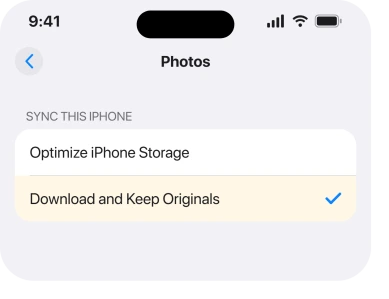
With Optimize iPhone Storage on, what sits on your phone is a small preview. The full file lives in iCloud. Windows cannot import a photo the phone does not hold.
Go to Settings, Apps, Photos, and choose Download and Keep Originals. Then leave the phone on Wi-Fi and charging until it has pulled everything back down, which can take hours on a large library.
Check the phone has room first. A library that lives in iCloud because the phone was full will not fit back onto a phone that is still full.
4. Switch the camera to Most Compatible
For the empty folder, and for photos that import but will not open. One setting, and it prevents the problem coming back.
Your iPhone shoots HEIC by default. Windows handles that patchily, depending on version and codecs.
Apple's instruction is exact: "On your iPhone or iPad, open the Settings app. Tap Camera, then tap Formats. Tap Most Compatible. From now on, your camera will capture photos and videos in JPEG and H.264 formats."
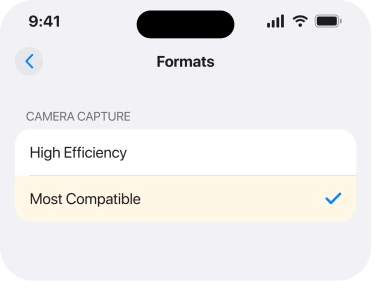
Note what that does and does not do. It changes future photos. Everything already taken stays as it is, so it stops the problem repeating rather than fixing today's import.
5. Change the cable, and be specific about which one
For the phone not appearing. Cheap to test and genuinely common.
Plenty of cables carry power and no data. Charge-only cables are sold everywhere, and they behave exactly like this: the phone charges and the computer never sees it.
Borrow a cable you know has moved files before, or use the one from the box. Then try a different port. On a desktop, use one at the back, because front ports and hubs are where flaky connections live.
6. The folder you remember was never meant to be there
For the empty folder. Narrower, and it is the piece nobody publishes.
People hunt for a DCIM folder because that is how it used to work. On one community thread after another, a Level 10 member answered that directly. Twice, on two separate threads.
On a DCIM folder that would not appear on Windows 11: "That's correct. It's only by chance that you were able to see it in the past; Apple never intended anyone to access the DCIM folders, and Apple's instructions for transferring photos never mentioned it."
And on an iPhone missing from File Explorer entirely: "Apple never intended iPhones to appear in Windows Explorer; the fact that some (but not all) photos did is a quirk."
Ours, and marked as ours: that reading matches Apple's own documentation, which routes every PC import through an app rather than through the file system.
So if browsing the phone in File Explorer is your goal, you are chasing something that was never a supported route. Use the Windows Photos app or the Apple Devices app instead.
7. When Windows sees it in Device Manager but nowhere else
Last rung, narrowest, and the one for a PC that half recognizes your phone.
Open Device Manager on the PC and look under Portable Devices and under Universal Serial Bus controllers. If Apple Mobile Device USB Driver appears with a warning triangle, the driver is the problem rather than the phone.
Right-click it and choose Uninstall device. Unplug the iPhone, restart the PC, then plug the phone back in so Windows installs it fresh.
Reinstalling the Apple Devices app from rung 2 gets you there from the other direction.
If the phone still refuses on that computer but works on another, the fault is the PC. If it refuses everywhere, our page on an iPhone missing from Finder works through the phone-side causes, which are the same on both platforms.
What does not help
- Reinstalling iTunes. Apple's current instruction names the Apple Devices app instead.
- Restarting the phone repeatedly. If the phone is locked when you plug it in, restarting changes nothing.
- Turning iCloud Photos off. It does put originals back on the phone eventually, and it also risks your library if the download is interrupted. Download and Keep Originals in rung 3 gets you there safely.
- Third-party transfer tools as a first move. They work around the problem rather than fixing it, and most of the causes here take a minute.
Status: iOS 26.6.1, checked 19 August 2026. Apple documents the iCloud Photos rule and the format setting. That File Explorer was never an intended route comes from a senior community member.
Why is my iPhone not showing up on my PC?
Most often because the phone was locked when you plugged it in, so it refused access, or because Windows is missing the drivers that now arrive with the Apple Devices app. A charge-only cable produces the same symptom and is worth ruling out early.
Why is my iPhone DCIM folder empty on Windows?
Because iCloud Photos with Optimize Storage leaves only small previews on the phone. Apple states that you must download the full resolution originals before importing to a PC. A senior community member adds that the DCIM folder was never an intended route in the first place.
Should I still use iTunes on Windows?
No. Apple's current instruction for a PC is to install the Apple Devices app from the Microsoft Store, and that is also where your iPhone now appears in the sidebar.
Will Most Compatible fix photos I have already taken?
No. It changes the format of photos from that point on. Existing HEIC files stay as they are, so use it to stop the problem repeating rather than to rescue today's import.
The Short Version
- Unlock the phone before plugging it in, and watch the phone's screen for the Allow prompt.
- Install the Apple Devices app. iTunes is not the route on Windows any more.
- An empty photo folder almost always means iCloud Photos left previews on the phone.
- Choose Download and Keep Originals, then wait on Wi-Fi and power.
- Set Camera, Formats to Most Compatible so future photos import cleanly.
- Test a cable you know carries data, and a different port.
- Browsing the phone in File Explorer was never a supported route.
Where to Next
Rung 3 is the one to carry away. An empty folder on a phone holding thousands of photos is not a fault at all, it is iCloud doing exactly what you asked it to.
I would like to know which half of this page you landed on, the phone not appearing or the folder being empty, and which rung ended it. That split is the hardest part of this subject to research and reader reports are how it gets better.

Isaac Smith is the founder and editor of PC Glance, a website that covers computers, laptops, and technology. He is a tech enthusiast and a computer geek who loves to share his insights and help his readers make smart choices when buying tech gadgets or laptops. He is always curious and updated about the latest tech trends.