
Your phone is showing full Wi-Fi bars, nothing loads, and cellular sits there unused while you stare at a spinning page. Watching a phone cling to a network that plainly is not working is genuinely annoying, and I get why people start switching things off at random. Different versions of this have different answers, so find the one that matches yours.
Pages will not load but the Wi-Fi symbol is solid
The feature meant to rescue you here is Wi-Fi Assist, and it is narrower than its name suggests.
Apple describes it on the cellular settings page: "Note: Wi-Fi Assist is on by default. If Wi-Fi connectivity is poor, Wi-Fi Assist automatically switches to cellular data to boost the signal."
Read the condition carefully. It says poor connectivity, which is about signal strength.
A router that is on, broadcasting strongly, and simply not passing traffic to the internet is not a poor signal. Your phone sees a healthy network and has no reason to leave it. That is the whole reason this happens.
So Wi-Fi Assist working perfectly and this problem happening are entirely compatible, which is not what anyone assumes.
Getting online right now
Use the Settings switch, not the Control Center icon. Tapping the icon only disconnects you until tomorrow morning.
Go to Settings, tap Wi-Fi, and switch it off. The phone falls to cellular immediately and stays there.
That is the fix for the next ten minutes. The sections below are about stopping it happening again.
Making sure Wi-Fi Assist can actually work
Wi-Fi Assist is itself a service that needs permission to use cellular data, and it appears in the same list as your apps.
Apple: you can "turn Cellular Data on or off for any app (such as Maps) or service (such as Wi-Fi Assist) that can use cellular data."
Open Settings, tap Cellular, and scroll to the very bottom of the app list. Wi-Fi Assist is below all of them.
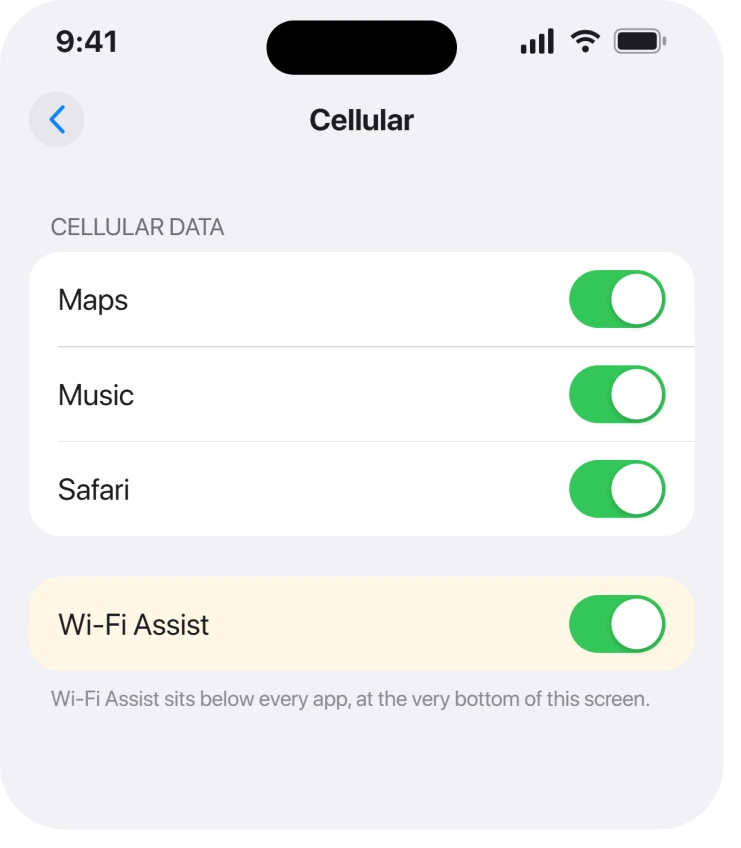
If it is off, that is worth turning on, though remember it will still only act on a weak signal.
Apple attaches a real warning to it: "you might use more cellular data, which may incur additional charges depending on your data plan." On a small plan that matters.
Low Data Mode is holding things back
Low Data Mode exists to stop background traffic, and it can be set separately on each Wi-Fi network and on cellular.
For the network: Settings, Wi-Fi, tap the i beside the network name, then check Low Data Mode.
For cellular: Settings, Cellular, Cellular Data Options, then Low Data Mode.
Ours, and marked as ours: we have not found Apple documenting Low Data Mode as preventing a switch to cellular. It is widely repeated and it is plausible, so check it while you are there, but we are not going to state it as a mechanism we can prove.
The network is a captive portal you never signed into
Owners report this one constantly, and it is the easiest to mistake for a fault. Hotel, cafe, airport and hospital networks hold you until you accept terms on a sign-in page.
Until you do, you are connected, the signal is strong, and nothing reaches the internet. From your phone's point of view this looks like a perfectly good network.
If the sign-in page never appears at all, a Wi-Fi login page that will not show walks through forcing it open.
The quick escape is to forget the network. Settings, Wi-Fi, tap the i, then Forget This Network.
It happens on your own home network, repeatedly
That points at the router rather than the phone, and there is one check worth doing before you touch either.
Try a second device on the same Wi-Fi. If your laptop is also stuck, the phone was never the problem and no iPhone setting will fix it.
If everything else works and only the iPhone fails, an iPhone that will not connect to Wi-Fi after iOS 26 covers the two toggles worth trying before anything more drastic.
What does not help
- Turning Wi-Fi Assist off. It is the feature meant to save you here. Switching it off removes your only automatic fallback.
- Tapping the Wi-Fi icon in Control Center. That disconnects until tomorrow morning and reconnects on its own. Use the Settings switch.
- Resetting network settings. It clears every saved password to solve a problem that a healthy router causes anyway.
- Airplane mode. It drops both radios, so the phone comes back and rejoins the same dead network.
Status: iOS 26.6.1, checked 19 August 2026. Wi-Fi Assist is documented as reacting to a poor signal, not to a network that is up but not passing traffic, which is why it appears not to work.
Why does my iPhone stay on Wi-Fi when there is no internet?
Because Wi-Fi Assist reacts to a weak signal rather than to a network that is up but not routing. Apple documents it as switching when Wi-Fi connectivity is poor, so a strong router that has lost its own connection never triggers it.
Where is Wi-Fi Assist on iPhone?
At the very bottom of Settings, Cellular, below the whole list of apps. It appears there because it is treated as a service that consumes cellular data, which is also why it can be switched off by accident.
Does Wi-Fi Assist use a lot of data?
Apple warns you might use more cellular data and could incur charges depending on your plan. In practice it kicks in during ordinary browsing, so on a small plan it is worth knowing it is on by default.
Should I turn Wi-Fi Assist off?
Not to fix this. It is the only automatic route to cellular your phone has, so turning it off makes a weak-signal handover less likely rather than more.
The Short Version
- Wi-Fi Assist reacts to a weak signal, not to a dead internet connection.
- Switch Wi-Fi off in Settings, not in Control Center, to fall to cellular now.
- Wi-Fi Assist sits below every app at the foot of Settings, Cellular.
- Apple warns it can increase your cellular data use.
- A captive portal you never signed into looks identical to this.
- If a second device is also stuck, the router is the problem.
Where to Next
The thing worth carrying away is that your phone is behaving exactly as designed here, which is infuriating but at least means you are not chasing a fault that does not exist.
If yours switches to cellular for other people on the same network and not for you, say so in the comments with the carrier. That would be the first report I have seen of it differing by account rather than by network.

Isaac Smith is the founder and editor of PC Glance, a website that covers computers, laptops, and technology. He is a tech enthusiast and a computer geek who loves to share his insights and help his readers make smart choices when buying tech gadgets or laptops. He is always curious and updated about the latest tech trends.