

Since you installed macOS 27, dragging a file on your desktop does nothing. You pick it up, let go, and it stays put, or it will not pick up at all.
I read the forum thread where 26 people pressed Me too, plus Apple's macOS 27 Finder pages. One owner found a view setting that brings drag and drop back, and Apple documents how to make it stick.
What the thread reports
The first message is short and exact, in their words: "now i am unable to drag and drop on the desktop". The owner had restarted and relaunched Finder already.
It was narrow, too: "the desktop is the only part giving me issues", they wrote, while folders elsewhere behaved. For another owner it was worse: "This essentially makes using finder impossible."
One clue may matter for you too. A new account on the same Mac worked fine for the first owner: "the only thing that seems to work is making a new user account".
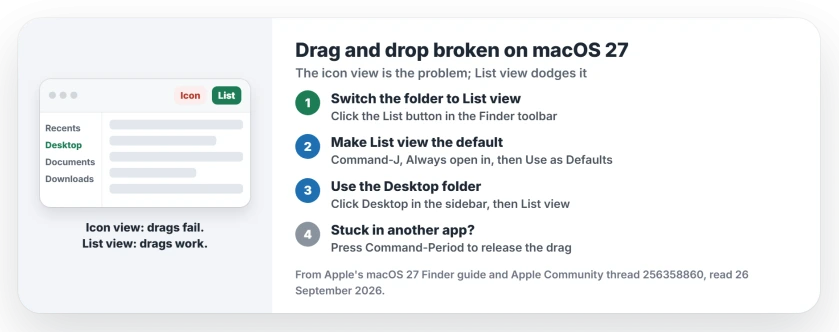
Status: macOS 27, checked 26 September 2026. Drag and drop can fail in Finder's icon view and on the desktop. List view worked for one owner; no Apple fix has shipped.
1. Switch the folder to List view
Reed Curtis found the pattern. The bug "largely seems to impact the icon view in finder", they wrote, and list view escapes it.
Their fix was simple, "the workaround that seems to be working so far is to change all finder views to list view", and the result was "I have done so and I'm able to drag and drop as usual".
Apple's Finder guide lists the four views as "Icon, List, Column, or Gallery". Click the List button in the toolbar of your Finder window, then try dragging again.
2. Make List view the default
One folder at a time gets old fast. Apple says to choose View, then Show View Options, "(or press Command-J)".
Tick the "Always open in" checkbox for the folder. Then Apple's step for every other folder: "Click Use as Defaults".
One catch from Apple: that button is missing in Column view. "This option isn't available for Column view", so set the default while you are in List view.
3. Work on your desktop from a Finder window
The desktop itself shows icons, so the list trick does not reach it. Our workaround is to open the Desktop folder in a Finder window instead.
Apple's guide names it among the standard folders "in the Finder sidebar such as Recents or Desktop". Click Desktop in the sidebar, switch it to List view, and drag your files from there.
It is the same folder, so everything you move there moves on your desktop too. That tip is ours, and it keeps you off the broken icon grid.
4. Test a new user account
The first owner's clue deserves a second look. If a fresh account drags fine, the fault likely sits in your own account's settings, not the whole Mac.
A Level 10 volunteer recommended the same test, along with safe mode. Apple's macOS 27 guide covers adding a user in System Settings, Users & Groups.
Only use it as a test. You do not need to move your files into the new account.
5. Stuck mid-drag in another app? Press Command-Period
Some apps freeze during a drag too. One owner wrote: "I have seen Drag and Drop stop working in several apps since upgrading, most irritatingly in BBEdit."
Their escape: "the only solution is to hit Command Period while BBEdit is still the foreground app". It releases the stuck selection so you can click again.
Other Finder and pointer problems
If Finder's column view jumps around instead, the column view page covers that bug. And if your mouse clicks do nothing at all on macOS 27, the Magic Mouse page is the one to read.
Why can't I drag and drop on my Mac after macOS 27?
Apple has not said. Owners in the forum thread see it in Finder's icon view and on the desktop, while List view keeps working.
How do I make every Finder folder open in List view?
Open a folder, switch to List view, press Command-J, and tick "Always open in". Then click Use as Defaults to apply it to other folders.
Can I use List view on the Mac desktop?
Not on the desktop background itself. Open the Desktop folder from the Finder sidebar instead, and set that window to List view.
Will a new user account fix drag and drop?
It worked for one owner, which points to a setting in the original account. Treat it as a test, not a move.
The Short Version
- macOS 27 can break drag and drop in icon view.
- Switch folders to List view.
- Press Command-J and tick Always open in.
- Click Use as Defaults for the rest.
- Use the Desktop folder in a Finder window.
- Press Command-Period if an app gets stuck.
Where to Next
Switch one folder to List view now and try a drag, so you know the workaround works on your Mac.
Did List view fix it for you, or did something else? Leave a comment and name your Mac model. I will add what works here.

Isaac Smith is the founder and editor of PC Glance, a website that covers computers, laptops, and technology. He is a tech enthusiast and a computer geek who loves to share his insights and help his readers make smart choices when buying tech gadgets or laptops. He is always curious and updated about the latest tech trends.