

Photos on your Mac says syncing with iCloud is paused and blames local storage. Finder says you have hundreds of gigabytes free. So the message makes no sense.
That is annoying when new photos stop reaching your other devices. I read Apple's pages on iCloud Photos and Disk Utility, plus one owner's MacRumors thread about the missing space.
What the owner saw
The thread has about 3,000 views. The message in Photos read "Syncing with iCloud paused - not enough local storage", and in their words: "But I have a little over 500GB of free space on my Mac."
Their iPhone had room, and their iCloud plan was far from full. They could not see why Photos disagreed with Finder.
Then they opened Disk Utility. In their words: "It showed there was only 8 GB free space on the internal drive!"
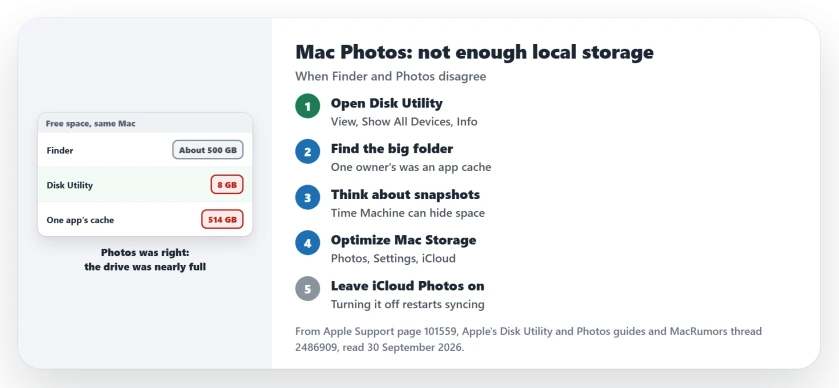
Status: checked 30 September 2026. One owner's Finder showed about 500 GB free while Disk Utility showed 8 GB. An app cache held the rest, and trashing it fixed the sync.
1. Check the real free space in Disk Utility
Open Disk Utility, choose View, then Show All Devices. Select your internal drive in the sidebar, then click the Info button in the toolbar.
Apple's Disk Utility guide explains that the available figure can include purgeable space. That is space macOS frees only when something needs it.
Compare the free figure with what Finder told you. For this owner, the gap was huge. If Disk Utility shows far less, the message in Photos is telling the truth.
2. Find what is filling the drive
For this owner, the space had gone to one app. In their words, "we narrowed it down to the Photoshop cache. It contained a whopping 514 GB of data."
They added: "Trashing the folder fixed the problem." If you use editing apps that keep large caches, check their cache settings before anything else.
3. Think about Time Machine snapshots
A second suspect is user-reported. One member said Time Machine local snapshots can take up space that Finder still counts as free.
They also noted that Photos needs some local space of its own to prepare items for upload to iCloud. So a nearly full drive can pause syncing even when your library sits elsewhere.
4. Let Photos keep smaller copies
Maybe your Mac is simply short of room. Apple offers a setting for that. Choose Photos, then Settings, click iCloud, and select Optimize Mac Storage.
Apple says this option "stores smaller versions of your photos on your Mac when storage space is limited, and keeps the original, full-size photos in iCloud."
5. Leave iCloud Photos on while it catches up
Apple's iCloud Photos page is firm about one thing: "If your photos aren't syncing, don't turn iCloud Photos off."
To watch it recover, open Photos, select Library in the sidebar, click All Photos, and go to the very end of the grid. The status line says whether syncing resumed.
Other Mac storage problems
When System Data is eating your drive on macOS 27, the System Data page explains which parts clear themselves. On an iPhone, the syncing paused page goes through the phone's reasons.
Why does Photos say not enough local storage when my Mac has space?
Finder can show more free space than the drive really has. One owner's Finder showed about 500 GB free, while Disk Utility showed 8 GB.
Does it matter if my Photos library is on an external drive?
The owner kept their library on an external SSD, and the internal drive was still the one that ran out. Check both drives in Disk Utility.
Should I turn off iCloud Photos to fix it?
No. Apple says not to turn iCloud Photos off when photos aren't syncing, because that restarts the whole process.
The Short Version
- Photos may be right about your storage.
- Check free space in Disk Utility, not only Finder.
- One owner found a 514 GB app cache.
- Time Machine snapshots can hide space too.
- Optimize Mac Storage keeps smaller copies.
- Do not turn iCloud Photos off.
- Watch the status at the bottom of All Photos.
Where to Next
Open Disk Utility now and read the free space on your internal drive. If it is far lower than what Finder shows, hunt for the folder that is taking it.
If you found a different culprit, leave a comment with the app or folder. It could save someone else hours.

Isaac Smith is the founder and editor of PC Glance, a website that covers computers, laptops, and technology. He is a tech enthusiast and a computer geek who loves to share his insights and help his readers make smart choices when buying tech gadgets or laptops. He is always curious and updated about the latest tech trends.