
Windows Update says it couldn't install an update, that you can try again, and shows 0x800f0991. You try again. Same code. It happens with the 25H2 feature update and with ordinary monthly ones.
I would run three repair commands, in a set order, before anything drastic. On Super User the asker's update went through after them. On Microsoft Q&A, the same three lines drew a run of replies saying it worked.
The Super User question has 12,342 views, and Microsoft Q&A holds at least 25 questions about this one code since 2025.
What the screen says
The asker's screen read "We couldn't install this update, but you can try again (0x800f0991)". They had already run the usual checks. The scan came back clean.
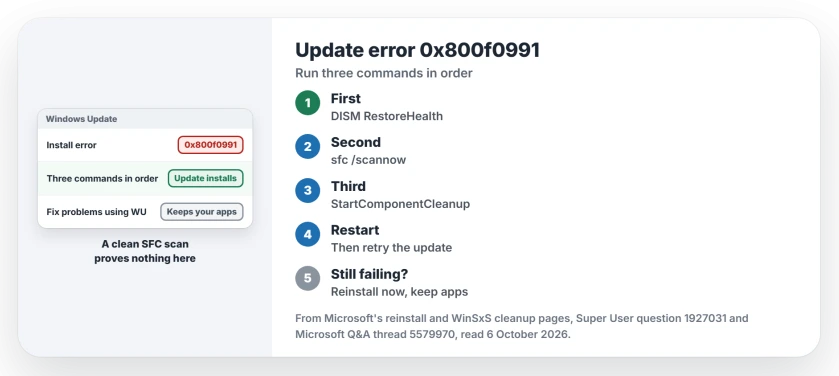
Status: checked 6 October 2026. Updates failed with 0x800f0991. DISM RestoreHealth, SFC and DISM StartComponentCleanup, run in that order, let the update install for several owners.
In their words, SFC reported "Windows Resource Protection did not find any integrity violations". So a clean scan on your PC does not mean the update will install.
Ours: neither of Microsoft's two lists of Windows Update errors names 0x800f0991. That is why your best fixes here come from owners rather than from Microsoft.
1. Run the three commands in order
Right-click Start and open Terminal (Admin). Run these one at a time, and let each one finish before you type the next:
DISM /Online /Cleanup-Image /RestoreHealth
sfc /scannow
DISM /Online /Cleanup-Image /StartComponentCleanup
Then restart your PC and open Windows Update again to retry the failed update. The asker's result: "This made the update succeed (on my computer)".
They added one rule for you: "If the second step (SFC /SCANNOW) asks for a reboot then do that before doing third step".
The same three lines were posted on Microsoft Q&A, and the replies piled up. Confirmed by an owner: "This solution worked exactly as described". Another wrote "it works for me, the same as the previous comment".
What the third command does
Microsoft's WinSxS cleanup page explains it. With this switch, "previous versions of updated components will be immediately deleted (without a 30 day grace period)". Normally Windows waits a month.
Ours: none of the posters proved why that step matters. It is simply the one the owners added to the usual DISM and SFC pair. The trade is small: your PC loses its older copies a little sooner.
2. If 0x800f0922 shows up next
The Q&A poster of the three commands hit a second code. Their CBS log, which Windows writes while it installs updates, pointed at the Microsoft Store's event channel. Removing two registry keys let the update finish:
HKEY_LOCAL_MACHINE\SOFTWARE\Microsoft\Windows\CurrentVersion\WINEVT\Channels\Microsoft-Windows-Store/Operational
HKEY_LOCAL_MACHINE\SOFTWARE\Microsoft\Windows\CurrentVersion\WINEVT\Publishers\{53e3d721-2aa0-4743-b2db-299d872b8e3d}
They warned "Mind that in your case the GUID might be different". A second member confirmed it: "The removal of the two registry entries fixed the update problem".
Ours: I would only try this if your C:\Windows\Logs\CBS\CBS.log shows the same Microsoft-Windows-Store lines. Export each key first. Other causes of that code are in Windows Update error codes.
3. Reinstall Windows over itself, keeping your apps
When the commands fail, Windows has a repair that keeps your apps and files. Go to Settings, System, Recovery, and choose Reinstall now next to Fix problems using Windows Update.
Microsoft's reinstall page says Windows Update may even suggest it after a failed update. The message reads "Reinstall your current version of Windows to repair system files and components".
One member who had no luck with the commands did a reinstall from Settings. They kept their apps and files, and the updates then installed. Repairing Windows 11 without losing your apps walks through the whole process.
I would plug a laptop in before starting. It downloads a repair copy of your last good update, then installs it.
Things that failed for the asker
Restarting the Windows Update and background transfer services changed nothing for them, before they found the fix. The built-in troubleshooter showed an error page about a gateway timeout instead of a fix.
If SFC finds damage it cannot repair, the order changes. SFC found corrupt files it could not fix explains why DISM goes first.
The Short Version
- 0x800f0991 can block feature and monthly updates.
- A clean SFC scan proves nothing here.
- Run DISM RestoreHealth, sfc /scannow, then StartComponentCleanup.
- Restart if SFC asks, then retry the update.
- A follow-up 0x800f0922 had a registry fix in one owner's log.
- Fix problems using Windows Update keeps your apps.
Where to Next
Open Terminal as administrator now, run the three commands in order, restart, and try the update again.
Did the three commands do it for you, or did you need the reinstall? Tell me in the comments.

Isaac Smith is the founder and editor of PC Glance, a website that covers computers, laptops, and technology. He is a tech enthusiast and a computer geek who loves to share his insights and help his readers make smart choices when buying tech gadgets or laptops. He is always curious and updated about the latest tech trends.