

You open Settings, Accounts, Passkeys to clear out an old passkey, and Windows refuses. The message reads "This passkey can't be deleted because it's required to sign in to this device". Often you do not even use that account.
I would not keep pressing Delete, because on Super User the owner who met this box found a way past it. Make a fresh passkey for the same account first, and then the stuck one can go.
Their question, asked in April, has 1,337 views. In September a Microsoft Q&A asker found the same message on a passkey for an address they did not recognize.
What the stuck passkey looks like
The Super User owner had removed their Microsoft account under Accounts, Your accounts. They signed in to Windows with a local account, and one passkey for that account stayed behind in the list.
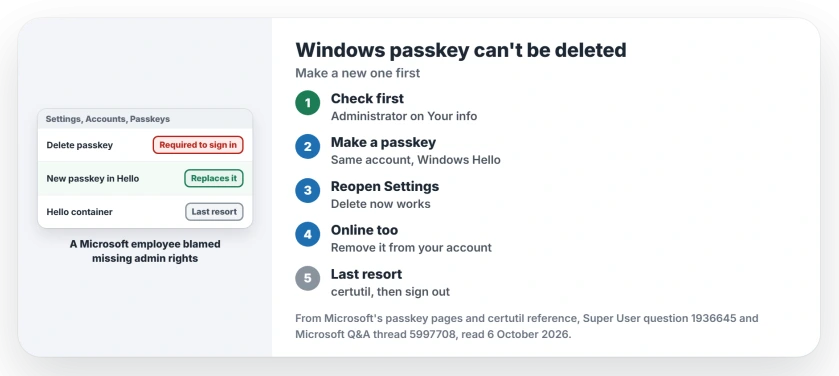
Status: checked 6 October 2026. Windows refused to delete a passkey it called required for sign-in. A new passkey for the same account replaced it, and then it could be deleted.
It was broken as well as stuck. Edge offered it at microsoft.com, then failed with "There was a problem signing in with your passkey". In their words, "the second error message is wrong", since Settings showed a local account in use.
Why Windows calls it required
A Microsoft employee answered the September thread on Microsoft Q&A three weeks after it was posted. They tied the message to admin rights: it "occurs when the account does not have local administrator rights on the device".
The asker did not report back. Ours: you lose nothing by checking Settings, Accounts, Your info, which says Administrator under your name if you have those rights.
If yours does not, sign in to an admin account and try Delete again.
1. Save a new passkey for that account to Windows Hello
The owner's accepted answer is the fix: create a passkey for the same Microsoft account, and save it to Windows device, which means Windows Hello. If Windows suggests Microsoft Password Manager, they say to "click the Change button".
Microsoft's steps start on your account's Advanced Security Options page. Add a new sign-in method, then "Select Face, Fingerprint, PIN, or Security Key". Pick Windows device when the save choices appear.
Confirmed by an owner: "I found this automatically replaced the broken passkey, with a passkey that worked". They closed Settings and opened it again. This time Delete worked.
Microsoft adds one condition: the Windows Hello choice "may not be shown if you have already saved another passkey to a synced credential manager such as Microsoft Password Manager". That explains a missing option.
New to passkeys? How a passkey stands in for your password covers the idea first.
2. Delete the new one, on the PC and online
Microsoft's passkey management page gives the PC route. Go to Settings, Accounts, Passkeys, open the three dots beside the passkey and choose Delete passkey.
The owner deleted the new passkey from the PC and from their account at once: "I recommend you do this immediately, otherwise it could still cause problems". Online, it sits with your other sign-in methods. It has a Remove option there.
Microsoft documents the cost: once you remove it, that passkey stops working for your account. Ours: keep a password, an authenticator app or a code method on the account first. Then removing its last passkey cannot lock you out.
The owner warns against one order of events. Say you add the same account back under Your accounts, then remove the passkey on the website. In their warning, "it will break the link between your PC and your account".
3. When that fails: clear the Windows Hello container
A second answer on the question uses certutil, a command line tool built into every copy of Windows. Open Terminal and run this, then sign out of Windows completely:
certutil.exe -DeleteHelloContainer -vMicrosoft's certutil reference spells out what it removes. It "Deletes the Windows Hello container, removing all associated credentials that are stored on the device, including any WebAuthn and FIDO credentials".
Passkeys are FIDO credentials. So every passkey on the PC goes, and your PIN, face and fingerprint sign-in go with them.
The results were mixed. The Super User owner saw certutil work once where their own fix failed, and they also saw the reverse. The Q&A asker ran it, and their passkey stayed.
Ours: I would try the new passkey route first. Know your account password before certutil, because the PIN is gone afterwards.
The owner even suggested turning Windows Hello off first, "to make sure that you actually know what your local account password is".
One owner ran certutil against a fingerprint Windows called too similar, and it did not help, because that fault lives in the reader.
Afterwards, I would rebuild your sign-in before anything else. Setting up your PIN and face sign-in again takes a few minutes.
The Short Version
- Windows can refuse to delete a passkey it calls required.
- Save a new passkey for that account to Windows Hello.
- The broken one was replaced, and Delete worked.
- Remove the new one on the PC and online.
- A Microsoft employee blamed missing admin rights.
- certutil clears every passkey and your PIN.
Where to Next
Add a passkey saved to Windows Hello from Advanced Security Options, then try Delete once more.
Did the new passkey free yours, or did it take certutil? Your answer in the comments helps the next reader.

Isaac Smith is the founder and editor of PC Glance, a website that covers computers, laptops, and technology. He is a tech enthusiast and a computer geek who loves to share his insights and help his readers make smart choices when buying tech gadgets or laptops. He is always curious and updated about the latest tech trends.