
You try to add your fingerprint in Windows Hello and it refuses. It says the print is too similar to one already set up. Or you have hit a 10 fingerprint limit you never came near.
That is maddening. Before you buy a new reader, I would clear the old prints in two places. One is Windows. The other is the reader itself, and a clean reinstall does not touch it.
A Super User question about prints surviving a full reinstall has 4,790 views, and several owners on Microsoft Q&A hit the same wall.
What the messages say
On Super User, the owner had wiped every partition on the drive and reinstalled Windows 11 from scratch. Setting up Windows Hello afterwards, "it says a similar fingerprint already exists".
On Microsoft Q&A the wording varies. One thread is titled "That Fingerprint is too similar to one that's already set up". Your finger is fine.
Another owner was told they had "reached the 10 fingerprint max for this account". A third wrote, after upgrading from Windows 10: "I have reached the 10 fingerprint limit for this account".
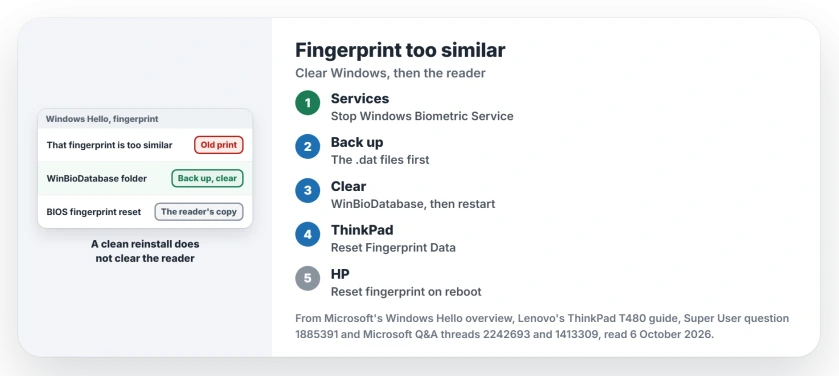
Status: checked 6 October 2026. Hello said a print already existed after a clean reinstall. Clearing Windows' database worked for the asker, a BIOS reader reset for an HP owner.
Why a reinstall does not clear them
Microsoft says on its Windows Hello overview that Hello's biometric data never leaves the PC it was recorded on. That rules out your Microsoft account quietly bringing old prints back to a fresh install.
Some readers keep prints of their own. Lenovo's ThinkPad T480 guide has a BIOS option to "erase all fingerprint data stored in the fingerprint reader and reset the settings to the factory default state".
Prints stored there survive any reinstall. That fits all three messages.
The accepted answer on Super User blamed the TPM instead, the security chip a reinstall does not clear. Ours: the fixes owners confirmed point at Windows' database and the reader, so I would start with those.
1. Clear Windows' own copy
The Super User owner went to Windows' biometric folder and had to "delete the files there for it to work". The folder is:
C:\Windows\System32\WinBioDatabaseOpen Services first. Stop Windows Biometric Service, so the files are free. A Microsoft support specialist on one thread adds: "Back up the .dat files in WinBioDatabase before deletion in case you need to restore them".
Copy the files somewhere safe. Delete them, then restart your PC. I would keep that copy until the new print works.
Then open Settings, Accounts, Sign-in options, and set up Fingerprint recognition again, using the same finger as before.
2. Reset the reader in the BIOS
On a ThinkPad, the T480 guide puts Reset Fingerprint Data under Security, then Fingerprint, in ThinkPad Setup. Press F1 at the logo to open it.
Lenovo warns that afterwards, "any power-on security features previously enabled will not work until they are re-enabled in the fingerprint software".
On an HP EliteBook, one owner found the same idea under Security, called Reset fingerprint on reboot. In their words: "I overcame it by going into the BIOS". After that, setup worked again.
Not every PC has it. Another owner, on an ASUS laptop, replied: "Unfortunately there is no such option on Asus UEFI/BIOS". If yours has none, look on the laptop maker's own support site for a tool that resets the reader.
3. When neither works
Two more owners went further. One tried hard: "Deleted all .dat in WinBioDatabase folder also cleared TPM, rebooted", and it still failed.
Ours: do not clear the TPM for this. It did not help them, and it can bring up BitLocker recovery on an encrypted drive.
Another ran certutil to reset the Windows Hello container, and "after reboot, re-register the PIN i got same error". That command is a bigger hammer, explained on our passkey page, and it did not reach the reader.
A Dell owner's fix was hardware: "Dell changed my fingerprint reader, and the problem has been solved". And one more owner got around the message by adding a new fingerprint first, after which Windows accepted the others, old ones included.
Is my fingerprint stored with Microsoft?
No. Nothing goes to Microsoft. The data stays on your PC, so clearing the folder and the reader removes it. Our Windows Hello page covers where the PIN and your face scan live too.
The Short Version
- Too similar, already exists and the 10 print limit point at old prints.
- Microsoft keeps biometric data on the device, so they are local.
- Clear Windows' WinBioDatabase folder, after backing it up.
- Then reset the reader in the BIOS, such as Reset Fingerprint Data on a ThinkPad.
- HP owners found Reset fingerprint on reboot under Security.
- Clearing the TPM did not help, and certutil did not reach the reader.
Where to Next
Back up and clear the WinBioDatabase folder, restart, and only then look for a fingerprint reset in your BIOS.
Which laptop do you have, and which reset finally let you add your finger? Tell me in a comment.

Isaac Smith is the founder and editor of PC Glance, a website that covers computers, laptops, and technology. He is a tech enthusiast and a computer geek who loves to share his insights and help his readers make smart choices when buying tech gadgets or laptops. He is always curious and updated about the latest tech trends.