
Classic Outlook stops getting mail and the status bar says Need Password. You click it, a window flashes up for a second, and it vanishes before you can type a thing.
I start outside Outlook, by signing out of Office, because several owners fixed it from Word rather than from Outlook. Its Super User question has passed 537,842 views, and new Microsoft Q&A copies kept coming through mid 2026.
The box that vanishes is a Microsoft sign-in
Microsoft says "All versions of Outlook for Windows since 2016 have Modern authentication enabled by default". So for a Microsoft 365 or Exchange mailbox, the password box you see is a Microsoft sign-in window, not an old Outlook dialog.
The Super User asker described what you are seeing. After a click on the button to type the Exchange password, "a dialog briefly appears but then disappears". Restarting Outlook helped for a while, then it came back.
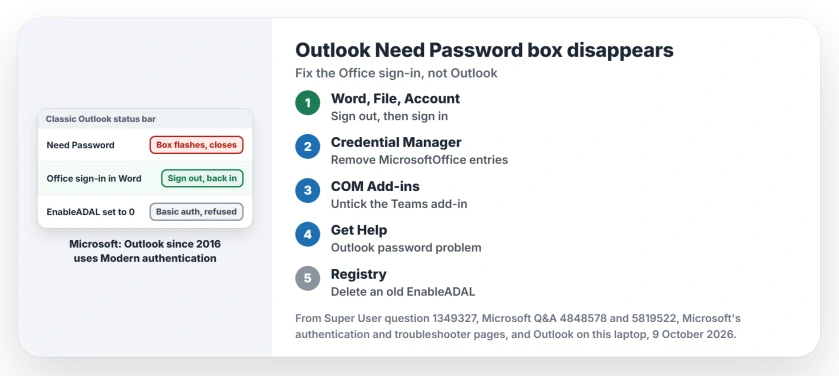
Status: Microsoft documents modern sign-in, the end of Basic authentication and the Get Help check. Signing out of Office and the Teams add-in are owner fixes. Outlook examined 9 October 2026.
Ours: this laptop runs classic Outlook 16.0.20430.20092, 64-bit. Its Office Identity key holds no EnableADAL value, and the Teams Meeting Add-in loads with Outlook at every start.
1. Sign out of Office, then back in
Close Outlook. Open Word or Excel, select File, then Account, and choose Sign out under User Information. Sign back in there, then open Outlook.
On a 20+ Q&A thread, the answer its asker accepted gave those steps, plus one more: remove the account from Credential Manager and restart. Its asker replied "this solved my problem."
Super User owners did the same. One closed Outlook, logged out and back in through another Office app, and Outlook connected to Exchange again. Another used Word's Sign Out link.
2. Clear the saved passwords
Open Credential Manager from Start and select Windows Credentials. Remove entries with your email address or names starting MicrosoftOffice, then restart and sign in when Outlook asks.
An adviser on a June 2026 thread explained why: "Old, saved credentials can sometimes cause Outlook to keep prompting for a password."
They also said to try the password in webmail first. If it fails there, reset it with your provider before anything else.
3. Turn off the Teams Meeting Add-in
In March 2026 an IT worker traced repeated prompts, and Outlook closing after a correct password, to the Teams Meeting Add-in for Microsoft Office. Disabling it stopped them. I would try this one early.
Cancel the password box so Outlook opens. Select File, Options, Add-ins, set Manage to COM Add-ins and select Go. Untick the Teams Meeting Add-in, then restart Outlook. Then test it.
Another owner wrote in July 2026: "I encountered same issue and the solution you provided works." You lose the Teams meeting button until you turn the add-in back on.
4. Run Microsoft's password check
Microsoft built a troubleshooter for this into the Get Help app. Its classic Outlook troubleshooters page says to "Use the classic Outlook authentication check troubleshooter to resolve classic Outlook password authentication issues."
Open Get Help and type Outlook password problem. It runs only on the same PC as classic Outlook, and "The troubleshooter won't work with new Outlook for Windows."
The old registry fix now works against you
Many answers from 2018 tell you to add EnableADAL with a value of 0, or DisableADALatopWAMOverride, under the Office Identity key. Owners back then reported it worked, sometimes for only a few weeks.
Microsoft's table for Office 2016 and 2019 lists what EnableADAL at 0 means for you: Basic authentication. Exchange Online stopped taking it. Microsoft's words: "We removed the ability to use Basic authentication in Exchange Online".
So if someone set that value on your PC years ago, delete it and restart Outlook. One Super User owner had found the same thing back then: "The issue resurfaced and deleting the value fixed it."
A work account in Windows, or a damaged profile
One Super User owner found an extra work account under Access work or school in Windows settings. Removing it made Outlook show its sign-in window on the next start.
Another ran Quick Repair on Office and wrote "After the quick repair was complete, I reopened Outlook and all was good." The Office repair guide walks through Quick and Online Repair.
Last, a new profile. Open Control Panel, then Mail, then Show Profiles, select Add and set up your account again. Does Outlook refuse to open at all? Then see Outlook won't open instead.
Outlook that sits in the tray saying it is closing, and never lets you open it again, has its own order of fixes.
The Short Version
- The flashing box is a Microsoft sign-in window.
- Sign out of Office in Word or Excel, sign back in, then open Outlook.
- Clear your address and MicrosoftOffice entries from Credential Manager.
- Turn off the Teams Meeting Add-in, then run Get Help's password check.
- Delete an old EnableADAL value; Exchange Online no longer takes Basic authentication.
Where to Next
Which step brought your sign-in window back? A one-line comment helps the next person with the same Outlook.

Isaac Smith is the founder and editor of PC Glance, a website that covers computers, laptops, and technology. He is a tech enthusiast and a computer geek who loves to share his insights and help his readers make smart choices when buying tech gadgets or laptops. He is always curious and updated about the latest tech trends.