
You plug a second monitor into your laptop, and some apps turn soft on it while others stay sharp. Outlook or an old tool looks smeared, while File Explorer right next to it is crisp.
I treat that as a scaling mismatch before anything else, since the blurry apps all share one trait. Its Super User question passed 632,918 views. A Q&A thread about Office apps lists 200+ people who had it too.
Why only some apps blur
Each screen in Windows has its own scale, so your laptop panel might run at 150 percent and a bigger monitor at 100. Newer apps redraw themselves for each screen. Older desktop apps do not. Windows resizes those for you.
Microsoft's developer guide explains what that costs you. For an app that ignores scaling, "Windows will stretch the application bitmap to the expected physical size". Its next words: "This results in the application appearing blurry".
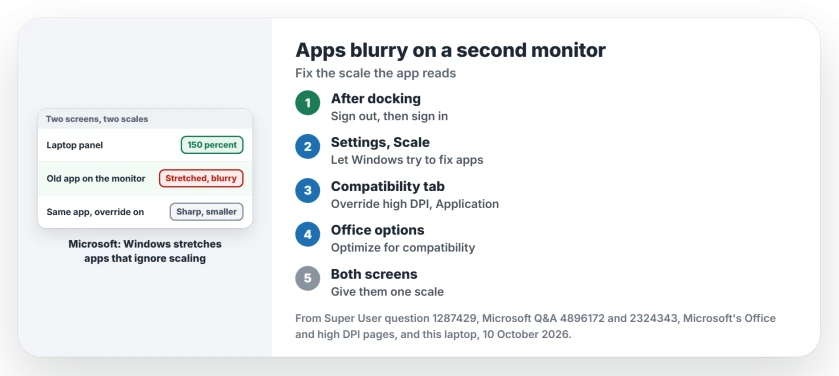
Status: Microsoft documents the stretching, the per-app override and signing out. Owners confirmed the override and a refresh rate fix. Checked 10 October 2026.
Ours: this laptop runs two 4K screens at 150 percent. A PowerShell window that ignored scaling measured each screen as 2560 by 1440 pixels, while the same window told to be aware saw 3840 by 2160. That gap is the stretch.
1. Sign out, then sign back in
Some apps read the scale only once, at the moment you sign in, so a laptop docked after that keeps the old value. Microsoft's page on Office apps that look blurry on external monitors covers it.
After you connect a monitor, dock or change scaling, "signing out of Windows can fix this". It also sets a limit: "Applications on your primary monitor should look crisp after logging back in".
So this fixes your main screen only, and an app on the other screen can stay soft. The next three steps are for that.
2. Let Windows fix apps on the main screen
In Settings, go to System and then Display, and select Scale. Under Fix scaling for apps, turn on Let Windows try to fix apps so they're not blurry, or leave it on if it already is.
Read the line under that switch, though. On this laptop it says "This only works for apps on your main display", and a Microsoft support specialist on a 40+ Q&A thread confirmed the same limit.
Microsoft's Office page adds a detail you will hit: "you will need to restart the app after connecting or disconnecting a monitor". So restart the app each time you dock.
3. Override scaling for one app
Owners thanked this fix most. Right-click your app's shortcut and choose Properties. Open the Compatibility tab and select Change high DPI settings.
Tick Override high DPI scaling behavior. Set Scaling performed by to Application, select OK and restart the app, and if it now looks too small, try System (Enhanced) instead.
One owner wrote: "Solution #2 worked beautifully and now my putty window is sharper than sharp". Another did it for TigerVNC, Source Insight and Anki, with a short verdict: "Now the text in them is sharp!"
The trade is size. One reader found Office apps stayed small and unscaled after the override, but crisp. To undo it, untick the same box.
Ours: your choice lands in the registry under AppCompatFlags. On this laptop one game carries HIGHDPIAWARE, which is the Application setting, while OneDrive.exe carries a per-app flag that turns off Windows' own blurry fix.
4. In Office, choose Optimize for compatibility
Word, Excel and Outlook have their own switch. Select File, then Options, then General, and under User Interface options find When using multiple displays. Choose Optimize for compatibility and restart the app.
Microsoft lists that mode for when you "may still experience blurry text in Microsoft 365 applications". The 200+ Q&A thread was about Office, and its posters saw exactly your mix of sharp and soft apps.
5. Match the scale on both screens
The blunt fix is one scale everywhere. In Display settings, select each screen in turn and set Scale to one value. The accepted Super User answer set both to 100 percent.
Microsoft's Office page gives the same advice and suggests trying a few values to see what looks best to you. On a small laptop panel at 100 percent the text gets tiny, so this suits a docked laptop with its lid shut.
One owner had to reset it first. They set 125 percent on every screen and restarted, then set 100 percent and restarted again, and after that everything stayed sharp.
When the whole screen is soft
Is everything on your second screen blurry, taskbar and File Explorer included? Then scaling is not to blame, and I would check the signal next.
One owner ran two Dell monitors through a dock, with one set to 60 Hz progressive and its neighbor to 60 Hz interlaced. In their words: "My primary display was on progressive and the secondary on interlaced". Matching them cleared it.
A second reader wrote that "adjusting the Refresh Rate was the fix for me as well". Another swapped a VGA cable for HDMI, after Windows had offered only the wrong shape of resolution for the screen.
So make sure your monitor gets its full resolution and refresh rate. The active signal resolution page checks both.
Still arranging the second screen? Start with two monitors on Windows, set up once. On a Mac, external monitor blur has a different cause and a different fix.
The Short Version
- Sign out and back in after you dock or change scaling.
- Turn on Let Windows try to fix apps, which covers the main screen.
- Override high DPI scaling for any app still blurry, set to Application.
- In Office, choose Optimize for compatibility.
- Or give both screens the same scale, and if the whole screen is soft, check the refresh rate.
Where to Next
Which app stays blurry after the override? Post its name and your two scale values in the comments, and I'll try the same pair here.

Isaac Smith is the founder and editor of PC Glance, a website that covers computers, laptops, and technology. He is a tech enthusiast and a computer geek who loves to share his insights and help his readers make smart choices when buying tech gadgets or laptops. He is always curious and updated about the latest tech trends.