
You set your screen to 1920 by 1080, yet Advanced display still shows an active signal of 3840 by 2160. Your desktop changed. The cable did not. On a TV that cannot take 4K, that gap means a black screen.
I treat the two numbers as two settings, because Windows owns one and your graphics card owns the other. Asked in January 2019, the Super User version has 328,116 views, and Microsoft Q&A's biggest copy shows 200+ on Same question.
Two numbers, two owners
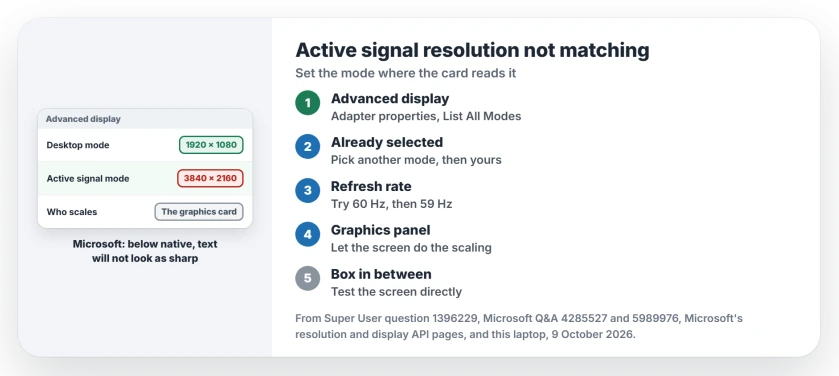
Desktop mode is the picture Windows draws. Active signal mode is what your graphics card actually sends down the cable.
Microsoft's display API calls the second one "the active portion of the video signal". When they differ, the card scales your desktop to fit the signal.
Status: owners fixed it in List All Modes, with the refresh rate, or in the graphics panel. Windows' own display query ran on our laptop on 9 October 2026.
Ours: this laptop drives two 4K screens from an RTX 3050 laptop GPU, over HDMI and DisplayPort. Windows reports 3840 by 2160 on both sides for both, at 60 Hz, with no scaling.
Scaling is allowed by design. Microsoft says it on its resolution page: under the native resolution, "text won't look as sharp".
The picture "might be small, centered on the screen, edged with black, or stretched".
A Microsoft Q&A volunteer answered an August 2026 copy plainly: "The resolution and refresh rate of the signal sent to your monitor are determined by the graphics card and its driver, not by Windows."
1. Pick the mode from List All Modes
Owners keep finding that the Settings drop-down changes the desktop mode and leaves the signal alone, while the older adapter window sets the mode itself, signal included.
Open Settings, System, Display, Advanced display, then the display adapter properties link for your screen. On the Adapter tab, select List All Modes and pick your resolution with its refresh rate. Select OK, then Apply.
On Super User, the answer saying exactly this has 51 votes, and on Microsoft Q&A the adviser's version has 200+ helpful marks.
The adviser adds a rule I agree with: "never change the resolution in the normal display properties window".
Already showing the right mode in that list? Owners found that applying it again changes nothing. Pick any other mode and apply it. Then reopen List All Modes and pick yours.
One Super User owner called that detour a "general solution that works with all GPUs". Two readers replied that it fixed theirs, one of them with "Excellent, this worked for me!"
2. Match the refresh rate, 59 or 60
My reading: some screens list a resolution at one rate only. Ask for 1080 at 59 Hz on a screen that offers 1080 at 60 Hz, and your card keeps the native signal and scales.
One owner found it was enough to "change their 59Hz to 60Hz". The shortest answer on the 200+ Q&A thread reads "Try change to 59hz, it work for me to change Active Signal Resolution."
It has 20+ helpful marks. So try both rates in List All Modes, and I would start with 60.
3. Let your screen do the scaling
Your graphics panel decides who scales, the card or the screen. If the card scales, your signal stays native whatever you pick in Windows.
On Intel graphics, open Intel Graphics Command Center and select Display. Set Scale to Maintain Display Scaling. That was the asker's own fix on Super User.
A later owner wrote that this setting "did the trick" where List All Modes had failed for them.
No such option on your screen? Another owner first made a custom resolution with the screen's own numbers, even unchanged. One reader whose setting kept reverting replied "Creating a custom resolution as suggested by this answer worked!"
On Nvidia, a May 2026 owner opened Manage 3D settings and turned Image Scaling on, then off, applying each time. They then picked the resolution under Change Resolution, and both numbers matched.
On AMD, one owner made a custom resolution in the Radeon software. Another, in August 2026, turned GPU scaling off and saw no change. For your AMD card, treat it as hit and miss.
A receiver or a box in the middle
This was the original Super User case. A laptop went into a 4K receiver, and the receiver into a TV that is not 4K. Windows picked 4K.
Your screen tells the PC which modes it accepts, through a short list called EDID, and a receiver, switch or dock can pass on its own list instead of the TV's.
One owner suggested looking in the box's menu for "an EDID bypass to be check-marked". Ours: connect your PC directly to the screen once, with no box between.
If both numbers match then, the box is the cause, and the HDMI settings page covers what each port can carry.
If the native size never shows up in any list at all, a missing native resolution points to the cable, the adapter or the monitor's own details.
Does a mismatch actually hurt?
Not always. If text looks sharp and nothing is cut off, you can leave it.
For oversized browser text or a magnified desktop, choose its zoom control before changing video modes.
Sharp everywhere except inside a few older programs? That is scaling, not the signal, and those programs can be told to scale themselves.
It hurts when the screen cannot show the signal at all. That is the black screen case. Hold the Windows key, tap P and choose Duplicate, so your laptop screen shows the settings while you fix them.
A screen that stays black after that is a different problem. It is covered in why your monitor goes black.
The Short Version
- Desktop mode is what Windows draws. Active signal is what the card sends.
- Set the resolution in List All Modes, not the Settings drop-down.
- Already selected? Pick another mode first, apply, then go back.
- Try 60 Hz and 59 Hz, since a screen may list one rate only.
- Intel: Maintain Display Scaling. Nvidia and AMD: their own panels.
- A receiver or dock in between can pass on the wrong list of modes.
Where to Next
Which change finally made your two numbers match? Add your graphics card and the fix in a comment.

Isaac Smith is the founder and editor of PC Glance, a website that covers computers, laptops, and technology. He is a tech enthusiast and a computer geek who loves to share his insights and help his readers make smart choices when buying tech gadgets or laptops. He is always curious and updated about the latest tech trends.