

The Samsung Odyssey G85SB is a 175 Hz monitor, so a missing 165 Hz entry is not by itself a fault. If Windows only offers lower rates at 3440 x 1440, enable the monitor's Game Mode before checking the PC's display settings again.
Samsung specifically documents Game Mode as the first check when this OLED G8 cannot offer 120 Hz or 175 Hz. The model number matters because other Odyssey G8 monitors have different resolutions and limits.
Enable Game Mode on the original OLED G8
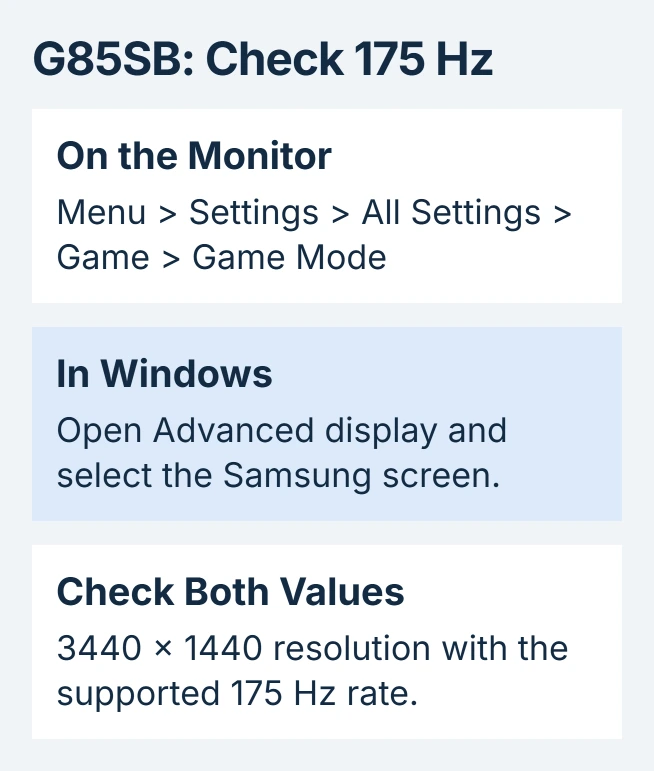
Using the monitor's controls, open Menu > Settings > All Settings > Game > Game Mode and turn it on. This is the monitor's setting, separate from Windows Game Mode.
Samsung says its OLED G8 troubleshooting guide supports up to 3440 x 1440 at 175 Hz with Game Mode enabled. Return to Windows after changing it.
Status: Original G85SB specifications and Samsung's missing-rate fix checked October 30, 2026. The target is its supported 175 Hz mode, not a guaranteed 165 Hz entry.
Confirm the case label says G85SB or its matching S34BG85 model family. Samsung's launch specifications identify this as the 34-inch, 3440 x 1440 version. Do not apply a newer 32-inch G8's 4K settings to it.
Choose the Samsung display before changing the rate
On Windows 11, open Settings > System > Display > Advanced display. Select the Samsung monitor if more than one screen is connected, then inspect Choose a refresh rate.
On Windows 10, the route ends at Advanced display settings. Use Choose Display to select the G85SB, then inspect the Refresh rate list. Microsoft documents both routes in its refresh-rate instructions.
Select 175 Hz when offered at the native resolution. Microsoft states that an asterisk beside a Windows 11 rate means selecting it also changes the resolution. Check both values after applying the choice.
If Windows reports a different output resolution from the desktop setting, use the active-signal comparison. A higher number in one menu does not prove the monitor receives the intended signal.
Our verification is to reopen Advanced display and read the selected monitor's current resolution and rate together. This catches changes made to a laptop's built-in screen instead of the attached Samsung.
Check the cable and graphics output when 175 Hz is absent
Samsung recommends a compatible certified HDMI cable and an updated graphics driver for this symptom. Its G85SB connections include Micro HDMI and Mini DisplayPort; use the connector and cable specified for the chosen input.
As a comparison, connect the PC directly to the monitor instead of through a dock or adapter. This removes that extra device from the signal path, but the PC's own output must still support the requested mode.
If the resolution itself is missing too, the native-resolution checks explain why Windows' available modes depend on the display connection. Do not force a custom timing merely to produce a 165 Hz listing.
A blank or flickering image is a separate symptom. Samsung's guide directs those cases to cable reconnection and Input Signal Plus, rather than presenting that switch as the primary cure for every missing refresh rate.
Send Samsung the complete display combination
If Game Mode and a direct supported connection still leave 175 Hz unavailable, contact Samsung with the full model code, monitor software version, graphics hardware and cable type. Include Windows' current resolution and offered rates.
That gives support the actual combination to check. A 175 Hz option that works at 3440 x 1440 meets this model's maximum specification even if 165 Hz never appears.
The Short Version
Enable the G85SB's Game Mode, select the correct display in Windows and check its native resolution with 175 Hz. If that combination is absent, examine the cable, graphics output and any adapter in between.

Isaac Smith is the founder and editor of PC Glance, a website that covers computers, laptops, and technology. He is a tech enthusiast and a computer geek who loves to share his insights and help his readers make smart choices when buying tech gadgets or laptops. He is always curious and updated about the latest tech trends.