
Your monitor is 2560 by 1440, but the Display resolution list in Windows stops at 1920 by 1080. Or the entry marked Recommended is lower than the screen's real size, and everything looks soft.
I would check the name Windows gives the monitor before changing any driver. If Windows never got the screen's details, no driver setting can offer its real size.
Super User counts 224,925 views on its December 2015 question about this. A Windows 10 question on Microsoft Q&A with the same complaint shows 100+ under Same question.
Windows lists what the monitor tells it
Every monitor sends a small block of data, called EDID, down the cable, and it names the screen and lists the modes it supports, with its native one first.
Windows builds the resolution list from that block and the graphics driver. When the block never arrives, Windows falls back to a short generic list, and your native mode is missing from it.
Open Device Manager and expand Monitors to see what Windows calls yours. Generic PnP Monitor is normal and means the details arrived. Generic Non-PnP Monitor means they did not.
A Q&A asker on a VGA cable saw exactly that. They wrote "Generic Non-PnP Monitor is what persistently appear". Their monitor's native mode never showed up in the list.
Ours: this laptop keeps the EDID of every screen it has met, and the Lenovo P32p-20 reports 3840 by 2160 as its preferred mode. The Dell U2312HM reports 1920 by 1080. Windows runs the Lenovo at its full size, the result you are after.
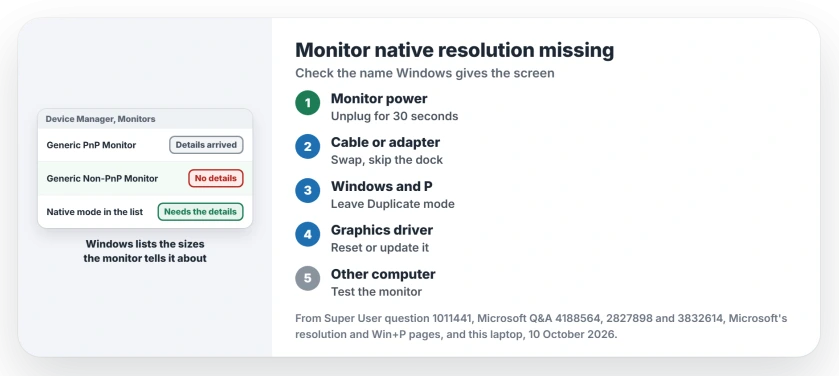
Status: Four monitor readings from this laptop, Microsoft's resolution and Win+P pages, and the fixes forum owners reported, gathered 10 October 2026. A power cycle fixed the most.
1. Unplug the monitor from the wall
Super User's highest-voted answer sounds too simple. Try it first anyway. "Disconnect the monitor from the mains power and disconnect the display cable from the back of the pc/laptop".
Wait about 30 seconds, plug the power back in, then the cable. The monitor resends its details to your PC as it starts.
Three owners confirmed it on different screens. It may work on yours too. One wrote "Surprisingly, this also fixed it for me on an EliteDisplay E231". Another said "it fixed the problem also on my samsung syncmaster ta350".
The power button alone may not do the same job, because your monitor in standby can keep its old state until it loses power.
2. Change the cable, adapter or port
A cable or adapter can carry your picture and still drop the EDID. One owner swapped a DisplayPort cable, and "my problem seems to be fixed", while another wrote "In my case the HDMI cable was causing the issue".
A third had a third screen stuck at low sizes behind a DisplayPort to VGA adapter. Swapping the adapter fixed it, even though the old one worked with a different monitor.
Long runs and boxes count too. On the 100+ Q&A thread, one reply suspected a DisplayPort extension of about 30 feet behind the same symptom on a 4K monitor.
Try the shortest plain cable you have. Run it straight from the PC to the monitor, with no dock, KVM switch or adapter. If the native mode comes back, add the other parts back one at a time. I would do this before any driver work.
3. Leave Duplicate mode
In Duplicate, both screens show one picture at one size. Windows then offers sizes the two screens share. A big monitor next to a small laptop panel loses its native mode.
Microsoft's Win+P resolution article covers a related drop, even with one monitor plugged in. It calls this "expected behavior with video adapters that have multiple DVI or Display Port connections".
Press Windows and P. Then choose Extend or Second screen only.
One Q&A thread shows 200+ under Same question. The owner's screen looked fine in Extend and wrong in the other modes.
They fixed it by changing a scaling option in Intel's graphics control panel, from keeping the aspect ratio to keeping the display's scaling.
4. Reset or update the graphics driver
If Device Manager shows Microsoft Basic Display Adapter under Display adapters, Windows has no real driver for your graphics. The mode list stays limited until you install one.
Microsoft says on its resolution page that "If you see unexpected changes in your screen resolution, your graphics driver might need to be updated".
The driver's own panel can hold a bad setting too, as one owner with a Samsung Odyssey G9 found when Windows marked 2560 by 1440 as Recommended instead of 5120 by 1440.
They "went into the Nvidia Control panel, selected Manage the 3D Settings option, and then clicked on Restore and Apply". Windows then showed the native size again.
Native size listed, but the screen still soft? Then the signal and the desktop may not match. Our page on active signal resolution not matching covers that split.
On the original Samsung OLED G8, enable the G85SB gaming control when native resolution is present but its highest refresh rate is absent.
After the native mode returns, EIZO's browser patterns help inspect soft text, uneven areas or a fixed pixel mark on the panel.
When the monitor itself is failing
The Super User asker tried cables, ports and drivers, then replaced the monitor. In their words, "As some suggested, the monitor itself was just dying".
Try the screen on another computer before you buy one, and if it shows its native size there, the fault sits on your PC's side. I would test it with a laptop on a plain cable, because that skips the dock and the desk wiring.
Microsoft notes that "Monitors can support resolutions that are lower than their native resolutions, but text won't look as sharp". So a lower size is a stopgap, not a fix.
When the native mode is available but content looks enlarged, check page zoom and screen magnification before replacing hardware.
For a second screen with a different size from the first, our guide to two monitors in Windows covers scaling and layout.
The Short Version
- Generic Non-PnP Monitor means no screen details.
- Unplug the monitor's power for 30 seconds, then reconnect.
- Swap the cable or adapter.
- Skip docks and switches while testing.
- Duplicate mode forces a shared size.
- Reset or update the graphics driver.
- Then test the monitor elsewhere.
Where to Next
What does Device Manager call your monitor, and which cable do you use? Put both in a comment, along with whether the power cycle brought the native size back for you.

Isaac Smith is the founder and editor of PC Glance, a website that covers computers, laptops, and technology. He is a tech enthusiast and a computer geek who loves to share his insights and help his readers make smart choices when buying tech gadgets or laptops. He is always curious and updated about the latest tech trends.