
To zoom out on a computer, press Ctrl + minus (-) in a Windows browser, or Command + minus (-) on a Mac. That shrinks the page. When the whole desktop is enlarged, use the system magnifier controls instead.
Check whether the browser's toolbar is its normal size. A large page inside a normal window needs page zoom; an enlarged desktop that follows the pointer needs a different shortcut.
Shrink a web page with the browser's zoom control
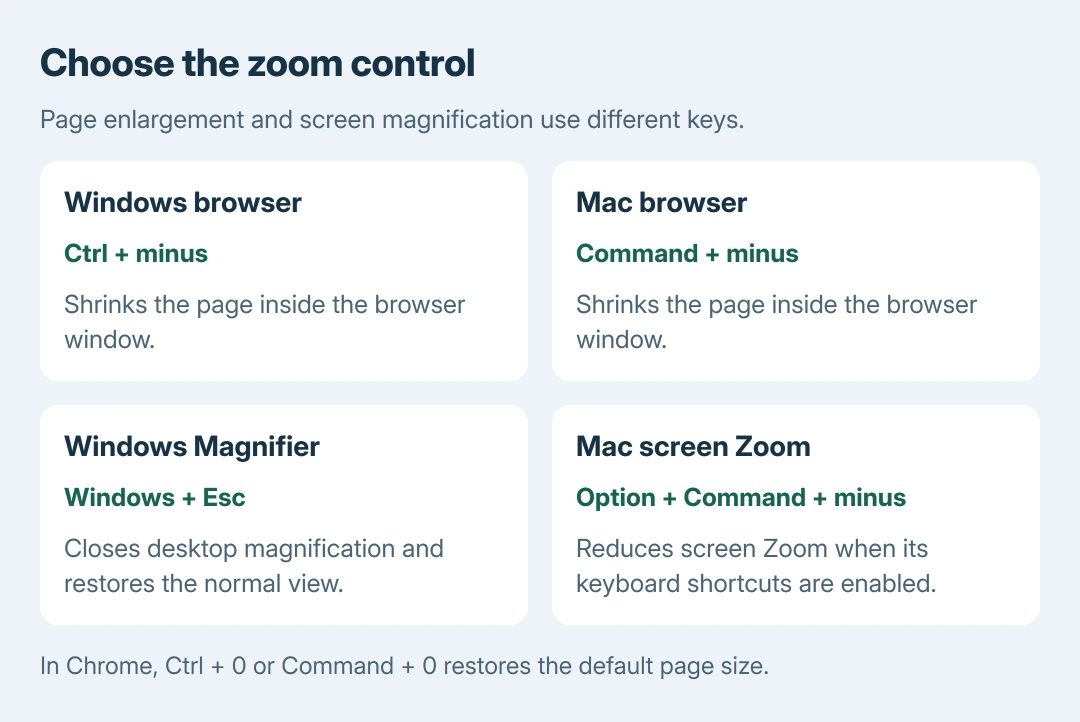
Click inside the page, hold Ctrl on Windows or Command on Mac, and press the minus key. Repeat until the content fits comfortably. The browser toolbar should keep its original size.
Google says Chrome's page zoom controls resize text, pictures and video together. The same Chrome shortcuts work on a Chromebook with Ctrl, and on Linux with Ctrl.
Status: Chrome shortcuts, Windows Magnifier and display settings, and Mac accessibility Zoom checked October 28, 2026. No display settings were changed.
Without a keyboard, open Chrome's three-dot menu and click minus beside Zoom. The percentage changes with each click. Stop when the page is readable rather than shrinking it simply to fit every column.
To restore the browser's default page size, press Ctrl + 0 on Windows or Command + 0 on Mac. Google documents these reset keys in its Chrome shortcut list. Use the digit zero.
If the page percentage changes but the desktop stays oversized, continue with the system controls. A browser shortcut cannot close an accessibility magnifier.
Close Windows Magnifier when everything is enlarged
Press Windows + minus to reduce Magnifier's enlargement. Press Windows + Esc to close Magnifier altogether. Microsoft documents both in its Windows keyboard reference.
A desktop that returns to normal after Windows + Esc was being magnified. No resolution change is needed for that result. If everything remains large, inspect Display settings instead.
Open Settings > System > Display. Select the affected monitor when several are connected, then check Scale and Display resolution. Microsoft's display guidance recommends the marked recommended values.
Reducing a deliberately enlarged Scale setting makes interface elements smaller. Lowering resolution generally makes them larger and can soften text, so it is the wrong direction for fitting more content on screen.
For a screen whose proper size is absent from the list, use the missing native-resolution checks. When Desktop mode and Active signal mode disagree, check the outgoing display signal separately.
Reduce accessibility Zoom on a Mac
With keyboard shortcuts enabled for macOS Zoom, press Option + Command + minus to reduce magnification. Option + Command + 8 switches between the zoomed and unzoomed views.
Apple states that these shortcuts are configured in System Settings > Accessibility > Zoom in its Mac Zoom guide. Check Use keyboard shortcuts to zoom if the keys do nothing.
That setting controls screen magnification. Chrome's Command + minus still controls the page inside Chrome. Choose by what changed size, rather than adding more keys to the browser shortcut.
Change Chrome's default only when several sites need it
Open Chrome Settings > Appearance > Page zoom and choose the desired default. A change here affects general browsing, so use the individual page control when only one site is oversized.
Saved exceptions can be removed under Settings > Privacy and security > Site Settings > Additional content settings > Zoom levels. Delete the affected site's entry to stop that saved exception overriding the default.
Our recommendation is to check one ordinary page after the change. If a single app still looks enlarged while the desktop and browser are normal, use that app's View or Zoom menu or ask its support team about its own display setting.
The Short Version
Shrink a browser page with Ctrl + minus on Windows or Command + minus on Mac. Windows + Esc closes Magnifier; Mac screen Zoom uses its enabled Option + Command shortcuts. Check scaling if the desktop stays large.

Isaac Smith is the founder and editor of PC Glance, a website that covers computers, laptops, and technology. He is a tech enthusiast and a computer geek who loves to share his insights and help his readers make smart choices when buying tech gadgets or laptops. He is always curious and updated about the latest tech trends.