
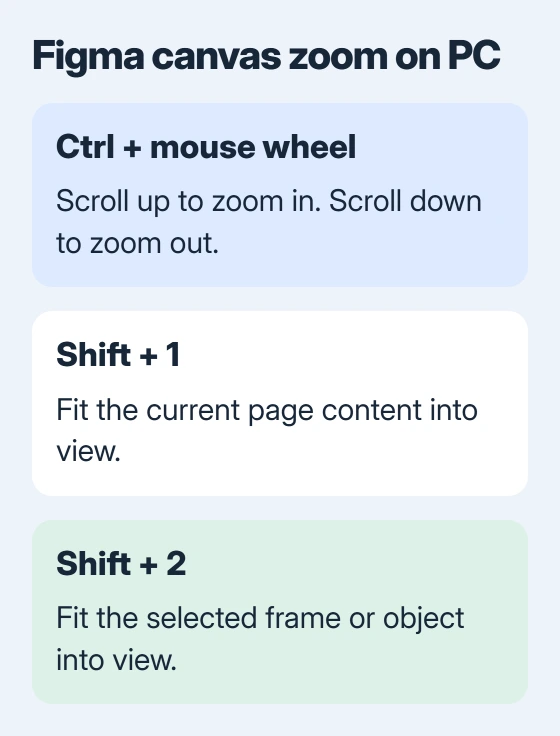
Hold Ctrl and scroll your mouse wheel to zoom in and out in Figma on a PC. Scroll upward to enlarge the canvas and downward to pull back. For a quick overview, Shift + 1 fits the current page's designs into view.
Canvas zoom changes how closely you see the design. If the toolbar and side panels are also too large, use the separate interface or browser zoom controls to resize them.
Use the canvas percentage for a precise view
Open your Figma Design file and find the zoom percentage in the right sidebar's upper-right corner. Click it, enter a percentage or choose a listed value, then check how much of your design you can see.
Use a larger percentage when checking small details and a smaller one when arranging several frames. The frame's actual dimensions stay the same; changing your view doesn't resize the work.
Figma's zoom and view instructions show this right-sidebar control. Canvas zoom and the size of the surrounding interface have separate controls.
Watch that percentage while trying a new shortcut. It tells you whether you've changed the canvas view. If a browser zoom indicator appears instead, check which window or control is receiving your key presses.
Zoom with the wheel or a trackpad gesture
Point at a blank part of the canvas, then hold Ctrl and turn the mouse wheel. Use small movements first so the design doesn't jump much farther than you wanted. Release Ctrl when you've reached a comfortable view.
On a Windows trackpad that supports the gesture, spread two fingers to zoom in and pinch them together to zoom out. Sliding two fingers in the same direction moves around the canvas instead.
The design-file navigation guide explains those trackpad actions. Spread or pinch to zoom; slide to move around the page.
I'd start with the wheel shortcut if you already use a mouse. You can adjust the view without changing Windows display settings or resizing a selected frame.
If the gesture does nothing, try the percentage menu. If that works, you can keep working while checking your trackpad separately. Resizing the document won't fix a zoom gesture that isn't working.
Fit the whole page or just the selected frame
Press Shift + 1 to use Zoom to fit. This brings the current page's content into view, which is useful after panning away from the designs or enlarging one detail too far.
For a closer view of one frame, select it on the canvas or in the Layers panel, then press Shift + 2 for Zoom to selection. Select the complete frame when you want its entire screen design visible.
If you select only a small icon, Zoom to selection fits that icon instead. The view can become much larger than you expected. Choose the frame containing that icon in Layers and repeat the shortcut to see the whole frame.
If objects are far apart, Zoom to fit can make everything look tiny. Use the selection shortcut on the frame you need. Moving other objects just to improve the view would change the shared design.
Opening a link aimed at a specific layer can also begin with that layer fitted in view. That explains why two links into the same file can open at different canvas percentages.
Pan without dragging the artwork
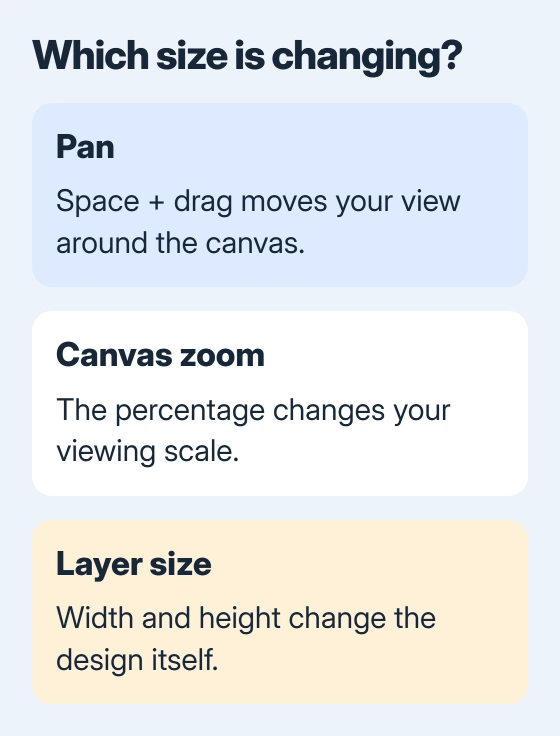
To move around the canvas with a mouse, hold the Space bar, then click and drag. Release the mouse and Space when you can see the area you need. This moves your view without moving a selected object.
For longer navigation, press H to choose the Hand tool. Drag around the canvas with that tool active. The file exploration instructions offer it for moving around without editing layers.
Finish typing or editing a value before trying navigation keys. Otherwise, you might type into a text field instead of moving around the canvas. Click an empty canvas area, then try the shortcut again.
For a page full of repeated components, use the Hand tool with Zoom to selection. Move to the general area, choose the frame you need in Layers, then fit that selection to take a closer look.
Make the panels readable without enlarging the canvas
In the Windows desktop app, interface scale has separate shortcuts. Ctrl + Shift + Alt + equals (=) makes the interface larger, and Ctrl + Shift + Alt + minus (-) makes it smaller.
Use Ctrl + Shift + Alt + 0 to reset that interface scale. Use the number key for zero. These controls resize the toolbar, panels and menus; your canvas zoom has its own percentage.
The accessibility instructions list the desktop interface shortcuts. Start by resetting the interface when every control suddenly looks oversized.
In a browser, use browser zoom to resize the interface around your canvas. Google's Chrome zoom settings explain this control. Check the canvas afterward; it has its own zoom percentage.
Use the computer zoom guide if icons and windows throughout Windows are oversized. When everything looks too big, canvas zoom isn't the setting you need.
Check the shortcut panel when the keyboard differs
Open Help and resources > Keyboard shortcuts. The panel groups shortcuts by task. Its Layout tab lets you choose your keyboard layout, so check it if symbol keys don't work as the instructions describe.
The keyboard navigation reference also explains how to open the panel through the Actions menu. Use the percentage control while sorting out your keyboard layout.
For browser keys that act on the page instead of the canvas, the Chrome shortcut guide helps separate browser commands from editor commands.
If zoom still won't respond, give Figma support your operating system, browser or desktop-app version, mouse or trackpad details and the exact control that fails. Say whether changing the percentage directly still works.
The Short Version
Hold Ctrl while scrolling for canvas zoom, or use Shift + 1 for the page and Shift + 2 for a selected frame. Pan with Space and drag. Change interface scale separately when the menus or panels need resizing.
Checked November 5, 2026.

Isaac Smith is the founder and editor of PC Glance, a website that covers computers, laptops, and technology. He is a tech enthusiast and a computer geek who loves to share his insights and help his readers make smart choices when buying tech gadgets or laptops. He is always curious and updated about the latest tech trends.