

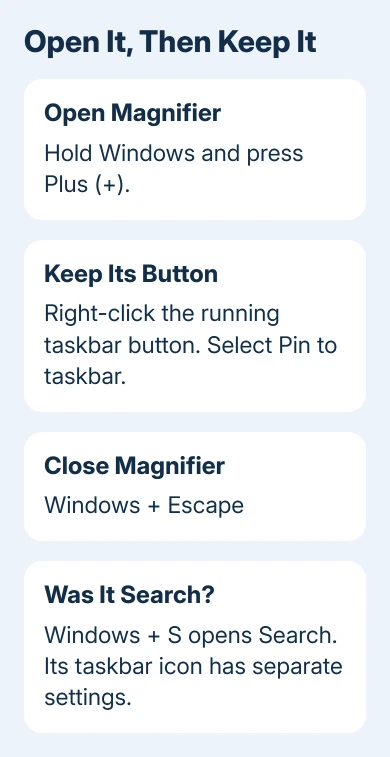
Press Windows + Plus (+) to open Magnifier even when its icon is missing. If it opens, pin the running app to the taskbar so you have a dependable way back. A missing icon beside the clock doesn't mean Magnifier was removed.
Check which magnifying glass disappeared: the Magnifier app enlarges the screen, while the taskbar's Search icon finds apps and files. Each has its own controls, and restoring one won't restore the other.
In this guide
1. Open Magnifier without its shortcut
Press Plus (+) while holding the Windows key. For keyboards where plus shares a key with equals, use Shift as needed to type the plus sign. Keep the Windows key held while you press it.
Magnifier should open and enlarge the view. Press Windows + Escape to close it when you're finished. Those shortcuts let you use the feature while you sort out the missing shortcut.
If the shortcut opens Magnifier, the app is available. Pinning it, as described next, gives you a lasting shortcut. A missing pinned button doesn't call for reinstalling Windows or using System Restore.
If nothing opens, select Start, type Magnifier, and choose the app result. Don't choose an advertisement or download a utility with a similar name. Windows includes its own screen magnifier.
The Magnifier keyboard shortcuts confirm both the opening and closing combinations. If a keyboard shortcut fails but Start opens the app, the missing icon and the keyboard behavior are separate things to check.
I'd get the app open first. That answers the useful question quickly: do you need a new shortcut, or is Windows failing to launch Magnifier at all?
2. Keep Magnifier pinned to the taskbar
With Magnifier running, right-click its taskbar button and choose Pin to taskbar. On a touchscreen, press and hold the button to bring up its menu. Close Magnifier and check whether the pinned button remains.
The next time you need it, select that button. Pinning keeps a launcher available after the app closes; an unpinned app's running button normally disappears when it exits.
You can also search for Magnifier from Start, right-click its app result, and select Pin to taskbar. Start may show that option in the app result's menu, depending on how it displays the result.
This button lives with the app buttons along the taskbar. It doesn't need to sit beside the battery or network icons near the clock. Looking only in that corner can make a working app seem absent.
The owner described a gap between battery and security icons, without identifying what supplied it. Pinning Magnifier lets you open it without having to work out which mouse utility or notification setting supplied the old button.
If Windows won't keep any app pinned, tell support that other apps won't stay pinned either. If only this button is affected, first confirm that you've pinned the Magnifier app, rather than a search result for a website about magnifiers.
3. Use Accessibility settings to launch the app
On Windows 11, select Start > Settings > Accessibility > Magnifier. Turn Magnifier on. On Windows 10, use Start > Settings > Ease of Access > Magnifier, then turn on the Magnifier switch.
Use these settings if the keyboard is difficult to use. Once Magnifier opens, return to the taskbar pinning step. The switch turns Magnifier on; pinning keeps its button handy for the next time you need it.
Magnifier also has options to start after sign-in or before sign-in. Enable the option that fits when you need magnification. Keeping its taskbar shortcut doesn't require Magnifier to start at every sign-in.
Microsoft says Magnifier can start before or after sign-in. The two Windows sections have different settings labels. Choose the one matching your release.
If magnification makes navigation difficult, close it with Windows + Escape. The separate guide to zooming out on a computer explains screen magnification and browser zoom without mixing them with missing-icon repairs.
4. Restore Search if that is the missing magnifying glass
If the old button opened a text box to find files, apps or websites, it was Search. Opening Magnifier won't bring that button back because it's a different Windows feature.
On Windows 11, right-click a blank spot on your taskbar, then choose Taskbar settings. Under Taskbar items, open the Search choice and select a visible style such as Search icon only or Search box.
On Windows 10, right-click the taskbar, point to Search, and select Show search icon or Show search box. Available choices can depend on the taskbar layout, so use the icon if a full box isn't offered.
Press Windows + S to open Search without its taskbar button. If the search interface opens, this is a visibility setting to fix. If search results themselves are broken, the Windows Search repair guide covers that separate fault.
Check the restored button by selecting it once. A search field means you've restored Search; an enlarged screen means you've opened Magnifier. That simple difference is more useful than the shape of the icon alone.
5. Get help if Magnifier will not launch at all
If neither the shortcut, Start result nor the settings switch opens Magnifier, record what happens. An error message, a switch that turns back off, and an app that opens then closes are different symptoms.
Check the Windows release by running winver in Start. Give support that version and the launch behavior. The Disability Answer Desk handles accessibility help. For a managed PC, ask IT about shortcut or taskbar policies.
The old Help and Support reply didn't confirm that its suggested notification-icon checkbox worked. Don't hunt for a Display Icon in Taskbar option in current Windows based on that reply.
The Short Version
Open Magnifier with Windows + Plus (+) and pin its taskbar button. Accessibility or Ease of Access settings offer another route. If the missing button opened searches, restore Search in taskbar settings.
Checked November 17, 2026.
 If you have any business, I can build it online






