

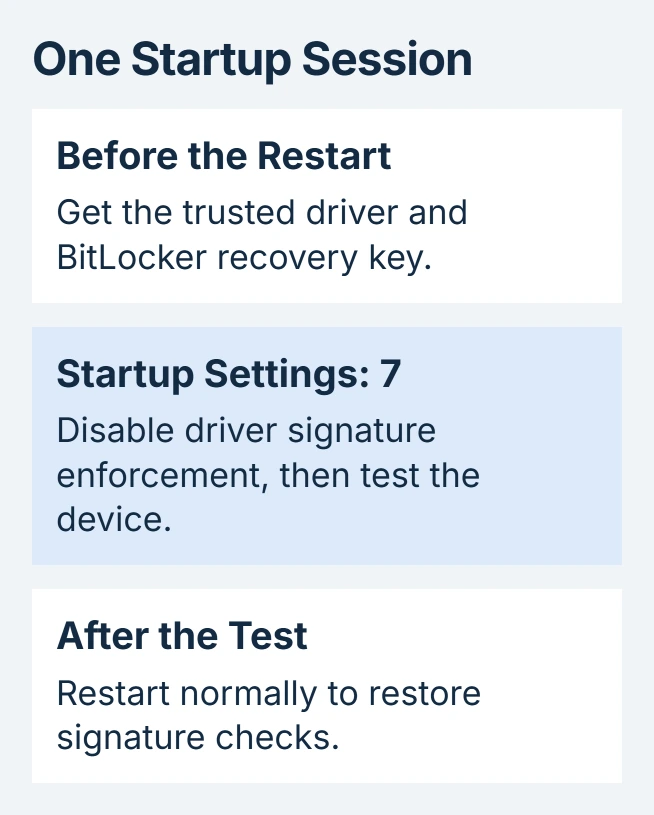
To disable DSE in Windows 11 temporarily, select Disable driver signature enforcement from Startup Settings. The change lasts for that startup session; a normal restart restores signature enforcement.
Use this for a trusted driver's controlled test when its supplier requires it. Removing the signature check does not make an incompatible driver work, and it reduces protection against untrusted driver code during the test.
Prepare the driver and recovery key
Get the driver directly from the hardware maker and confirm that it supports the PC's Windows version and processor architecture. A signed replacement is preferable when the manufacturer supplies one.
Save open work and locate the BitLocker recovery key before restarting. Microsoft says encrypted devices can request that key when entering these startup controls.
Status: Microsoft Startup Settings and driver-testing documentation checked October 30, 2026. The menu option is temporary and does not guarantee device compatibility.
For a company PC, have IT handle the test if policy blocks these controls. Do not turn off drive encryption just because recovery asks for its existing key.
Enter Startup Settings and select option 7
In Windows 11, open Settings > System > Recovery. Find Advanced startup and choose Restart now. Microsoft's recovery-environment guide also supports holding Shift while selecting Restart.
Once the recovery menu appears:
- Choose Troubleshoot, then Advanced options.
- Open Startup Settings and select Restart.
- On the numbered screen, press 7 or F7 for Disable driver signature enforcement.
- Let Windows start and sign in normally.
Microsoft documents option 7 in its Startup Settings list. Read the label before pressing the key: option 8 changes early-launch antimalware protection and serves a different purpose.
The number key avoids laptop function-key behavior that may turn F7 into a media command. If Startup Settings is unavailable, contact the PC maker or administrator rather than changing unrelated firmware security options.
Install the driver and test the device itself
Run the manufacturer's installation procedure during this session. If it supplies a driver folder instead of an installer, the manual driver installation steps explain the Device Manager route.
Check the intended operation afterward, such as making a scanner preview. A completed installer only establishes that installation finished; it does not show that the device can perform its job.
That limitation was reported by an owner installing a scanner driver: disabling enforcement allowed installation, but the scanner remained unrecognized. Their later reply did not report a working scanner.
Our stopping point is the actual device result. If the same error remains, preserve its wording and ask the hardware supplier for a compatible signed driver instead of repeatedly relaxing Windows controls.
Restore enforcement with a normal restart
Choose Start > Power > Restart after the test, without returning to option 7. Microsoft states in its driver test-signing documentation that this startup exception does not survive a restart.
The installed files can remain, but a driver lacking an acceptable signature may fail to load once checks return. Confirm the device works after this restart before relying on it for normal use.
If it only operates during the exception, the lasting solution is a suitable signed driver or supported hardware. This temporary menu choice does not undo persistent boot-configuration changes made by a separate procedure.
The Short Version
Prepare the trusted driver and recovery key, select option 7, and test the device. Finish with an ordinary restart. Successful installation alone is not proof of a usable driver.

Isaac Smith is the founder and editor of PC Glance, a website that covers computers, laptops, and technology. He is a tech enthusiast and a computer geek who loves to share his insights and help his readers make smart choices when buying tech gadgets or laptops. He is always curious and updated about the latest tech trends.