
Your drive shows BitLocker waiting for activation in Control Panel, while Disk Management calls it BitLocker Encrypted. Settings may add that you need a Microsoft account to finish.
So is your data encrypted or not? Yes. But the key sits on the same drive, unlocked.
I would decide what you want first: finish the job and keep a recovery key, or switch BitLocker off properly. Both take minutes.
The Super User question asking exactly this, from March 2018, has 110,656 views.
Encrypted, with the key left in the lock
Microsoft explains the state on its BitLocker overview. Once Windows setup ends, device encryption starts "with a clear key that is the equivalent of standard BitLocker suspended state".
Microsoft's FAQ defines it: "The clear key is a cryptographic key stored unencrypted and unprotected on the disk drive". Your data is scrambled, and the key to it sits next to it.
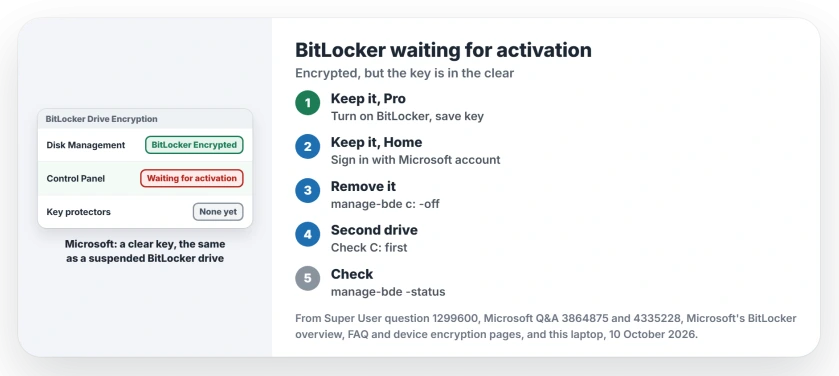
Status: Microsoft's BitLocker overview, FAQ and device encryption pages checked 10 October 2026. Owners confirm both exits: finishing activation, or manage-bde -off.
Why does the label never change by itself? The top Super User answer explains it. "Until at least one protector is created, BitLocker cannot leave suspended mode and the Windows UI will report that it's waiting for activation."
A protector is what unlocks the key. That can be the PC's TPM chip, a PIN or a recovery password, and your drive has none yet.
To see it, run manage-bde -protectors C: -get in an admin Command Prompt. A drive in this state answers that no key protectors were found.
Why your new PC started it
Device encryption turns itself on during Windows setup on many new laptops and desktops. Since Windows 11 version 24H2, Microsoft says, "the prerequisites of DMA and HSTI/Modern Standby are removed", so more machines qualify now.
What finishes it is a Microsoft account. When an administrator signs in with one, Microsoft writes, "the clear key is removed, a recovery key is uploaded to the online Microsoft account, and a TPM protector is created".
Used a local account from day one? Then that step never came. A local account is a fine choice, and switching to one shows how. You just finish or remove BitLocker yourself.
Keep it: finish the activation
On Windows Pro, open Control Panel, then BitLocker Drive Encryption. Select Turn on BitLocker next to the drive, pick where the recovery key goes, and finish the wizard.
The accepted answer likes this route "as it allows you to enable protection without requiring a Microsoft Account". The data is already encrypted. So it ends fast.
Windows Home lacks full BitLocker: Microsoft lists that for Pro, Enterprise and Education, while device encryption also runs on Home.
On Home, sign in once with an admin Microsoft account. Then open Settings, Privacy & security, Device encryption. It should say On.
I would save the key somewhere off this PC before anything else. Where your BitLocker recovery key is lists every place Windows may have put it.
Don't want it: turn it off fully
Turn on BitLocker only adds the lock here, so to remove the encryption, run this in an elevated Command Prompt:
manage-bde c: -offJoachim Otahal's answer says this is the only way out while your drive waits. One reader called it "what I was actually looking for", and another needed it before running Sysprep.
Decryption works in the background while you use your PC, and a big drive needs time, so leave the charger plugged in. Wait until manage-bde -status shows it fully decrypted.
On Home, the Device encryption switch in your Settings turns it off too. Microsoft adds that once it is off, "it will no longer automatically enable itself in the future".
A second drive says it as well
One Microsoft Q&A owner had a brand new Lenovo ThinkPad laptop. They shrank C: and made an E: drive in the space. E: then showed waiting for activation and refused to turn off.
The cause was their C: drive, so check yours first. An expert on Lenovo's forum told them BitLocker "had never been properly activated".
Once they activated it, "it turned out I had never successfully decrypted the C: volume either", and E: proved never encrypted at all.
Is your extra drive still empty? An adviser in that thread gave a shorter route. Delete the volume in Disk Management, then create it again.
How to check what yours is doing
From an admin Command Prompt, run manage-bde -status. Microsoft lists what it reports per drive: conversion, protection and lock status, plus the key protectors.
Settings can lag: Microsoft notes that "The Settings UI doesn't show device encryption enabled until encryption is complete".
Ours: this laptop's BitLocker panel file holds the labels you see, from BitLocker waiting for activation to BitLocker suspended and BitLocker off.
System Information here showed Automatic Device Encryption Support only as Elevation Required to View. Open it as administrator, as Microsoft's steps say.
Is my data safe while it waits?
Your files are fine. Nothing is lost in this state.
Against a thief who pulls the drive, I would not count on it. The accepted answer says the key is "saved to disk in plaintext where anyone can access it".
The Short Version
- Waiting for activation means encrypted, with the key stored in the clear.
- No key protector exists yet, so the label never changes by itself.
- Keep it: Turn on BitLocker on Pro, or use a Microsoft account on Home.
- Remove it: manage-bde c: -off in an admin Command Prompt.
- Check the result with manage-bde -status.
Where to Next
Did your drive come like this from the shop, or after a reinstall? Say which in the comments, with the PC maker, so I can see which brands ship it half done.

Isaac Smith is the founder and editor of PC Glance, a website that covers computers, laptops, and technology. He is a tech enthusiast and a computer geek who loves to share his insights and help his readers make smart choices when buying tech gadgets or laptops. He is always curious and updated about the latest tech trends.