
You open Remote Desktop in full screen, and your own taskbar stays on top of it. It sits right over the remote PC's taskbar, so you cannot reach the remote Start button or its apps.
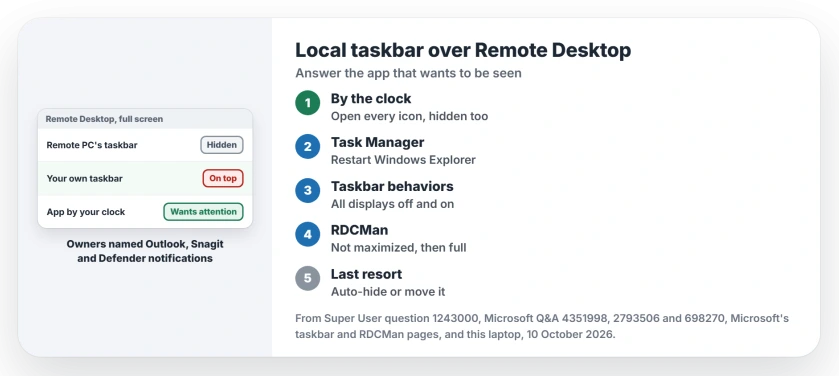
I would look at the icons next to your clock before touching any setting. An app there that wants your attention keeps the taskbar up, and owners fixed it by dealing with that app or restarting Windows Explorer.
Super User shows 285,527 views on the question, which dates from August 2017. Microsoft Q&A shows 70+ same-question clicks on a 2022 Windows 11 copy, and 40+ on one from 2018.
Why your taskbar refuses to hide
The asker accepted their own answer on Super User. It quotes a forum reply that names a flag: "that means a program has raised the MustBeSeen system flag". Your own PC sets that flag.
The same reply describes the culprit as "a program that needs your attention, like antivirus or backup program that has some message it's waiting to tell you".
Microsoft's taskbar help describes a related signal on your taskbar, the badge. Microsoft says a badge "is an alert to let you know that some activity is happening, or needs to happen, with that app".
Status: Super User and Q&A owner threads and Microsoft's taskbar and RDCMan pages checked 10 October 2026. Owners cleared it by answering the app by the clock or restarting Explorer.
1. Answer whatever is waiting by your clock
Check the hidden icons arrow by your clock too. The asker's own fix was simple: "So I have closed all my apps running in the background with notification icon and the problem went away".
Owners named the app behind theirs. "It was Outlook that was causing this problem for me!" wrote one. Another blamed Snagit on the home PC: "If I close Snagit on my home computer side, viola! Problem solved".
A third saw Windows Security showing Actions Recommended while the battery ran low.
On an RDCMan thread, the asker found theirs in Microsoft Defender: "I have switched off all kind of notifications from Windows Defender, and that helped me to hide taskbar".
So open each icon that shows you a badge, a warning or a flashing button. Deal with the message. Then go back to the Remote Desktop window.
2. Restart Windows Explorer
Open Task Manager on your PC with Ctrl+Shift+Esc. On the Processes tab, select Windows Explorer and choose Restart.
The asker on the 40+ Q&A thread could not find explorer.exe by that name. They found it anyway: "I see Windows Explorer under Window processes and I hit restart and that seemed to fixed it".
On Super User, the answer that suggests this has 95 votes. One reader wrote, "Restarting explorer.exe worked for me".
Another warned it "tends to only fix the problem for an hour or so" until an app raises the flag again. If it returns, go back to your clock.
3. Switch the all displays setting off and on
One owner who hits this often posted a routine for it. Open Taskbar settings, then "Enable and disable the setting to show/not show task bar on multiple screens".
On Windows 11 that switch is Show my taskbar on all displays, under Taskbar behaviors. Ours: this laptop's Settings app carries that exact label, next to Automatically hide the taskbar.
Toggle it once and set it back the way you had it. Then return to full screen.
Using RDCMan? Do not maximize it first
Remote Desktop Connection Manager, RDCMan, adds a cause of its own. It is easy to miss. Two owners on a Microsoft Q&A thread tied it to RDCMan's window being maximized before you go full screen.
One wrote, "If RDCMan is a normal window (not maximized) and then I try to fullscreen one of the connections, my local taskbar is correctly hidden". A reader in January 2026 confirmed it still applies.
Microsoft's RDCMan page also lists a full screen option for your case: "you can choose to have the window always displayed as the top-most window". I would turn that on as well.
Ctrl, Alt and Break toggles full screen in RDCMan, per the same page. Cannot connect at all? Remote Desktop that will not connect starts with your Windows edition.
Last resort: hide or move your own taskbar
Microsoft's help covers Automatically hide the taskbar, under Taskbar behaviors. It works.
The Windows 11 asker on the 70+ thread was not keen, though: "The only option presented so far is to permanently hide the local task bar. Not a good option".
One Super User reader moved theirs to the right side of the screen instead. That uncovered the remote taskbar at the bottom.
Windows 11 lets you do that again since the August 2026 update, as the taskbar position change explains. Ours: this laptop's Settings app now lists Taskbar position.
Does it depend on the remote PC?
Not by the owner reports. One Q&A reader saw it between two Windows 10 PCs with no domain: "It doesn't depend on what apps are running on remote desktop".
The flag lives on your own PC. Fix it there.
The Short Version
- Your taskbar stays up when an app on your PC wants attention.
- Check every icon by the clock, the hidden ones too.
- From Task Manager, restart Windows Explorer.
- Toggle Show my taskbar on all displays once.
- In RDCMan, go full screen from a normal window, not a maximized one.
Where to Next
Found the app that held your taskbar up? Name it in a comment, plus the Remote Desktop program you use, so the next person checks that one first.

Isaac Smith is the founder and editor of PC Glance, a website that covers computers, laptops, and technology. He is a tech enthusiast and a computer geek who loves to share his insights and help his readers make smart choices when buying tech gadgets or laptops. He is always curious and updated about the latest tech trends.