
Your PC starts on a black screen that says Scanning and repairing drive, or tells you to press a key to skip disk checking. Then it does the same at the next start, and the one after.
I would let one full check run from the recovery screen, then ask Windows whether the drive is still marked dirty. That answer decides everything after it.
200+ people pressed Same question on a 2020 Microsoft Q&A post about a C: drive that stays dirty. A 2023 one about Windows 11 repairing C: at every start shows 20+.
What keeps setting it off
Windows keeps one small flag per drive, called the dirty bit, that says the drive needs a check.
Microsoft's fsutil page explains it: "When a volume's dirty bit is set, autochk automatically checks the volume for errors the next time the computer is restarted".
Two of the reasons it gives are common on a home PC or laptop. One: "Changes were made to the volume and the computer was shut down before the changes were committed to the disk".
On a home PC, that is often a power cut, or a held power button during a freeze.
The other is plainer: "Corruption was detected on the volume". Until a check finishes and clears the flag, every start runs into it again.
Ours: this laptop's startup list for that check reads autocheck autochk *, so every drive's flag gets read at each start. Its countdown is 8 seconds. The message file holds the line you see: "To skip disk checking, press any key within".
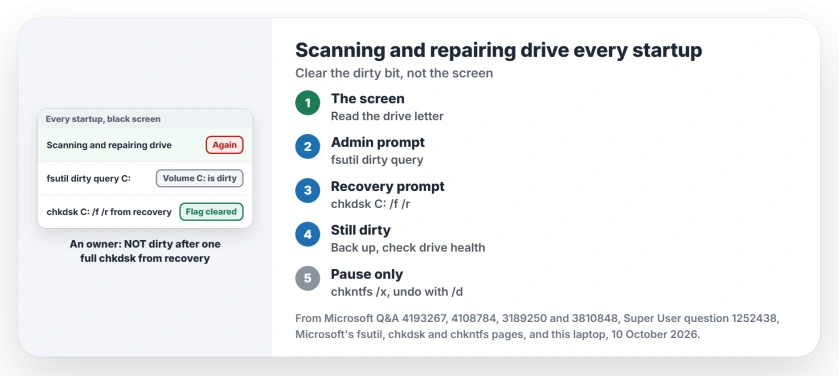
Status: Microsoft's chkdsk, chkntfs and fsutil pages checked on 10 October 2026. Owners cleared the flag with one chkdsk run from recovery; chkntfs /x only skips the check.
1. Find out which drive, and whether it is dirty
Read the letter on the black screen first. A Q&A adviser pointed out that a second drive can be the one at fault: "If you have another drive, the problem might be on the secondary disk".
Then open an admin Command Prompt and type this, with your letter:
fsutil dirty query C:Microsoft's page shows the answer you do not want: "Volume C: is dirty". Ours: from a normal Command Prompt on this laptop, the same line only returns Error 5, Access is denied. Use the admin window.
2. Run the check from recovery, not from Windows
Inside Windows, C: is busy. The 200+ post's asker scheduled a check and watched it stop "for like 5 seconds then i sign in and we back to square 1 with volume C is dirty still".
So start the check from the recovery screen, where Windows itself is not running. Hold Shift while you click Restart. Then go to Troubleshoot, Advanced options, Command Prompt.
Type the command from the adviser's answer, which 90+ people marked helpful:
chkdsk C: /f /rIn recovery, Windows can sit on another letter. Does C: show only a small boot partition? Try D: or E: with the dir command first, until you see the Windows and Users folders.
Leave it running, however long it takes. Microsoft's chkdsk page says /r reads every sector, and "High-hour runtimes aren't uncommon for large drives".
Then restart and run the fsutil line again. An owner on the 20+ post followed the same steps from recovery and then checked again.
In their words: "The c: drive has now been reported as NOT dirty. This completely fixed my problem, thank you".
After a full check, look at the root of the drive for a FOUND.000 folder. The CHK files in it are data chkdsk saved, and their first bytes often say what each one was.
3. Still dirty after a full run?
Then I would look at the drive itself, not at Windows. One Q&A asker saw Properties report errors while chkdsk without switches reported none. Their startup check never finished either.
Their fix was a clean install of Windows, which "solved all the problems". Before you go that far, back up your files. Then read how to check your SSD's health, because a failing drive keeps setting the flag.
Do files on it already refuse to open? The corrupted and unreadable error covers copying them off first.
Skip the check for now with chkntfs
You can tell Windows to stop checking one drive at startup. In an admin Command Prompt:
chkntfs /x C:Microsoft says /x excludes a drive "from checking when the computer is started, even if the volume is marked as requiring chkdsk". Want it back? Your undo is chkntfs /d, which "Restores all chkntfs default settings".
A Q&A adviser called /x safe once chkdsk had run and repaired what it found. I would call /x a pause. Your drive stays dirty underneath.
Can you stop a check that is already running?
Microsoft's answer is careful. "Interrupting chkdsk isn't recommended. However, canceling or interrupting chkdsk shouldn't leave the volume any more corrupt than it was before chkdsk was run".
Owners who stopped one on purpose waited for the later stages of the scan. Ours: this laptop's check names them. Stage 4 is "Looking for bad clusters in user file data" and Stage 5 "Looking for bad, free clusters".
On one Q&A post an adviser held that only those two stages were safe to stop. The asker forced the PC off and chose Continue from the recovery screen. Then they pressed a key to cancel the next check.
A Super User question about stopping chkdsk /r /f has 277,318 views. Its accepted answer, posted in 2023, leans on the same Microsoft line about interrupting.
If you stop one, run chkdsk again later. Microsoft adds that a second run "should repair any remaining corruption on the volume".
Once a full check has finished, its report does not stay on screen. Windows files it in Event Viewer, and a restart check sits under the Wininit source.
Is it bad to leave a drive marked dirty?
Not for one start. Ignored for weeks, a real fault on your drive stays unrepaired while Windows keeps asking. Run the full check once, then decide.
The Short Version
- The check repeats because your drive's dirty bit stays set.
- Read the drive letter, then run fsutil dirty query in an admin window.
- Run chkdsk C: /f /r from the recovery Command Prompt and let it finish.
- Still dirty after that? Back up and check the drive's health.
- chkntfs /x skips the check; chkntfs /d puts it back.
Where to Next
Did the full check finish quickly, or run for hours on your drive? Both numbers in a comment, the time and the drive size, would help me set expectations for the next person.

Isaac Smith is the founder and editor of PC Glance, a website that covers computers, laptops, and technology. He is a tech enthusiast and a computer geek who loves to share his insights and help his readers make smart choices when buying tech gadgets or laptops. He is always curious and updated about the latest tech trends.