
You ran a disk check on a memory stick or an outside drive, and files went missing. Now a FOUND.000 folder holds FILE0000.CHK, FILE0001.CHK and more.
I would not delete them yet. Each CHK file is data chkdsk rescued without its name, and its first few bytes usually tell you what it was.
The CHK file question on Super User dates from March 2010 and shows 289,861 views. A Microsoft Q&A copy, from a jump drive pulled out too early, has 500+ same-question clicks.
What chkdsk put in FOUND.000
Unplug a drive mid-write and data can lose the directory entry that held its name. Chkdsk finds those orphaned clusters and asks what to do. Microsoft documents what follows.
If you answer Y, Windows saves each lost chain in the drive's root as a numbered .chk file. Microsoft's advice: "When chkdsk finishes, you can check these files to see if they contain any data you need".
Ours: Windows' own prompt for this, in autochk.exe.mui on this laptop, reads "Convert lost chains to files (Y/N)?" On NTFS drives the message differs. There, chkdsk recovers each orphaned file into a directory file.
That difference decides your next step. A FAT32 or exFAT stick gives you FILE0000.CHK files, data without names. An NTFS drive gives you dir0000.chk folders, and the files inside keep their names.
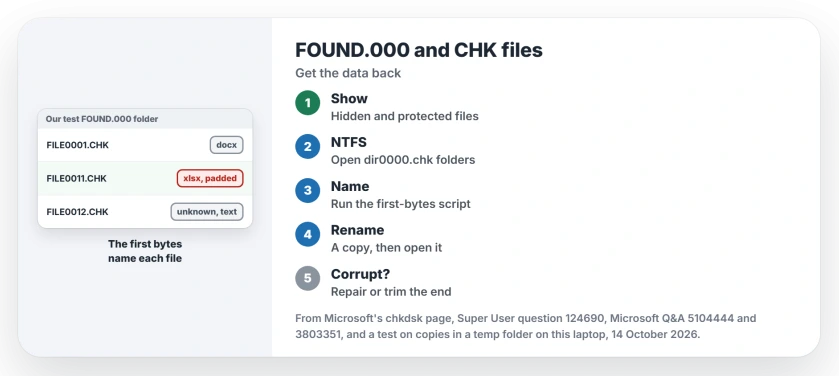
Status: tested 14 October 2026 on copies in a temp folder. The first-bytes check named every test file, and Word's Open and Repair rebuilt a padded Word copy.
1. Show the hidden folder
FOUND.000 is hidden as a protected system folder. In File Explorer, choose View, Show, Hidden items. Still nothing? Open Folder Options, View, and clear Hide protected operating system files.
A Chromebook owner on Microsoft Q&A could see the folder there but not on their PC, even with hidden items showing. That second box was the answer they got.
You can also list it from Command Prompt. Use your drive's letter:
dir /a E:\FOUND.0002. On an NTFS drive, open the dir0000.chk folders
Look inside each dir0000.chk folder before anything else. One Q&A poster found everything from their missing Downloads folder in one.
Another found a whole Steam game folder sitting in found.000. Copy what you need back to where it belongs. For games, an adviser on that thread recommended Steam's file verification afterwards.
Access denied when you open the folder? An adviser told one owner that chkdsk had left "further file system errors" and to run it again. The chkdsk /r route is here.
3. Name each CHK file by its first bytes
Most file types begin with a fixed signature. A PDF starts with %PDF. Word, Excel and ZIP files all start with PK.
Right-click inside your FOUND.000 folder and choose Open in Terminal. Paste this. It only reads the files.
Get-ChildItem *.CHK -Force | ForEach-Object {
  $f = [IO.File]::OpenRead($_.FullName); $b = New-Object byte[] 65536
  $n = $f.Read($b, 0, 65536); $f.Close()
  $s = [Text.Encoding]::ASCII.GetString($b, 0, $n)
  $t = switch -Regex ([BitConverter]::ToString($b, 0, 8)) {
    '^25-50-44-46' {'pdf'}  '^FF-D8-FF' {'jpg'}  '^89-50-4E-47' {'png'}
    '^50-4B-03-04' { if ($s -match 'word/') {'docx'} elseif ($s -match 'xl/') {'xlsx'} elseif ($s -match 'ppt/') {'pptx'} else {'zip'} }
    '^D0-CF-11-E0' {'doc, xls or ppt'}  '^.{12}66-74-79-70' {'mp4 or mov'}  '^52-49-46-46' {'avi, wav or webp'}
    '^49-44-33|^FF-F[2-9A-B]' {'mp3'}  default {'unknown'}
  }
  '{0}  {1:N0} bytes  {2}' -f $_.Name, $_.Length, $t
}
It prints each CHK file with a likely type. Rename a copy with that extension and open it. Open the unknown ones in Notepad, since plain text has no signature.
Ours: we copied a PDF, a Word file, an Excel file, a JPEG, a PNG, an MP4, an MP3, a ZIP and a text file into a test FOUND.000. The script named every one. It called the text file unknown, as it should.
The -Force switch matters. Without it, our test copy marked hidden was skipped.
A fragment names its type too. The first 100 KB of our PDF still came back as pdf. So if a file opens half broken, you have only part of a chain.
Owners report real recoveries this way. One answer on Super User renamed CHK files for two different people, "saved 2 different people!" A Q&A owner got back nearly all their files with a converter, minus the names.
4. Word or Excel says the renamed file is corrupt?
A lost chain has no directory entry, so your file's real size went missing with the name. The CHK file runs to the end of its last cluster. Leftover bytes follow the real file.
Ours: we padded a JPEG, a Word copy and an Excel copy with 32 KB of zeros. That mimics a chain running to the end of its last cluster. The JPEG opened fine. Word answered "The file appears to be corrupted" and Excel refused its copy too.
For a Word file, you want Open and Repair. Choose File, Open, Browse, select the file, then pick Open and Repair from the arrow beside Open. It rebuilt our padded copy in full, all 533 paragraphs.
For Excel, cut the file back to its real end. Change the name at the start, then run this in the same folder. It writes a fixed copy and leaves yours alone.
$f = 'FILE0011.xlsx'; $b = [IO.File]::ReadAllBytes((Resolve-Path $f))
for ($i = $b.Length - 22; $i -ge 0; $i--) { if ($b[$i] -eq 80 -and $b[$i+1] -eq 75 -and $b[$i+2] -eq 5 -and $b[$i+3] -eq 6) { break } }
if ($i -lt 0) { 'No ZIP end record: not a complete Office or ZIP file' } else { $e = $i + 22 + $b[$i+20] + 256 * $b[$i+21]; [IO.File]::WriteAllBytes("$PWD\fixed-$f", $b[0..($e - 1)]); "Cut from $($b.Length) to $e bytes" }
Ours: it cut our Excel copy from 101,264 bytes to 68,496. That matched the original byte for byte, and Excel opened it. Given a photo, it found no end record and wrote nothing.
It suits Word, Excel, PowerPoint and ZIP files, since they all end with the same record. I would run it on a copy every time.
Is it safe to delete FOUND.000?
Yes, once you have what you need. Nothing in Windows depends on those files. They are only the data chkdsk rescued, so delete the folder like any other once it shows.
To avoid a repeat, let copying finish and eject before you pull a stick out. The rules for ejecting changed, but a write cut short still loses chains.
The Short Version
- FOUND.000 holds data chkdsk rescued after a drive lost track of it.
- Show it with Hidden items on and Hide protected operating system files off.
- On NTFS, the dir0000.chk folders usually hold your files with their names.
- On a stick, name each FILE0000.CHK by its first bytes with the script, then rename a copy.
- Word copy says corrupt? Use Open and Repair. Excel copy? Cut it back to its end record.
Where to Next
FAT stick or NTFS drive, and which kinds of file came back? Write them in a comment. I read every one, especially when the script called something unknown.

Isaac Smith is the founder and editor of PC Glance, a website that covers computers, laptops, and technology. He is a tech enthusiast and a computer geek who loves to share his insights and help his readers make smart choices when buying tech gadgets or laptops. He is always curious and updated about the latest tech trends.