
You cloned your drive to a new SSD, and now Disk Management shows one of the two as Offline. Point at it, and Windows says the disk has a signature collision with another disk that is online.
I would decide first which disk you will start Windows from. That tells you which one gets a new ID, and picking the wrong one can leave a clone that no longer boots.
The 2019 Microsoft Q&A post on it lists 500+ people with this problem. Its top answer, which says to right-click and choose Online, has 800+ helpful votes.
What the collision means
Every disk carries an ID: older MBR disks use a short signature, and GPT disks use a GUID. A clone copies that ID too, so Windows now sees two disks with one name.
Microsoft's own explanation, on Mark Russinovich's archived Learn post, is plain: "Windows requires the signatures to be unique". So it leaves the second disk offline. Its volumes stay unmounted.
Ours: this laptop's Disk Management message file holds the full line you see, "The disk is offline because it has a signature collision with another disk that is online".
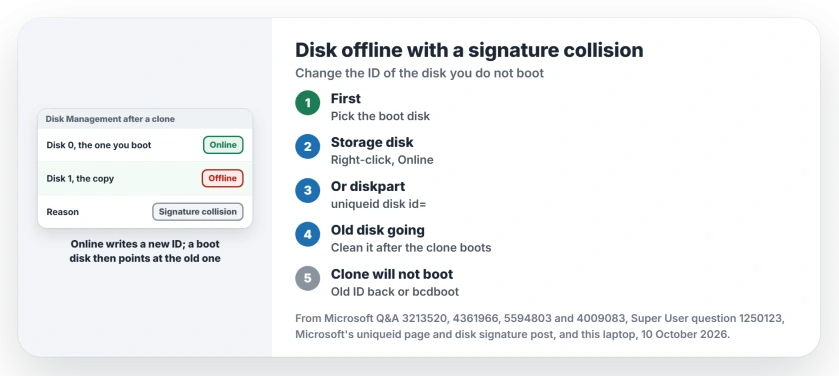
Status: Microsoft's diskpart pages and its disk signature post checked 10 October 2026. Online or a new uniqueid fixes a storage disk; leave the boot disk's ID alone.
1. Decide which disk Windows starts from
Bringing a disk online changes its ID. Windows' boot entries remember the old one.
The Russinovich post says Online makes Windows "without warning generate a new random disk signature and assign it to the disk by writing it to the MBR". Fine for a disk of files. Not fine for the disk you boot from.
So will you start from the new SSD? Then the old disk, the one you cloned from, is the one to change.
A Q&A adviser put it this way: "If you want to boot from cloned system on new SSD you need to change ID on old HDD and change boot order in UEFI".
Another reply suggested a cleaner order: "First I would disconnect the old drive then boot the computer". Start once from the SSD alone. Then plug the old disk back in.
2. A disk you only keep files on: bring it online
In Disk Management, right-click the grey label on the left that says Offline. Choose Online. The top Q&A answer says Windows "will automatically change the disk ID and you can use the drive".
Owners report the same on Super User. One wrote back that Windows "assigned letters to the different partitions of my drive". Another called it "the solution for me".
Worried about your files? A Q&A asker with an old external drive asked exactly that. The reply: clicking Online "shouldn't corrupt it". Only the ID changes.
3. Or set the ID yourself in diskpart
One owner said the Online click crashed Disk Management for them instead of fixing anything. Then do it by hand. Open Command Prompt as administrator, type diskpart, and press Enter to get its own prompt. Then:
list disk
select disk 1
detail disk
uniqueid disk
Pick the number by size, and check it twice. The last line shows the current ID. Write it down.
To set a new one, Microsoft's uniqueid page gives the formats: "For MBR disks, this parameter specifies a 4-byte (DWORD) value in hexadecimal form for the signature".
For GPT, "this parameter specifies a GUID for the identifier". So type one of these, then bring the disk online:
uniqueid disk id=5f1b2c37
uniqueid disk id=baf784e7-6bbd-4cfb-aaac-e86c96e166ef
online disk
The Super User answer suggests nudging the old value by one hex digit. For GPT, a Q&A adviser made a fresh GUID with [guid]::NewGuid() in PowerShell.
Ours: this laptop's only disk is GPT, so PowerShell's Get-Disk shows a GUID and no MBR signature. You can check your own disks the same way, without changing anything.
Getting rid of the old disk anyway?
Then you can wipe it instead of renaming it, which also clears the collision for good. An adviser described that route: "You may clean old disk to remove all information from it and reinitialize it".
I would wait until the clone has started Windows on its own, though. As another reply put it, "the one thing you do not want to do is destroy the original drive before you know the cloned drive is workable".
What not to touch in Disk Management is a good read before any wipe.
Did the clone stop booting after an ID change?
Then its boot entries still name the old ID, so the boot loader looks for a disk that no longer exists. One Q&A answer described it the same way: "The bcd does not get corrupted however it points to the old disk signature".
The Russinovich post fixes that by writing the original ID back with uniqueid, read from the disk's BCD file. It only works if you noted the old ID first.
No note? Rebuild the boot files on the clone instead. The bcdboot steps from recovery do that on a UEFI PC.
Event 158 about identical disk identifiers
This warning in Event Viewer sounds like the same thing, but it is related rather than identical. Microsoft's support article says it warns that "multiple disks on the system shared the same identification information".
Its two common causes are multipath storage without MPIO, and copied virtual disks. One Q&A owner saw it on disks that were never cloned and stayed online. Microsoft says the event itself has no effect on how your PC works or performs.
The Short Version
- A clone copies the disk ID, so Windows keeps one copy offline.
- Choose your boot disk first; change the other disk's ID.
- Storage disk: right-click Offline, choose Online.
- Or use diskpart uniqueid disk, then online disk.
- Wipe the old disk only after the clone boots on its own.
Where to Next
Which cloning tool made your copy, and which disk went offline afterwards? A comment with both, and whether Online or uniqueid sorted it, helps the next reader pick a route.

Isaac Smith is the founder and editor of PC Glance, a website that covers computers, laptops, and technology. He is a tech enthusiast and a computer geek who loves to share his insights and help his readers make smart choices when buying tech gadgets or laptops. He is always curious and updated about the latest tech trends.