
You sign in to a site and Chrome says nothing. No Save password box appears. There is no key in the address bar either, and on the next visit you type it all again.
I would look at Chrome's list of declined sites before anything else. One click on the wrong button puts a site on it for good, and Chrome never mentions it again.
The biggest Super User thread on it, opened in March 2013, shows 340,186 views. A second one, "Chrome not asking to remember passwords", has 78,604.
Chrome remembers every Never
Google says "By default, Chrome offers to save your password". When it stops, one of two things happened. Either the offer is switched off, or the site sits on a list of sites you turned down.
The save box has a button for that. Ours: on this laptop's Chrome 154 it reads Never for this site. Press it once, maybe on a shared PC or by mistake, and that site never gets the box again.
Ours: we counted the entries in the password files of each Chrome profile here, without reading any site names. Of 271 entries, 55 are declined sites, and in one profile it was 18 of 50.
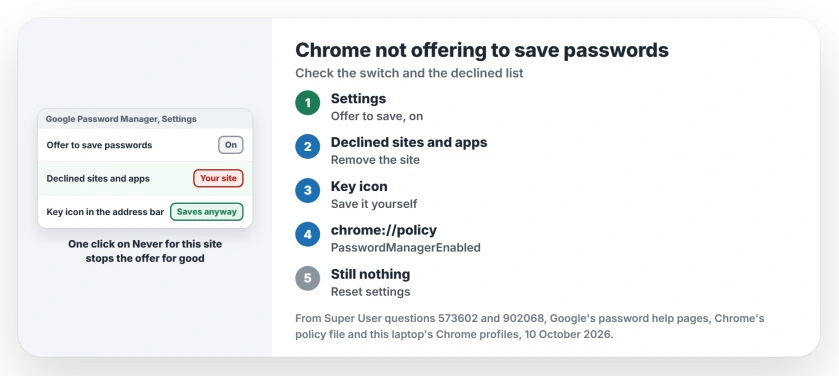
Status: Google's password help pages, Chrome's own files on this laptop and the fixes posted by owners, compared on 10 October 2026. The declined list and the key icon fixed the most owners.
1. Check Offer to save passwords and passkeys
Open the three-dot menu, then Passwords and autofill, then Google Password Manager. Select Settings on the left.
Google's manage passwords page uses those exact steps and says to "Turn Offer to save passwords and passkeys on or off". Make sure it is on.
That was the accepted Super User answer in 2013, under older names. A later comment says the options are still there: "Looks different, but the options are the same".
2. Clear the site from Declined sites and apps
Stay on the same Settings page and scroll to Declined sites and apps. Google's line for this list starts "If you choose not to save passwords for a site or app".
Find the site and remove it. Then sign out of the site and sign in again, and the box should come back.
Check every entry, not just the first. I would clear only the sites you actually want saved. On this laptop the longest list held 18 sites in one profile.
3. Save it yourself from the key icon
Chrome does not need the box to save a password for you. Google says "You can save your password to Chrome even if you aren't automatically asked to when you fill out a form".
Sign in to the site, then select the key icon where the address bar ends and choose Save.
A Super User owner described it the same way: "With your username and password login to the site, then click the key icon at end of the address bar".
Owners report it working. One wrote "I tried everything and this was the key". Another replied "Thank you very much, this worked".
Is there no key at all in your address bar? Google's tip is "If you don't find the Key icon, delete your password and try to sign in again". You can also add a password by hand with Add in Google Password Manager.
Managed by your organization? A policy decides
If your PC belongs to an employer or a school, an administrator can switch saving off. Open chrome://policy and search for PasswordManagerEnabled.
Chrome's own policy documentation says "Setting the policy to Disabled means users can't save new passwords, but previously saved passwords will still work". It adds "If the policy is set, users can't change it".
Ours: this laptop has no Chrome policies in either registry hive, so every switch on this page is the user's to change.
Still nothing: reset settings, then a new profile
One owner had both switches on and an empty declined list, and what finally worked was "resetting my settings to the default".
Google's reset page says "Your saved bookmarks and passwords won't be deleted or changed". Find it under Settings, Reset settings.
Another owner wrote "Using a clean new profile was the only way that fixed this problem for me". A new profile is a fair test, since it starts empty.
The most voted answer goes further, deleting the Login Data file so Chrome builds a new one. Its author says "removing the password database might help", and most confirmations came from Linux and Mac owners.
That file holds this PC's saved passwords. I would export them first, from the Export passwords line in Google Password Manager settings, and only try it after the reset.
If passwords vanished rather than stopped saving, our page on Chrome passwords gone fits better.
Weighing a switch away from passwords altogether? What a passkey is explains the option Chrome now offers next to them.
The Short Version
- Turn on Offer to save passwords and passkeys.
- Remove the site from Declined sites and apps.
- Save from the key icon after signing in.
- Work PC? Check chrome://policy.
- Reset settings, then try a new profile.
Where to Next
Was your site on the declined list? Say in the comments how many sites yours held, and whether the key icon worked for you.

Isaac Smith is the founder and editor of PC Glance, a website that covers computers, laptops, and technology. He is a tech enthusiast and a computer geek who loves to share his insights and help his readers make smart choices when buying tech gadgets or laptops. He is always curious and updated about the latest tech trends.