
You switch on your PC and a keyboard appears on the screen, at the sign-in screen, after you sign in, or both. You turned it off once and it came back.
I would work out which keyboard it is before changing anything. Windows has two, and each has its own switch.
On Microsoft Q&A, "On-screen keyboard keeps popping up on login screen" holds 70+ under Same question. A Super User question from 2015 about the same keyboard has 89,849 views.
Two keyboards, two switches
The On-Screen Keyboard is an accessibility tool. It opens in its own window, has Options and Nav keys, and works with a mouse. Microsoft's On-Screen Keyboard page says "You don't need a touchscreen to use the OSK".
The touch keyboard is the wide panel that slides up from the bottom when you tap a box. Microsoft notes that "A PC with a touchscreen also has a touch keyboard".
A fold-back laptop also has hardware-dependent tablet behavior. Windows 11 recognizes the supported position automatically.
A Q&A owner who chased this on Windows 11 summed it up: "I have no idea why there are two different touch keyboards in Windows 11 or why you have to turn them off separately".
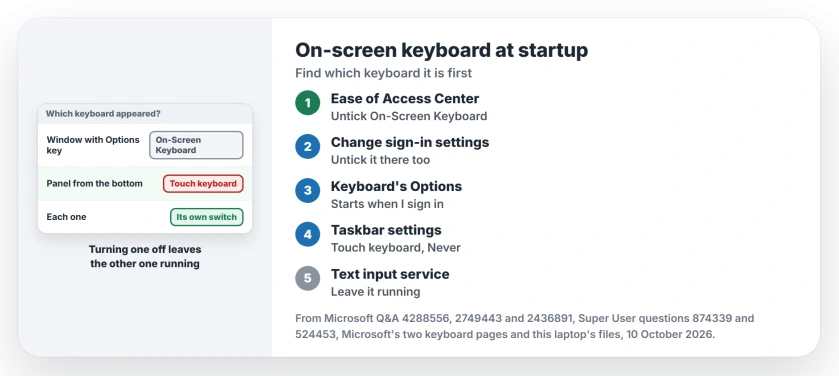
Status: Windows' own keyboard files on this laptop, Microsoft's two keyboard pages and owners on Microsoft Q&A and Super User, 10 October 2026. Each keyboard stopped with its own switch.
1. The On-Screen Keyboard: untick it, then its sign-in copy
Open Control Panel, Ease of Access, Ease of Access Center, then Use the computer without a mouse or keyboard. Untick Use On-Screen Keyboard and click OK.
Q&A's accepted answer, under a question with 20+ on Same question, says the same. A reply came back with "Wonderful as it worked". An owner in 2024 used the same page and wrote "i just turn the option off".
The sign-in screen keeps its own setting. In Ease of Access Center, choose Change sign-in settings on the left. Untick the keyboard there as well.
Ours: Windows 11 25H2 still carries that page. Its text on this laptop says "You can have assistive technologies start automatically when you sign in, after you sign in, or both".
The keyboard has a shortcut to the same place. Open it and press Options. Then follow the link that reads "Control whether the On-Screen Keyboard starts when I sign in".
Owners report the same route. One Super User answer ends "uncheck run at startup", and a reply added "Added benefit that this doesn't need admin-rights".
Settings, Accessibility, Keyboard has an On-Screen Keyboard switch too, which Microsoft gives as the way to open it. The start-up boxes are different: their own help text says "they will automatically start each time you sign in".
2. The touch keyboard: set it to Never
Microsoft's touch keyboard page gives you a Taskbar route. Right-click the taskbar, choose Taskbar settings, and under System tray icons set Touch keyboard to Never.
Microsoft describes that option as one to "prevent the touch keyboard from ever appearing". It adds "With the touch keyboard icon removed, the touch keyboard should never appear".
The Q&A owner with the two keyboards used the Typing page instead. Go to Settings, Time & language, Typing, open Touch keyboard and choose Never for Show the touch keyboard.
On Windows 10, Microsoft's page names a switch in Settings, Devices, Typing. Turn off the switch that shows the touch keyboard when not in tablet mode with no keyboard attached.
Leave the text input service alone
Older answers tell you to disable the Touch Keyboard and Handwriting Panel Service. It was the accepted fix on Windows 8, and one owner wrote "This answer was hard to find, and it worked".
Ours: this laptop runs Windows 11 25H2, and it has no service by that name. What it has instead is Text Input Management Service, whose own description reads "Enables text input, expressive input, touch keyboard, handwriting, and IMEs".
That is far more than the touch keyboard. The Q&A asker who tried it found, in their words, that "the startup type would always reset after a restart or shutdown". I would leave it running and use the switches.
When the keyboard is your only keyboard
If your physical keyboard died and you opened the On-Screen Keyboard to get by, untick it only once the real one works. Our keyboard tester shows which keys still respond.
Another accessibility tool can turn on by itself the same way. If a box about Sticky Keys popping up follows a few Shift presses, that one has its own shortcut to switch off.
Narrator, the screen reader, starts from a shortcut as well, and one switch in Settings stops it starting by accident.
The Short Version
- Window with Options key? On-Screen Keyboard.
- Untick it in Ease of Access Center.
- Untick it in Change sign-in settings.
- Panel from the bottom? Touch keyboard to Never.
- Leave Text Input Management Service on.
Where to Next
Which keyboard kept appearing on your PC? Leave me a comment, and say whether it showed at sign-in or after.

Isaac Smith is the founder and editor of PC Glance, a website that covers computers, laptops, and technology. He is a tech enthusiast and a computer geek who loves to share his insights and help his readers make smart choices when buying tech gadgets or laptops. He is always curious and updated about the latest tech trends.