
You flip Mobile hotspot on in Settings. It slides straight back with We can't set up mobile hotspot. Sometimes a reason follows the message, and sometimes nothing does.
I would read the end of that line before touching any driver. Windows ships many versions of this message. Only the bare one, with no reason, needs real work.
Two Microsoft Q&A questions on it hold 100+ each under Same question, and on Super User the September 2015 question has passed 192,000 views.
The reason sits in the second half
Ours: this laptop's Settings files list every version. Most end with the fix, such as "We can't set up mobile hotspot. Turn on Wi-Fi".
Others say "because your PC doesn't have an Ethernet, Wi-Fi, or cellular data connection". One says "because airplane mode is turned on". A work PC can show "Your organization doesn't allow mobile hotspot".
So turn Wi-Fi on, get your PC online first through Wi-Fi, Ethernet or cellular, or leave airplane mode. That organization line means a policy blocks it. Only your IT team can lift it.
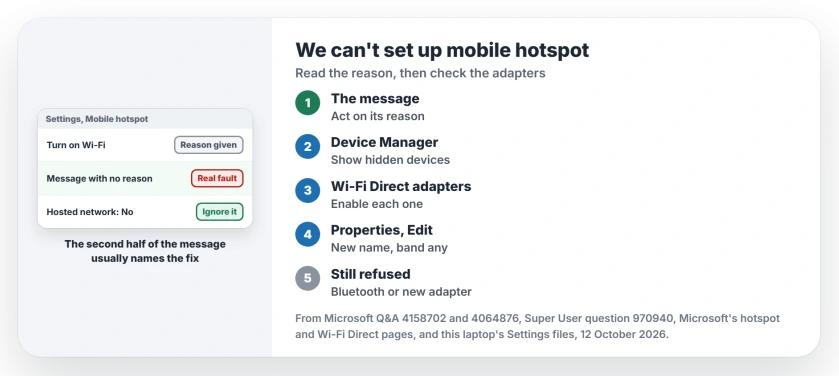
Status: this laptop's hotspot messages and Wi-Fi driver report, Microsoft's hotspot and Wi-Fi Direct pages, and owner fixes from 2015 to 2025, checked 12 October 2026.
Did yours stop at the word hotspot, with nothing after it? Then the steps that follow are for you.
1. Ignore Hosted network supported: No
The top Q&A answer, marked helpful by 40+ people, says your adapter must support Hosted Network. It has you run netsh wlan show drivers. If the line says No, it gives up on your adapter.
I would not trust that test. Microsoft says "Mobile Hotspots are supported starting in Windows 10, version 1607", on its Wi-Fi Direct page, and the same page lists the old WlanHostedNetwork functions as deprecated.
One owner's own PC bears that out. Their hosted network line said no, yet "My mobile hotspot has been running without any issues on Windows 11 for several months".
Another posted a screenshot of a working hotspot next to the same no you may be seeing.
Ours: this laptop's MediaTek MT7921 reports No on that line too, yet it also has two Microsoft Wi-Fi Direct Virtual Adapters, both working. So the No line tells you nothing about the hotspot.
2. Turn the Wi-Fi Direct adapters back on
Open Device Manager on your PC, choose View, then Show hidden devices, and expand Network adapters. Look for every Microsoft Wi-Fi Direct Virtual Adapter.
A down arrow means it is switched off. Turn it back on with Enable device. If none look disabled, disable and enable each one in turn, then go back to Settings and try the switch again.
The owner from step 1 added "make sure any disabled network adapters in Device Manager are enabled, especially virtual adapters".
On Super User, one owner found an adapter disabled, and for them "enabling it from Device Manager was enough to solve the problem".
Another owner got the error right after plugging in and then removing a second Wi-Fi adapter. They disabled and enabled the original one, and the error went away.
If your Wi-Fi adapter does not show in that list at all, our page on a Wi-Fi adapter missing in Windows comes first.
3. Change the name, password and band
The owner from step 1 traced their error to "some sort of configuration corruption" in the hotspot settings. They changed the network name and password and moved the band from 5GHz to any available.
In their words, "Once I did that, it started working again". You can do the same under Settings, Network and internet, Mobile hotspot, Properties, Edit, then save and turn the hotspot on.
Microsoft's mobile hotspot page puts all three on that one screen: you "enter a new network name, password, and network band". Our guide to sharing a PC's connection covers the rest of that Settings page, including Bluetooth sharing.
4. When the adapter cannot do it
Some adapters really cannot. The Super User asker's error went away only "after I used a different Wi-Fi USB-Stick". On Q&A, one USB Wi-Fi adapter turned out to have drivers that do not offer a hotspot.
If you have no second adapter, share over Bluetooth instead. Microsoft's page lists it as the other choice under Share over, and notes that Wi-Fi is usually faster.
Two old fixes that waste time
The top Super User answer from 2015 starts a hosted network with netsh wlan set hostednetwork, but on an adapter that reports No, that route has nothing to start.
On one 100+ thread, advisers suggested resetting Winsock, IP and the firewall. The other got a hotspot service restart. Neither thread has an owner coming back to say which of those steps actually fixed it.
The Short Version
- Read the reason after the message and act on it.
- Ignore Hosted network supported: No.
- Enable every Wi-Fi Direct Virtual Adapter.
- Change the name, password and band to any available.
- Still stuck: another adapter, or share over Bluetooth.
Where to Next
Which version of the message did your PC show? Paste the whole line into a comment, and I can point you to the step that matches it.

Isaac Smith is the founder and editor of PC Glance, a website that covers computers, laptops, and technology. He is a tech enthusiast and a computer geek who loves to share his insights and help his readers make smart choices when buying tech gadgets or laptops. He is always curious and updated about the latest tech trends.