
You plug in a touchscreen monitor beside your main screen, tap a button on it, and the click lands on the other display. The pointer jumps across, and the screen you touched does nothing.
It is annoying, especially with a new monitor. I would start with an old Windows tool, hidden well enough that owners on Windows 11 wrote that it was gone.
A Microsoft Q&A question about it on Windows 11 holds 40+ under Same question. The Super User question from November 2014 has 129,802 views.
Why the touch goes to your main screen
Windows has to pair the touch layer with the right picture. Microsoft's hardware page says it matches an external touch panel to its display through an ID both devices report, called a Container ID.
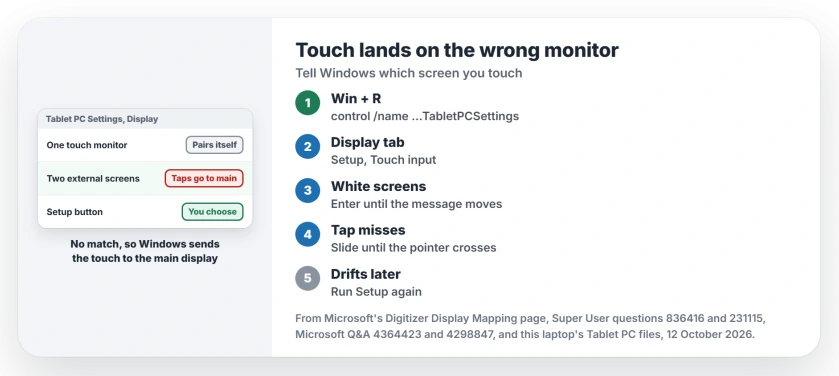
When that match fails with more than one external screen connected, Microsoft says "Windows will map the digitizer to the primary display". The digitizer is the touch layer, so every tap you make lands on your main screen.
The same page names the way out. You open Tablet PC Settings and click Setup. Microsoft adds that "This utility should only be used as a way to fix issues with existing hardware".
Status: checked 12 October 2026 against Microsoft's digitizer mapping page, Tablet PC Settings on Windows 11 25H2 and touchscreen owners since 2011.
1. Open Tablet PC Settings and run Setup
Search Start for calibrate the screen for pen or touch input and open the result. If nothing comes up, press Windows and R, then run this line.
control /name Microsoft.TabletPCSettingsApprove any prompt. A commenter warned that it "Requires Admin Privileges", which matters on a work PC where you may not have them.
On the Display tab, find Configure your pen and touch displays and click Setup. If Windows asks which type of screen to identify, pick Touch input.
Every screen turns white. One of them shows the line "Tap this screen with a single finger to identify it as the touchscreen". If that line sits on the wrong monitor, press Enter and it moves on.
When the line reaches your touch monitor, touch it once. Press Enter if one more step asks for it, and the tool closes with the pairing saved.
Reported working by owners. On Super User, owners confirmed it on Windows 11, one writing "identical process in Win11". Another wrote "Best Answer, solved my issue".
On Microsoft Q&A, a Windows 11 owner replied "That did the trick". They added that it "was the only thing holding me back from Windows 11".
Ours: Tablet PC Settings is still registered as Microsoft.TabletPCSettings in the 25H2 build of Windows 11 that this laptop runs. Its Setup tool's message file holds that tap line word for word. The laptop has no touchscreen at all.
2. When the tap still lands on the main screen
Some owners get stuck at the last step. The setup screen asks for a tap. The tap itself lands on the main monitor, so Windows pairs the wrong screen again.
One owner's answer: slide your finger across the touch monitor until the pointer crosses over to it. "Keep doing it until the hand appears on the touchscreen monitor", they wrote, and only then tap.
Two owners confirmed it. One wrote that sliding first worked where a plain tap had failed, and the other said "This exactly what helped me too".
Still no luck? Make the touch monitor your main display briefly. A Windows 8.1 owner with three screens did that, ran Setup, then made the old screen main again, and the touch stayed on the right monitor.
The switch is in Settings, System, Display: select the touch monitor and tick Make this my main display. Our page on two monitors in Windows shows where that box sits.
Not sure which screen Windows counts as which? Number them with Identify first, so you know where the tap message should appear.
3. Calibrate afterwards, not instead
Back on the Display tab, Calibrate only fine-tunes where a tap lands. It does not choose the screen. One owner found the button stayed off for the touch monitor until Setup was done and the dialog was closed and reopened.
Pen and touch are separate jobs. A Windows 11 owner whose touch screen stopped working after an upgrade wrote "It is necessary to calibrate both touch and pen separately". They ran each one on its own.
For a Wacom pen, open the tablet's own settings utility to find its supported mapping and calibration controls.
If Wacom software never recognizes the device, check its driver installation before trying to correct the display assignment.
That owner also needed a dozen tries before Setup took. I would give it several attempts before you blame the monitor or its cable.
Ours: the calibration tool's message file here holds the line "Windows supports calibrating only integrated digitizers". So a gray Calibrate on an external panel does not mean Setup failed.
When Windows forgets the pairing
The setting can slip. One owner's touches drifted back to the primary monitor after a while, and another saw it after sleep with a Wacom display on a Surface Pro 4.
A third lost it after a driver update or an unplugged cable. Microsoft's page explains one cause.
Two monitors of the same model need different IDs, because when several devices share one, "Windows will be unable to map them".
A Super User owner with seven identical touch screens, none with a serial number, saw touches move after reboots.
Keep each cable in the same port, and run Setup again whenever your pairing drifts.
Try the monitor maker's own touch driver too. The original asker solved theirs with "the drivers and software suite provided on the manufacturer's website".
The Short Version
- Windows sends taps to the main screen when it cannot pair the panel.
- Run Setup in Tablet PC Settings and tap the screen that shows the message.
- Slide your finger until the pointer crosses, then tap.
- Or make the touch monitor the main display for a minute.
- Run Setup again if it drifts after sleep or a reboot.
Where to Next
Did Setup hold after a restart, or did it drift? Leave your monitor's model in a comment. I will note any model that keeps losing the pairing.

Isaac Smith is the founder and editor of PC Glance, a website that covers computers, laptops, and technology. He is a tech enthusiast and a computer geek who loves to share his insights and help his readers make smart choices when buying tech gadgets or laptops. He is always curious and updated about the latest tech trends.