
Opening Wacom Tablet Properties starts with the installed Wacom software. On Windows, look under Wacom Tablet in the application list, or select the tablet's pen settings in Wacom Center.
On macOS Tahoe, Wacom directs users to its panel in System Settings.
Choose the tablet and operating system before following an older menu path. Windows' Tablet PC Settings and Wacom Tablet Properties configure different things.
Open the Windows application or use Wacom Center
Open Start and search for Wacom Tablet Properties. Its Windows application-group route is documented by the vendor in the opening instructions: Wacom Tablet > Wacom Tablet Properties.
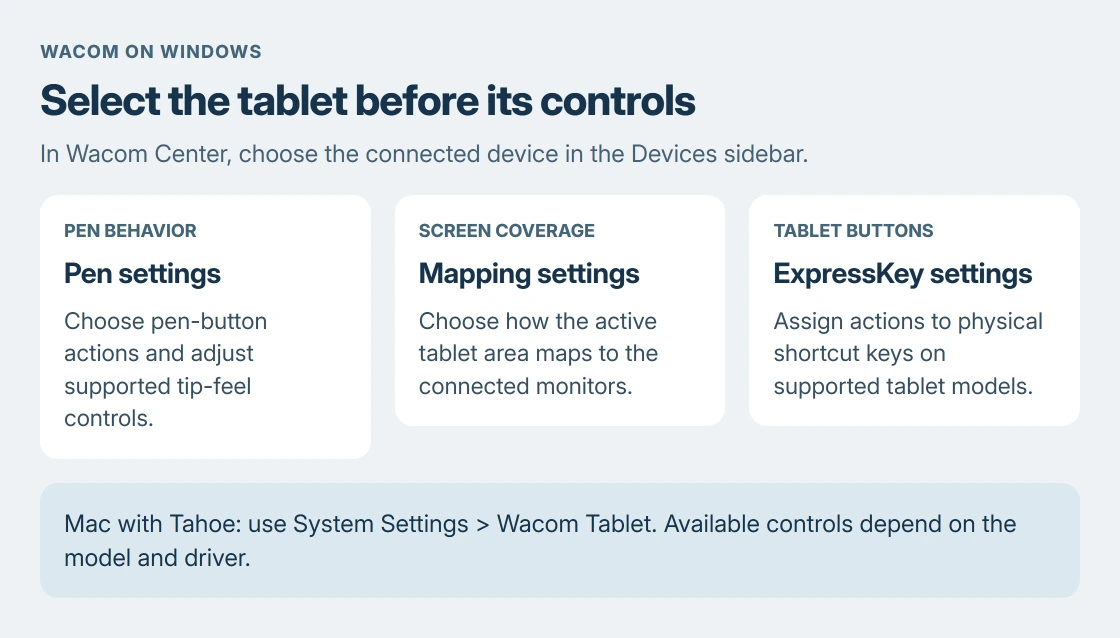
If Wacom Center is easier to find, open that instead. Select the connected tablet in its Devices sidebar, then choose Pen settings or the relevant settings link. Wacom documents that route to the applicable properties tab.
Status: Wacom's opening and device-customization guides, its macOS Tahoe notice and Microsoft's pen-settings page checked 24 October 2026. No tablet settings changed.
The device name is the useful checkpoint. With several Wacom devices connected, select the one being adjusted before changing its tools. Available controls vary with the device and pen.
For a model that uses another Wacom settings interface, follow the links offered for that model. An absent legacy properties window does not by itself establish a broken driver.
On a Mac, use the route for its driver and macOS version
Wacom's older properties guide names System Preferences > Wacom Tablet. That menu belongs to the older Mac interface; current macOS uses a different settings layout.
For macOS 26 Tahoe, Wacom's current driver notice directs users to Apple menu > System Settings > Wacom Tablet for tablet settings.
Wacom says Tahoe support requires a device supported by driver 6.4.11 or newer. Check the driver's compatible-products list before installing it; an old tablet does not become compatible merely because the installer downloads.
The same notice says to keep Wacom Center for tasks such as updates, registration and bundled software. Opening Center and opening the tablet's settings panel can therefore be separate tasks on this Mac version.
Wacom also reports that some Tahoe settings windows may not respond to the pen after installation. Use a mouse or trackpad to operate those windows. That documented limitation does not establish that the tablet failed.
Choose the control that matches the adjustment
Wacom's device-customization guide separates pen behavior, screen mapping and hardware buttons. Pick the relevant entry instead of changing unrelated settings together.
| Task | Setting to look for on a supported device |
|---|---|
| Change pen-button actions or tip feel | Pen settings |
| Choose how the tablet area maps to monitors | Mapping settings |
| Adjust pen-to-cursor alignment on a pen display | Pen calibration |
| Assign the tablet's physical shortcut buttons | ExpressKey settings |
| Change movement between connected screens | Display toggle settings |
A tablet without ExpressKeys will not gain them from a settings change. Likewise, pen calibration is a device-specific option. Missing hardware features can explain missing settings without a repair.
Change the intended control, then test its action in the application being used. For a button assignment, press that button. For screen mapping, move the pen across the active tablet area and check the chosen display.
If the result is wrong, return to the same control and restore its prior selection before adjusting another category.
Keep Wacom controls separate from Windows pen settings
Microsoft documents Pen & Windows Ink under Bluetooth & devices in Windows 11 Settings. Its Windows pen guide covers Windows-level preferences such as the writing hand and supported shortcut-button actions.
That page is separate from Wacom's own pen and ExpressKey configuration. Searching Windows for tablet settings can also lead to a touch-screen utility rather than the Wacom driver.
For finger taps landing on the wrong external screen, the Windows touch-display assignment procedure addresses that pairing. Wacom pen mapping should be adjusted through the tablet's supported controls.
An unwanted keyboard is another separate branch. The Windows keyboard-popup guide distinguishes the touch keyboard from the accessibility keyboard and their respective switches.
If the device or settings panel will not appear
Confirm the tablet is connected using its model's instructions. In Wacom Center, look for the device first. If it appears but behaves unusually, the customization guide provides Help & support > Driver check to check for driver errors.
Use About in the same support area to record the driver version. Take the exact tablet model, operating system and error message to Wacom support if the panel remains unavailable.
On Tahoe, use Wacom's linked permission instructions when the panel opens but the pen cannot control the pointer. Its guidance treats that separately from an error opening the settings panel itself.
Apple documents the Input Monitoring permission under Privacy & Security in System Settings. Its input-monitoring guide explains what the permission allows; follow Wacom's instructions for the required driver entry.
The Short Version
Select the tablet in its Wacom utility and open the relevant settings category. Use the Mac route for the installed system and driver. Wacom configuration is separate from Windows pen preferences and touch-screen assignment.

Isaac Smith is the founder and editor of PC Glance, a website that covers computers, laptops, and technology. He is a tech enthusiast and a computer geek who loves to share his insights and help his readers make smart choices when buying tech gadgets or laptops. He is always curious and updated about the latest tech trends.